Click My activities in the menu, then click an activity to open the editor. The title, save state, Preview and Assign are in the top bar. Add question, Create with AI, Theme and Documents are under the Outline on large screens; on smaller screens they are in the menu that opens with the ☰ button.
This page covers the activity as a whole. For the settings of each question, see Question settings.
Editor
| Setting | What it does | Default | Plans/limits |
|---|---|---|---|
| Activity title | The name of the activity, shown to you and to your students. Type it in the top bar (at the top of the page on phones). | New activity. If you clear it, it is saved as Untitled activity. | All plans. Up to 200 characters. |
| Save state | Shows Saving, Saved, Unsaved or Save failed next to the title. | Changes save automatically a moment after you make them, and before you leave the page. | All plans |
| Save | Saves now. You do not need it, but it is there if you want to be sure. | — | All plans |
| Preview | Saves your changes, then shows the activity as a student sees it. See the table below. | — | All plans |
| Assign | Saves your changes and opens Assign to a class. Pick a class to set it up there. With no classes yet, click New class. | — | All plans |
| Outline | Lists every question and content block. Click one to jump to it. Drag to reorder, or select one and press Alt + Up arrow or Alt + Down arrow. Shows the number of questions and total points. | — | All plans |
| Add question | Adds a question or content block at the end. Pick a type from the list. | — | All plans. Every question type is on every plan. |
| Create with AI | Adds AI-written questions at the end of the activity. See AI and report settings. | — | Uses one AI generation from your monthly allowance. |
| Theme | How the activity looks to students: colour, font and cover image. See the table below. | Indigo, default font, no cover | All plans |
| Documents | Files and links students see inside every assignment of this activity, in every class. | None | Storage depends on your plan. See Share documents. |
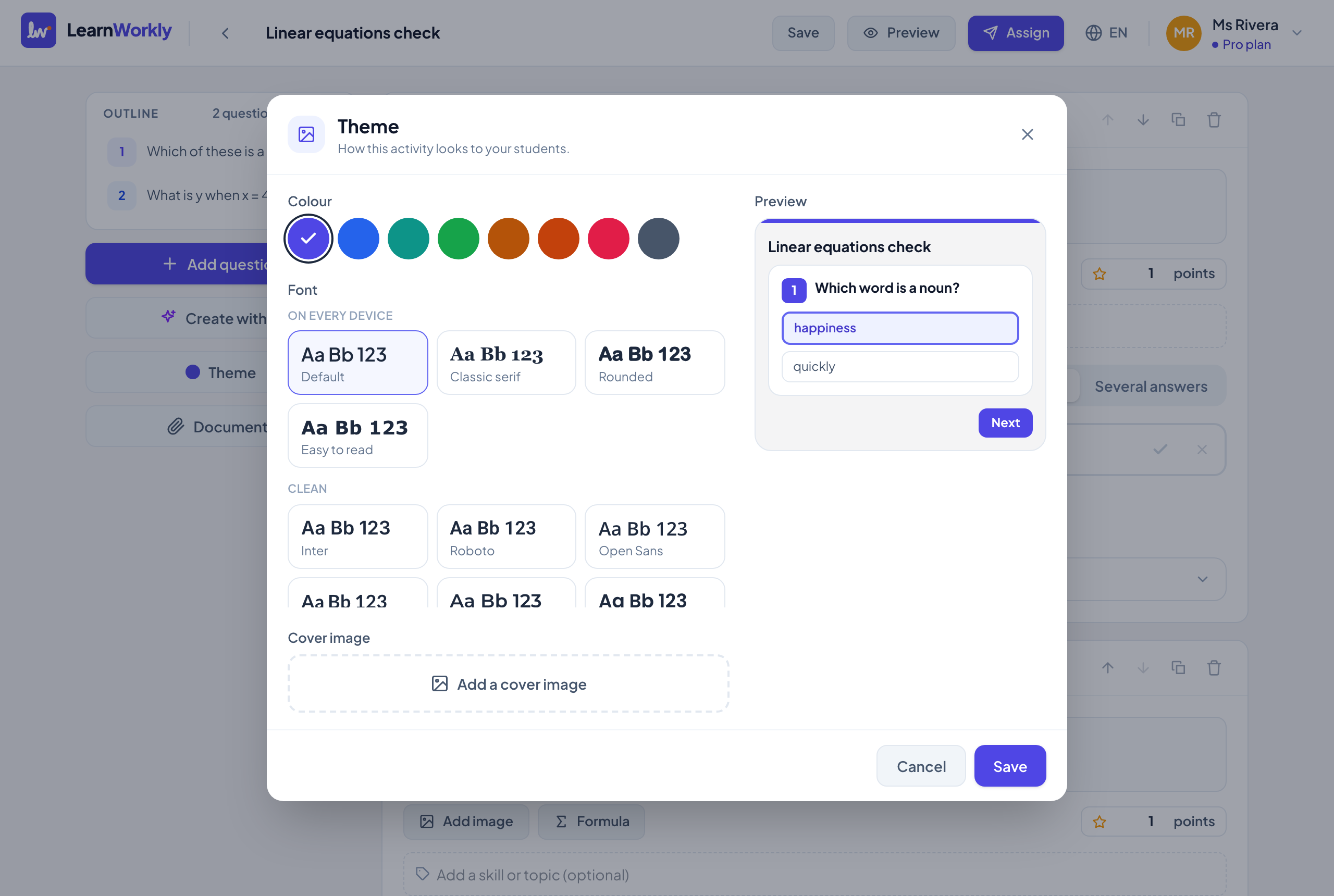
Theme
| Setting | What it does | Default | Plans/limits |
|---|---|---|---|
| Colour | The accent colour of buttons, question numbers and selected answers on the student screen. Choose Indigo, Blue, Teal, Green, Amber, Orange, Rose or Slate. | Indigo | All plans |
| Font | The font of the activity on the student screen. On every device: Default, Classic serif, Rounded, Easy to read. Clean: Inter, Roboto, Open Sans, Lato, Montserrat, Poppins, Be Vietnam Pro. Friendly and easy to read: Nunito, Lexend, Atkinson Hyperlegible, Andika, Comic Neue. Serif: Merriweather, Playfair Display. | Default | All plans |
| Cover image | A picture at the top of the activity. Click Add a cover image, then Change or Remove it later. Large pictures are scaled down for you. | No cover | All plans. Pictures only. |
| Preview | A small phone-sized view of the student screen with your choices. | — | All plans |
| Save / Cancel | The theme is saved only when you click Save. Cancel or Escape closes the dialog without changes. | — | All plans |
Preview as a student
| Setting | What it does | Default | Plans/limits |
|---|---|---|---|
| Phone / Computer | Shows the student screen at phone size or computer size. | Phone | All plans |
| Open in a new tab | Opens the same preview in its own browser tab. | — | All plans. The preview link works for one hour. |
| Answering | You can answer like a student. Nothing you answer is saved. | — | All plans |
On My activities
| Setting | What it does | Default | Plans/limits |
|---|---|---|---|
| Create activity | Creates an empty activity and opens it in the editor. | Title New activity | All plans |
| Create with AI | Creates a whole activity from a description or your material. See AI and report settings. | — | Uses one AI generation. |
| Import → Form link | Paste a Link to a public form and click Import questions. Questions, options and text are imported into a new activity; add the correct answers afterwards. | — | All plans. The form must be shared with anyone who has the link. |
| Import → Slides (PDF) | Choose a PDF of your slides and click Import slides. Each page becomes an image block in a new activity named after the file. | — | All plans. Up to 50 MB and 60 pages. |
| Duplicate (three-dot menu) | Makes a copy named “(copy)” with the same questions and theme, and opens it. | — | All plans |
| Delete (three-dot menu) | Removes the activity from My activities after you confirm. Results of classes it was assigned to are kept. | — | All plans |
Frequently asked questions
Does Duplicate copy the documents of the activity?
No. A copy gets the questions and the theme. Share the documents with the copy again from its Documents button.
How long does a preview link work?
One hour. Click Preview again for a new one. Preview and Assign always save your latest changes first.
Last checked against the app on 11 November 2026.
Related articles
- Build and organise activitiesAdd and reorder questions, mark skills, add hints and explanations, preview as a student, and duplicate or import activities to save time.
- Question settingsSettings every question has in the editor: required, points, image, formula, skills, hint, explanation, rubric, photos, and move, duplicate and delete.
- Assignment settingsEvery option when you assign an activity or edit an assignment: mode, due date, late work, time limit, attempts, scores, answers, pass mark and emails.
- Create questions with AIDescribe a topic or upload a worksheet, PDF or photo, and get editable questions with answers. See how many AI generations each plan includes.