You choose these settings when you assign an activity to a class. Open Classes, click the class and use the Assign an activity card: pick the activity in Choose an activity…, choose a mode, then click Options. From the activity editor, Assign opens Assign to a class; clicking a class takes you to the same card with the activity already chosen.
Once an assignment is running, open it and press Settings at the top of the live view (on a phone: the ☰ menu, then Assignment settings). The same options open in a dialog; press Save to apply them.
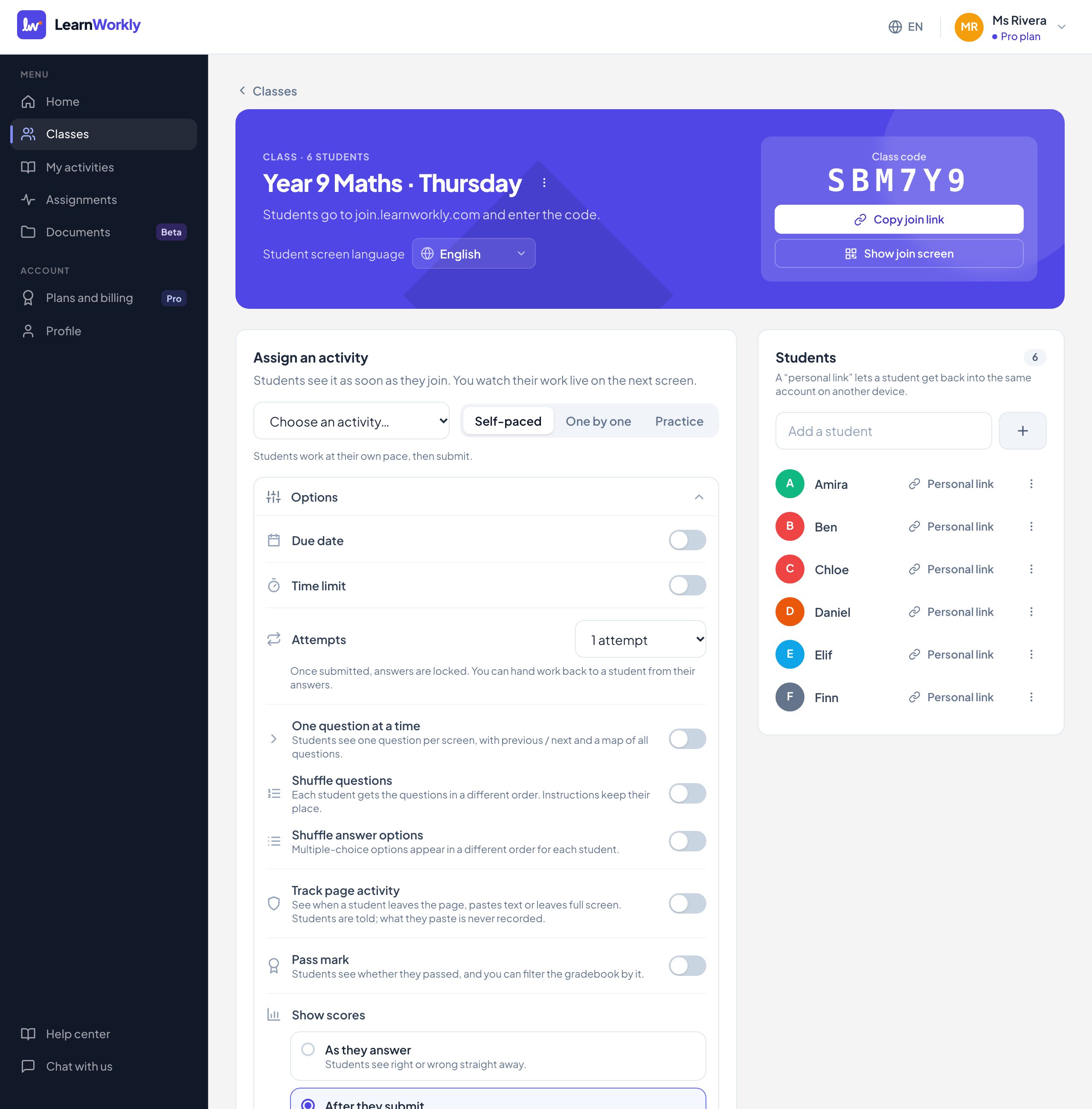
Assign an activity
| Setting | What it does | Default | Plans/limits |
|---|---|---|---|
| Choose an activity… | The activity to assign. Each one shows its number of items. | None | All plans |
| Self-paced | Students work at their own pace, then submit. All the options below are available. | Selected | All plans |
| One by one | You move through the questions and the whole class sees the same one. See Running the lesson. | Off | All plans |
| Practice | Self-study between lessons: flashcards and a quiz with instant answers, as often as students like. Not graded, and there are no options to set when assigning. See Practice. | Off | All plans |
| Options | Opens the settings below. When closed, it shows a summary, for example the due date, the time limit and the number of attempts. | Closed | All plans |
| Assign and watch live | Creates the assignment and opens its live view. Students see it as soon as they open the class. | All plans |
Due date, time and attempts (Self-paced only)
| Setting | What it does | Default | Plans/limits |
|---|---|---|---|
| Due date | Shown to students. Once it has passed, students who have not started show as Missing. If you pick a date in the past you see This date has already passed. | Off. When you turn it on: 23:59, seven days from today | All plans |
| Accept late work | On: students can still submit after the due date and the work is marked late. Off: after the due date they can no longer change or submit their work. | On | All plans. Only shown with a due date |
| Late penalty | Taken off the total score of work submitted after the due date: None, −5%, −10%, −20%, −25% or −50%. | None | All plans. Only shown when late work is accepted |
| Time limit | Minutes per attempt. The timer starts when the student presses Start, and work is submitted automatically when time runs out. | Off. When you turn it on: 30 minutes | All plans. 1 to 600 minutes |
| Attempts | How many times a student can submit. Each new attempt starts blank; the last attempt counts and earlier ones are kept in the history. | 1 attempt | All plans. 1, 2, 3, 5, 10 or Unlimited |
Layout and order
| Setting | What it does | Default | Plans/limits |
|---|---|---|---|
| One question at a time | Students see one question per screen, with previous / next and a map of all questions. Self-paced only. | Off | All plans |
| Shuffle questions | Each student gets the questions in a different order. Instructions (content blocks) keep their place. Self-paced only. | Off | All plans |
| Shuffle answer options | Multiple-choice options appear in a different order for each student. Self-paced and One by one. | Off | All plans |
Results, tracking and emails
| Setting | What it does | Default | Plans/limits |
|---|---|---|---|
| Track page activity | Records when a student leaves the page, pastes text or leaves full screen. Students are told; what they paste is never recorded. Self-paced only. See Activity tracking. | Off | All plans |
| Pass mark | Percentage of the total score needed to pass. Students see whether they passed, and you can filter by it. Self-paced and One by one. | Off. When you turn it on: 60% | All plans. 1 to 100% |
| Certificate for students who pass | Students who pass can download a PDF with their name, the activity and the score. Turning the pass mark off turns this off too. See Pass marks and certificates. | Off | All plans. Needs a pass mark |
| Show scores | As they answer: right or wrong straight away. After they submit: once a student submits. When I release them: hidden until you press Release results or close the assignment. | After they submit | All plans |
| Email students | Emails about the new assignment, new feedback and a reminder the day before it is due. Only to students and parents whose email you saved with permission. See Reminders. | On | All plans. Due-date reminders: Solo, Pro and Academy |
| Show correct answers | Shows the right answers together with scores, once a student has no attempts left, or when you release results or close the assignment. | On | All plans |
What each email setting sends
- New assignment: to students with a saved email, for Self-paced assignments only.
- New feedback: to students with a saved email, at most once a day per assignment.
- Due-date reminder: in the 24 hours before the due date, to students who have not submitted and to their parents. Only for assignments set more than a day before the due date, on Solo, Pro and Academy.
- Parents never receive a student’s personal link.
Frequently asked questions
Which options does One by one have?
Shuffle answer options, Pass mark (with the certificate), Show scores, Email students and Show correct answers. There is no due date, time limit or attempts, because you decide when to move on. With After they submit, students see their scores when you close the assignment.
Can I switch between Self-paced and One by one after assigning?
Yes. Use Student-paced and One by one on the live view. A Practice assignment stays Practice.
What happens with only one attempt?
Once a student submits, their answers are locked. You can hand the work back from their answer on the live view with Hand back.
Last checked against the app on 11 November 2026.
Related articles
- Set homework with a due dateAssign an activity as homework with a due date, late work rules, a time limit and a number of attempts, and decide when students see their scores.
- Live view controlsEvery control on the live view of an assignment: views, pace, hide names, filters, grading, downloads, results, documents, the join screen and settings.
- Homework emails and remindersWhich emails students and parents get about homework: new assignments, new feedback and a reminder the day before it is due, and only with permission.
- Pass marks and certificatesSet a pass mark on an assignment so students see whether they passed, filter the gradebook by it, and give a PDF certificate to students who pass.