Click Documents in the menu. The library page has the upload, link, search and bulk tools. Click a document to open its own page, with Details, Shared with, Who opened it and File information. Documents is in beta.
Library page
| Setting | What it does | Default | Plans/limits |
|---|---|---|---|
| Upload files | Uploads one or more files. You can also drop files anywhere on the page. Each file shows its progress and can be cancelled while it uploads. | — | Any file except programs and web pages. Storage and the largest file size depend on your plan. |
| Add a link | Adds a Link with an optional Title (optional). YouTube videos play on the page, picture links show the picture, other links open in a new tab. | Title taken from the video or page if empty | All plans. See Links and videos. |
| Search | Search by name, description or tag. Press / to jump to it. | Empty | All plans |
| Type | Shows only one type of document. | All types | All plans |
| Folders | Shows one folder, or Not in a folder. | All folders | All plans |
| Tags | Shows documents with one tag. | All tags | All plans |
| Status | Shared, Not shared yet, or Shared, not opened yet. | Any status | All plans |
| Sort | Newest first, Oldest first, Name A–Z or Largest first. | Newest first | All plans |
| Select all / tick boxes | Selects documents so you can Share, Move or Delete several at once. | Nothing selected | All plans |
| Three-dot menu | Share with students, Move to folder or Delete one document. | — | All plans |
| Storage used | Shows how much of your plan’s storage you use. Get more space appears when you are over 80%. | — | Depends on your plan |
One document
| Setting | What it does | Default | Plans/limits |
|---|---|---|---|
| Title | The name you and your students see. | The file name, or the title of the video or page | All plans. Up to 200 characters, required. |
| Description | What it is and how students should use it. Students see it. | Empty | All plans. Up to 5,000 characters. |
| Folder | Puts the document in a folder. Type a new name or pick one you used before. Leave empty for no folder. | No folder | All plans. Up to 80 characters. |
| Tags | Short labels separated by commas, such as grammar, B1. | No tags | All plans. Up to 20 tags. |
| Save | Saves the title, description, folder and tags. It is active only when something changed. | — | All plans |
| Students can download | Off: students view the file on the page only. On: they can also download it. Not shown for links. | On | All plans. Always on for files a browser cannot show, such as Word or zip files. |
| Share | Opens Share with students. See the next table. | — | All plans |
| Download / Open link | Downloads the file, or opens the link in a new tab. | — | All plans |
| Replace file | Uploads a new version. Every place it is shared keeps working; the old file is listed under Earlier versions with its own download button. Version shows the current number. | — | All plans. Not for links. Earlier versions count towards your storage. |
| Delete | Hides the document after you confirm. Students no longer see it anywhere it was shared. | — | All plans. See Your documents library. |
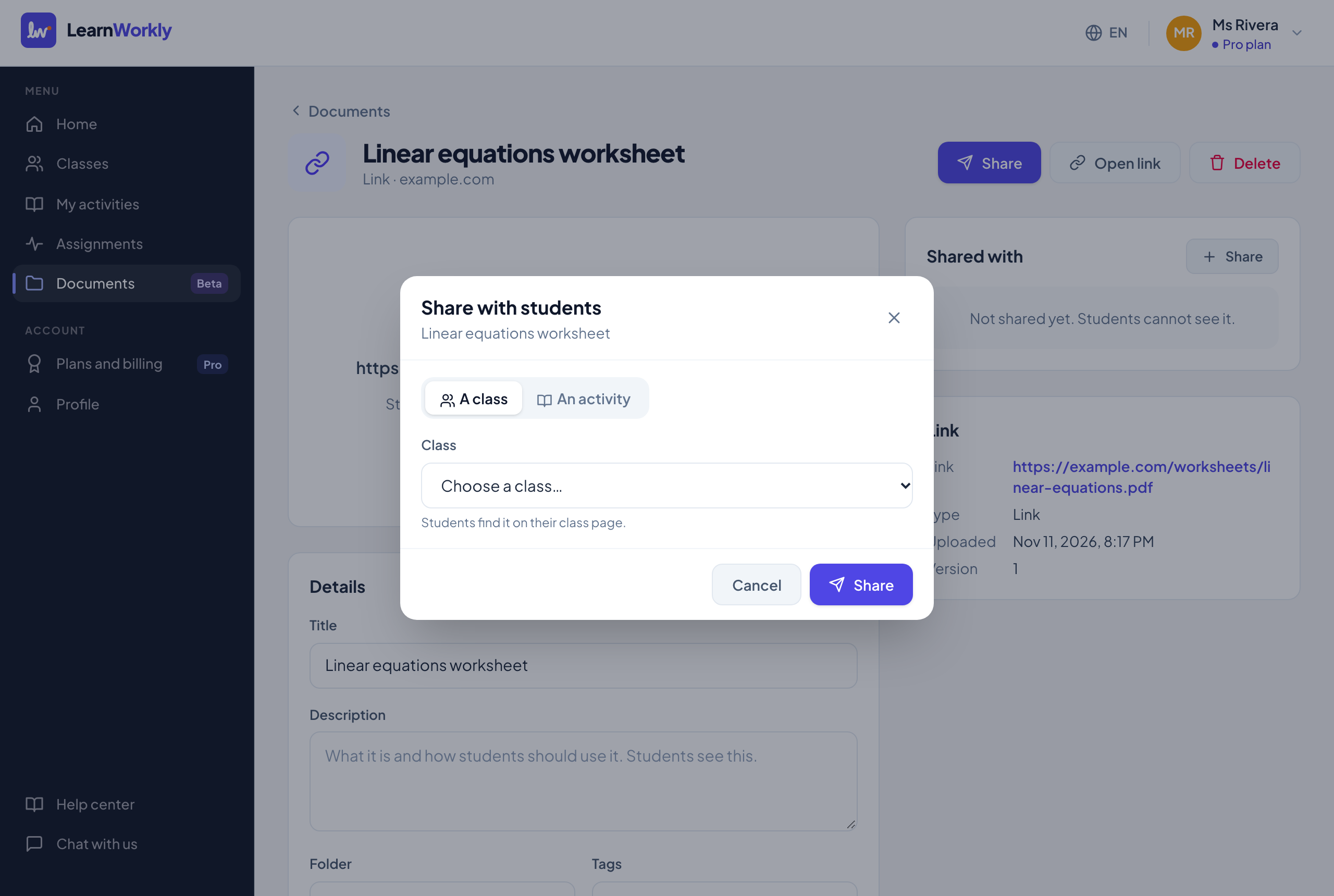
Share options
| Setting | What it does | Default | Plans/limits |
|---|---|---|---|
| A class / An activity | Where to share. A class: students find it on their class page. An activity: students see it inside every assignment of that activity, in every class. | A class (or An activity if you have no classes yet) | All plans |
| Class / Activity | Pick the class or activity from the list. | None | All plans |
| Who can see it | Whole class, or Some students with a tick box for each student. With Whole class, students who join later see it too. | Whole class | All plans. Only for a class or one assignment, not for an activity. Choose at least one student. |
| Show from a date | Hides the document from students until the date and time you set, for example answers after the due date. | Off. When you turn it on, it starts at the same time tomorrow. | All plans |
| Who sees it (on the document page) | Changes the students and the date of one place it is shared. | — | All plans |
| Stop sharing | Removes the document from that place after you confirm. The file stays in your library. | — | All plans |
| Remind n students who have not opened it | Under Who opened it, emails the students of a class who can see it but have not opened it. | — | Solo, Pro and Academy. Only students with an email you have permission to use; at most once a day per document. |
Frequently asked questions
Can I change who sees a document after sharing it?
Yes. Open the document and, under Shared with, click Who sees it for that place. You can change the students and the date.
How do I move many documents into a folder?
Tick them in the library, click Move, type or pick a Folder and click Move. Leave the field empty to take them out of their folder.
Why can I not turn off Students can download?
For files a browser cannot show, such as Word, slides or zip files, students can only open the file by downloading it, so the switch stays on.
Last checked against the app on 11 November 2026.
Related articles
- Your documents libraryUpload worksheets, slides, pictures, audio and video once, then organise them with folders and tags and keep an eye on how much space you use.
- Share documents and see who opened themShare a document with a class, a few students, an activity or one assignment, choose when it appears, see who opened it and remind the rest.
- Add YouTube videos, pictures and linksAdd a YouTube video, a picture or any web page to your documents with a link, and share it with students like a file, without uploading anything.
- Assignment settingsEvery option when you assign an activity or edit an assignment: mode, due date, late work, time limit, attempts, scores, answers, pass mark and emails.