Open My activities and click an activity to edit it. On large screens the Outline is on the left; on smaller screens it is in the menu that opens with the ☰ button.
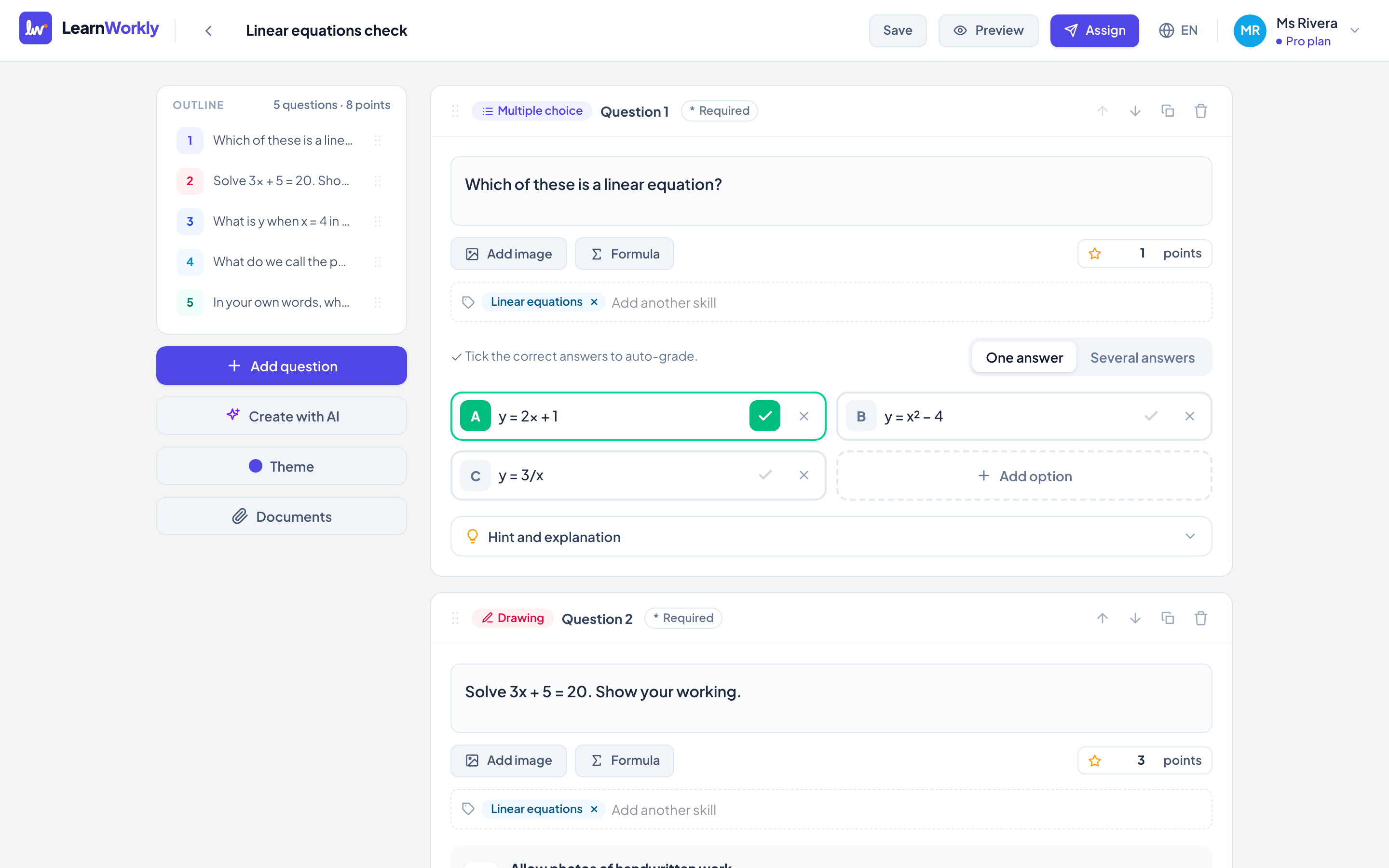
Tools on each question
| Tool | What it does |
|---|---|
| Required | Students must answer it before submitting |
| Move up / Move down | Moves the question one place |
| Duplicate | Adds a copy right below, a quick way to write similar questions |
| Delete | Removes the question. Student answers to it are deleted too |
| Add image | Adds a picture to the question |
| Formula | Inserts a maths formula into the question text |
| points | How many points the question is worth |
Reorder questions
Drag a question in the Outline to a new place. With a keyboard, select a question in the outline and press Alt + Up arrow or Alt + Down arrow. Click a question in the outline to jump to it.
Skills
Under each question, type in Add a skill or topic (optional), for example "Present perfect" or "Fractions". A question can have up to 5 skills. Skills you have used before are suggested. They are used to show each student’s progress By skill on the student page.
Hints and explanations
Open Hint and explanation on a question. The hint is a nudge that does not give the answer away: students can open it, and you see who did. The explanation is shown with the correct answer. Write with AI drafts both for you to check (it uses one AI generation).
Preview as a student
- 1
Open the preview
Click Preview in the top bar. Your changes are saved first.
- 2
Switch devices
Choose Phone or Computer, or click Open in a new tab.
- 3
Try it
Answer the questions as a student would. Check answers marks them and shows the answer key. Nothing is saved.
Save time
- Duplicate a whole activity: on My activities, open the three-dot menu of an activity and choose Duplicate, for example to make a version for another level.
- Import on My activities: paste a Form link to a public online form to import its questions (add the correct answers afterwards), or import Slides (PDF), where each page becomes an image block.
- Create with AI: see Create questions with AI.
- Documents in the editor attaches worksheets, slides or a video that students see inside every assignment of this activity: see Documents.
Frequently asked questions
What happens if I delete an activity?
It is removed from My activities. Results of classes it was assigned to are kept.
Do I need to click Save?
No. Changes save automatically a moment after you make them, and before you leave the page. Save is there if you want to be sure.
How do I give the activity a different look?
Click Theme in the editor to choose a Colour, a Font and a Cover image for how this activity looks to your students.
Last checked against the app on 11 November 2026.
Related articles
- The 13 question typesWhat each of the 13 question types is for, which ones LearnWorkly marks automatically and which ones you mark yourself, with partial credit where it applies.
- Create your first activityBuild a short activity with a few questions, from multiple choice to drawing, or let AI draft it, then preview it as a student before assigning.
- Set homework with a due dateAssign an activity as homework with a due date, late work rules, a time limit and a number of attempts, and decide when students see their scores.