AI can draft a whole activity or add a few questions to the activity you are editing. Either way you get normal questions that you can change, and nothing reaches students until you assign it.
Create a whole activity
- 1
Open the dialog
On My activities or Home, click Create with AI.
- 2
Describe it
Under What should students practise?, write the topic, level, age and focus, for example "Present perfect vs past simple for B1 adults, everyday situations".
- 3
Add material (optional)
Under Your material (optional), add worksheets or notes.
- 4
Choose the settings
Pick the Question types, the Number of questions and the Language of the activity, then click Create activity.
- 5
Review it
It usually takes one to three minutes. When it is ready, the new activity opens. You can also close the window and keep working: a notice tells you when the activity is ready, with an Open activity button.
Add questions to an activity
- 1
Open the dialog in the editor
In the editor, click Create with AI.
- 2
Describe the questions
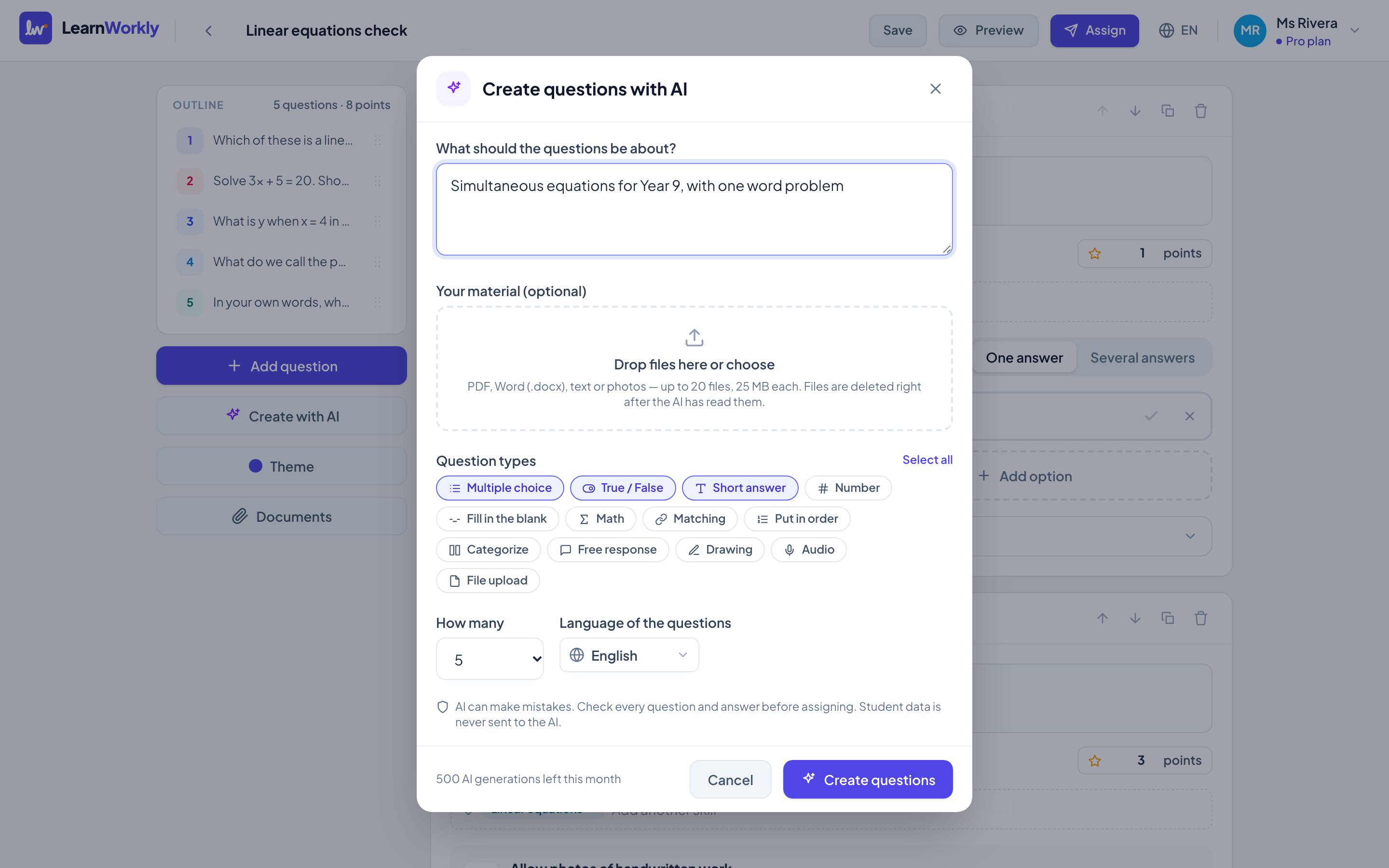
Fill in What should the questions be about?, and add material if you like.
- 3
Create them
Choose the Question types, How many and the Language of the questions, then click Create questions. They are added at the end of the activity.
Turning a worksheet into questions
Add PDF, Word (.docx), text files or photos: up to 20 files, 25 MB each. If you add files and leave the description empty, the exercises in your files are turned into questions as they are. Add a description if you want new questions based on your material instead.
Your files are deleted right after the AI has read them.
AI generations per month
| Plan | AI generations |
|---|---|
| Free | 20 |
| Solo | 200 |
| Pro | 500 |
| Academy | Agreed in your contract |
What counts as one generation
- Each click on Create activity or Create questions, however many questions you ask for.
- Each click on Write with AI under Hint and explanation.
- Each AI draft of a parent progress report.
- Runs that fail are not counted. The allowance starts again at the beginning of each calendar month.
Frequently asked questions
How do I see how many generations I have left?
At the bottom of both AI dialogs, for example "18 AI generations left this month".
Can the AI write questions in another language?
Yes. Pick any of the 18 languages in Language of the questions or Language of the activity. It does not have to match the language of your app.
Can I edit what the AI writes?
Yes. AI questions are ordinary questions: change the text, answers, points and skills, or delete the ones you do not want.
Last checked against the app on 11 November 2026.
Related articles
- Build and organise activitiesAdd and reorder questions, mark skills, add hints and explanations, preview as a student, and duplicate or import activities to save time.
- The 13 question typesWhat each of the 13 question types is for, which ones LearnWorkly marks automatically and which ones you mark yourself, with partial credit where it applies.
- Plans and billingCompare the Free, Solo, Pro and Academy plans, pay monthly or yearly, switch or cancel in one click, and learn how refunds and currencies work.