Every class has a built-in video lesson. Students join it from their class page, with no extra app and no meeting link, and keep working on their activity beside you. Video lessons are included in every plan: a lesson holds every student your plan allows, plus you.
Start the lesson
- 1
Open the class
Go to Classes and open the class you are teaching.
- 2
Click Start a live lesson
In the class header, click Start a live lesson. Choose whether your Microphone and Camera start on, then click Start.
- 3
Students join
Students see Your teacher started a live lesson on their class page and tap Join lesson. Students who are already in an activity see the same invitation at the top of it.
- 4
Assign the work
Assign an activity as usual. Open the live view to watch answers arrive while you talk: the video lesson stays open as you move between pages.
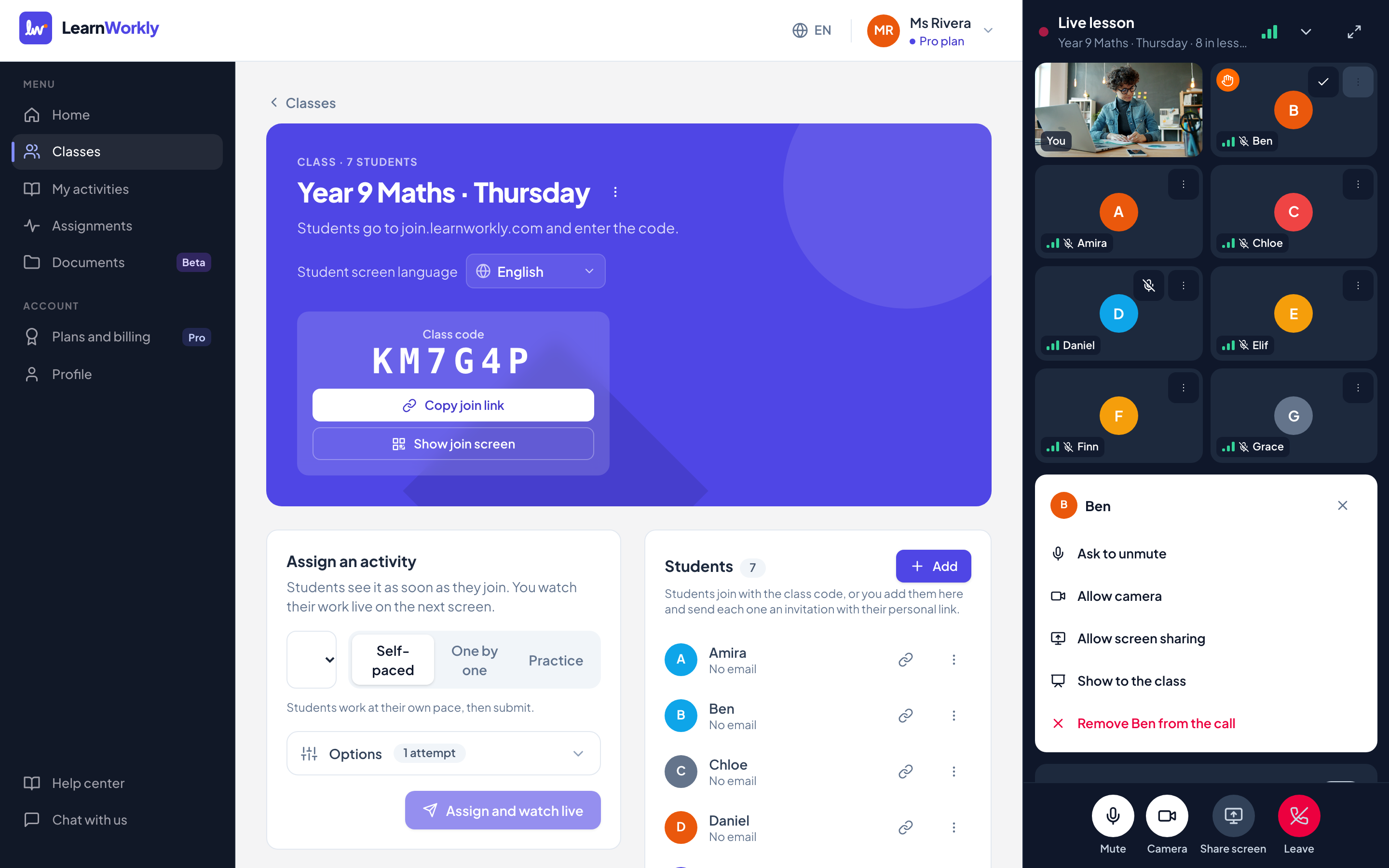
The lesson window
On a computer the lesson sits on the right of the page and the page makes room for it. Click Minimise to fold it into a small bar in the corner, or Full screen to see every student at a larger size. On a tablet or phone it folds into a bar at the bottom of the screen; tap the bar to open it.
Each student has a tile with their name, a signal indicator for their connection and a microphone icon. A raised hand shows an orange hand on the tile and puts the student at the top of the list. In a big class, use Previous page and Next page to move through the tiles.
Controls for the whole class
| Control | What it does |
|---|---|
| Students can turn on cameras | Off by default. Turn it on to let every student use their camera. Turning it off switches student cameras off straight away. |
| Mute everyone | Mutes every student. They can unmute again when you ask them to speak. |
| Share screen | Shares a screen, window or tab from your computer. Students see it big, with your camera in a corner. Press Stop screen sharing to end it. |
| End the lesson for everyone | Closes the lesson for the whole class. Leave only takes you out; the lesson ends by itself if you are away for more than 10 minutes. |
Controls for one student
| Option | What it does |
|---|---|
| Mute | Mutes the student straight away. |
| Ask to unmute | Sends the student an invitation to unmute. They choose whether to accept. |
| Allow camera / Lock camera | Lets this student use their camera even when cameras are off for the class, or locks it again. |
| Ask to turn on camera | Invites a student who is allowed a camera to turn it on. |
| Turn off camera | Switches the student’s camera off and locks it. |
| Allow screen sharing / Stop screen sharing | Lets the student share their screen from a computer, or stops it at once. |
| Show to the class | Shows this student’s camera (or shared screen) big to everyone, with their name. Press Stop showing to go back to you. |
| Remove … from the call | Takes the student out of the lesson. They cannot rejoin it. |
Open these options with the ⋯ button on the student’s tile.
Privacy
Only you and the students of the class can join. Students start muted, and their cameras stay off until you allow them. Students see you, how many people are in the lesson and the name of a classmate only while that classmate speaks or is shown to the class. A student’s camera reaches only you unless you show them to the class. Lessons are never recorded and there is no attendance list.
Frequently asked questions
Can I share my screen from a tablet or phone?
No. Phone and tablet browsers do not allow screen sharing, so the Share screen button only appears on a computer. Everything else works on tablets and phones.
What happens when a student’s connection is weak?
Their device lowers the picture quality, then keeps the sound and pauses the video if it has to, and shows them a short notice. It goes back up by itself. You see their connection on the signal indicator of their tile.
What if I reload the page or my connection drops?
The lesson keeps running. Open the class again and click Rejoin the live lesson; students see and hear you again within a few seconds.
Does it work on school or office networks?
Usually yes: when a network blocks direct connections, the lesson goes through a secure relay that looks like normal web traffic.
Last checked against the app on 13 November 2026.
Related articles
- Join a video lesson as a studentHow students join their teacher’s video lesson, use the microphone and camera, raise a hand, share a screen when allowed and fix sound or video problems.
- See every answer liveStart a live lesson from a class, watch each student’s answers and drawing appear as they work, and hide names before you share your screen.
- Run the lesson and wrap it upLead the class question by question, check Insights to see what to reteach, mark answers, download the results and close the assignment at the end.