Video lessons
Teach, talk and see the work in one window
Start a video lesson from any class. Students tap Join on their class page, with no extra app, no account and no meeting link to send. They see and hear you next to their questions, and you see their answers come in while you talk.
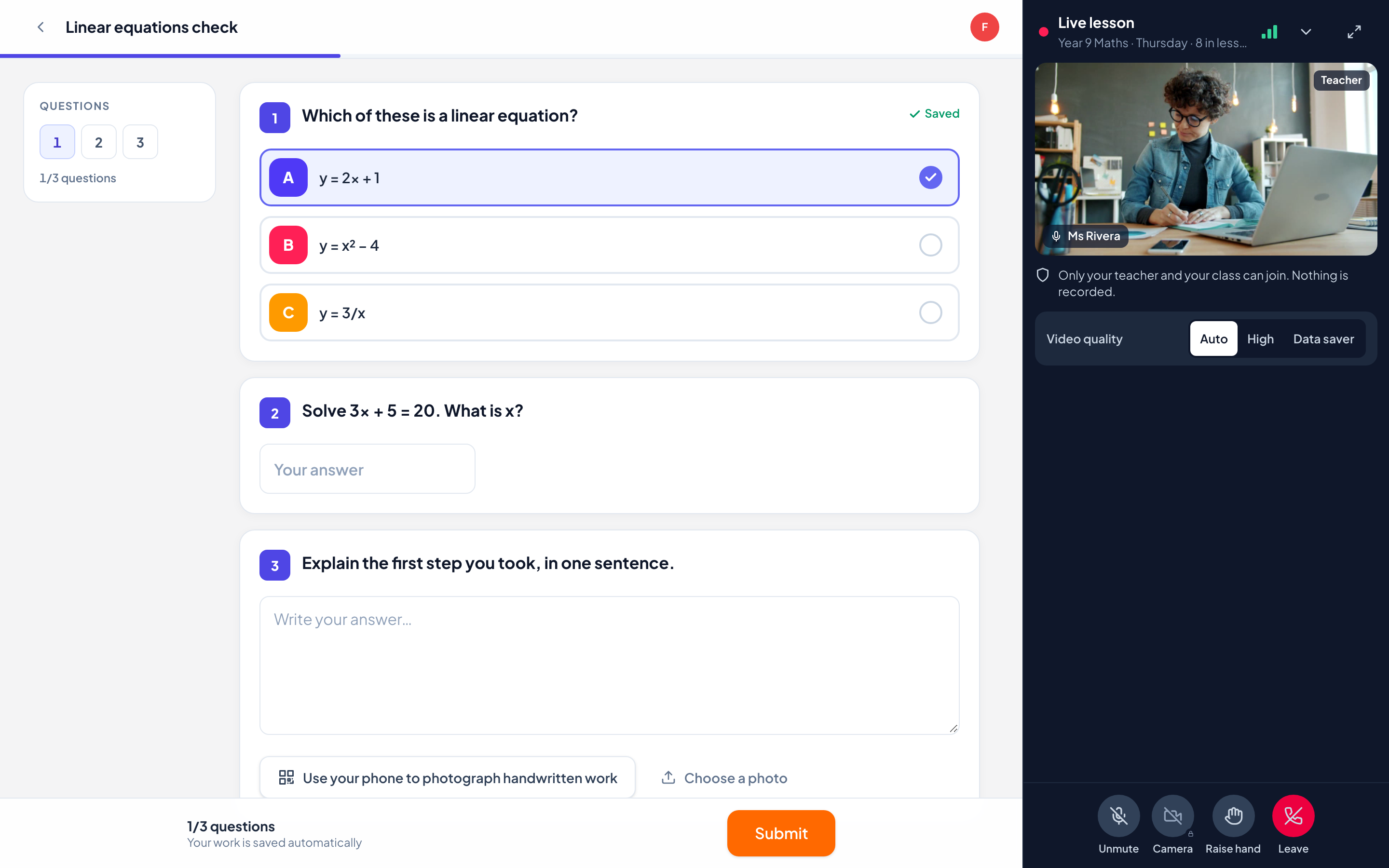
Next to the work, not instead of it
The lesson sits beside the activity on a laptop and folds into a bar at the bottom of a phone, so nothing covers the questions or the Submit button.
You run the room
Mute one student or everyone, allow or lock a camera, see raised hands, remove someone from the call. You can turn a microphone or camera off, but only invite a student to turn one on.
Share a screen, show one student
Share your screen from a computer, let a student share theirs, or show one student’s camera or screen big to the whole class. That student always sees a notice while it happens.
Private by default
Students join muted with cameras locked. Classmates see you, a head count and the name of whoever is speaking. Lessons are never recorded.
Smooth on weak connections
Each device picks the picture quality its connection can carry and drops to sound only when it must, then recovers by itself. It also works on networks that only allow web traffic.
In every plan
Video lessons are included in Free, Solo, Pro and Academy. A lesson holds every student your plan allows, plus you.
How it works
- 1
Open a class and click Start a live lesson.
- 2
Students tap Join on their class page, on any device.
- 3
Teach, share your screen and watch their answers arrive.
Frequently asked questions
Do students need to install anything?
No. Video lessons run in the browser on computers, tablets and phones. Students join from their class page with the class code or their personal link.
How many students can join?
As many as your plan allows students: the video lesson has no separate limit. On every plan you are included on top.
Are lessons recorded?
No. Nothing is recorded and there is no attendance list. We only keep when a lesson started and ended and how many minutes it used.
Can students share their screen?
Yes, from a computer, once you allow it for that student. Their screen is shown to the whole class and you can stop it at any time. Phone and tablet browsers cannot share a screen.
What if a student’s connection is poor?
Their device lowers the picture quality, then keeps the sound and pauses the video if it has to. It goes back up by itself when the connection improves.
Related features
Try it in your next lesson
Free for up to 10 students, with every question type. Set up your first activity in five minutes.
Free for up to 10 students · No credit card