This page is for students, and for teachers who want to know what students see. Joining needs no account and no app: you use the same page as for your class work.
Join the lesson
- 1
Open your class page
Use your class code at join.learnworkly.com or your personal link, as usual.
- 2
Tap Join lesson
When your teacher starts a lesson you see Your teacher started a live lesson. Tap Join lesson.
- 3
Check and join
You start muted. If your teacher has allowed cameras you can choose to turn yours on. Tap Join. The first time, your browser asks to use your microphone: allow it so you can speak when asked.
What you see
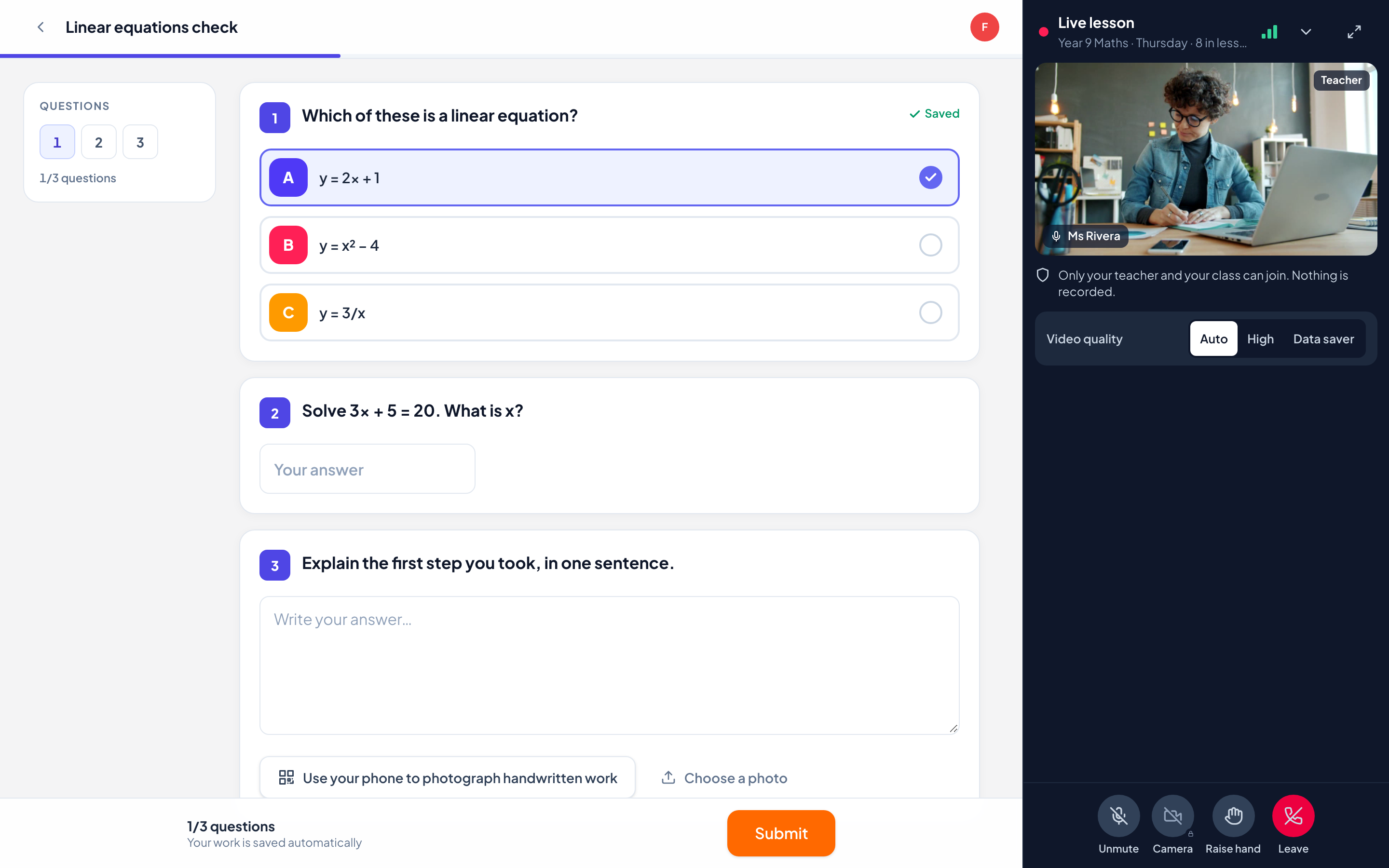
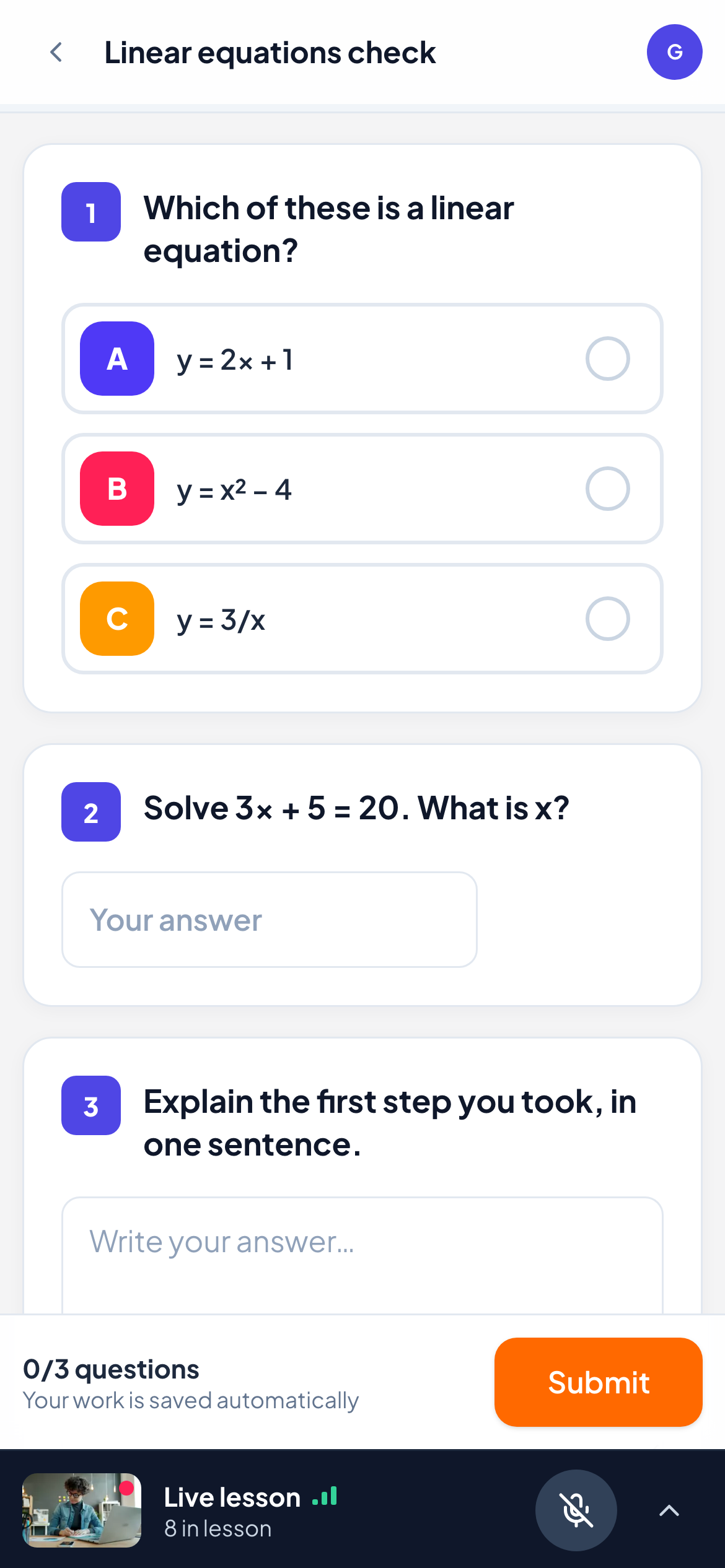
On a laptop or computer the lesson sits on the right and your work stays on the left. On a phone or tablet the lesson folds into a bar at the bottom of the screen, so your questions and the Submit button are never covered. Tap the bar to open the lesson, and the arrow to fold it away again.
You see your teacher, how many people are in the lesson and the name of a classmate while they speak. When your teacher shows a classmate or a shared screen to the class, it appears big in the middle.
Your buttons
| Button | What it does |
|---|---|
| Unmute / Mute | Turns your microphone on or off. Your teacher can mute you, and can invite you to unmute: you decide. |
| Camera | Turns your camera on or off, when your teacher allows cameras. A lock means cameras are not allowed yet. |
| Raise hand | Shows your teacher that you want to speak. Tap Lower hand when you are done. |
| Share screen | Appears on a computer when your teacher allows you to share. Your screen is shown to the whole class. |
| Video quality | Auto adapts to your connection, High keeps the picture sharp, Data saver uses less data and sound only when the lesson is folded away. |
| Leave | Leaves the lesson. You can join again from your class page while it is running. |
Frequently asked questions
I cannot hear my teacher.
Check your device volume and that the browser tab is not muted. On a phone, make sure silent mode is not blocking sound. If it still does not work, leave the lesson and join again.
My teacher cannot hear me.
Make sure you are unmuted, then check that your browser is allowed to use the microphone (the camera or microphone icon in the address bar). Allow it and tap Unmute again.
The video stopped but I can still hear.
Your connection is weak, so the video pauses to keep the sound going. It comes back by itself when the connection improves. Data saver also stops the video while the lesson is folded away.
Is the lesson recorded?
No. Nothing is recorded.
Last checked against the app on 13 November 2026.
Related articles
- Teach a video lesson with your classStart a video lesson from a class, manage microphones and cameras, share your screen, show one student to the class and end the lesson for everyone.
- Invite students to a classStudents join with the class code, a join link or a QR code, with no account. Personal links bring a student back to their own work on any device.