Students never create an account or a password. They need your class code and a name. Everything below is on the class page: open Classes and click the class.
Four ways to bring students in
| Way | Where to find it | Best for |
|---|---|---|
| Class code | The Class code box on the class page, and at the top of the live view | Saying it out loud or writing it on your board: students go to join.learnworkly.com and type it |
| Join link | Copy join link on the class page | Sending in a message or email: the code is already filled in |
| QR code | Show join screen on the class page or in the live view | Sharing your screen at the start of a lesson: students scan it with a phone camera |
| Personal link | Personal link next to each name in the Students list | One student, on any device, always back to the same work |
What a student does
- 1
Open the join page
They go to join.learnworkly.com, open your join link or scan the QR code.
- 2
Enter the code and a name
Under Join your class, they type the Class code (already filled in from a link or QR code) and Your name, then tap Join.
- 3
Start working
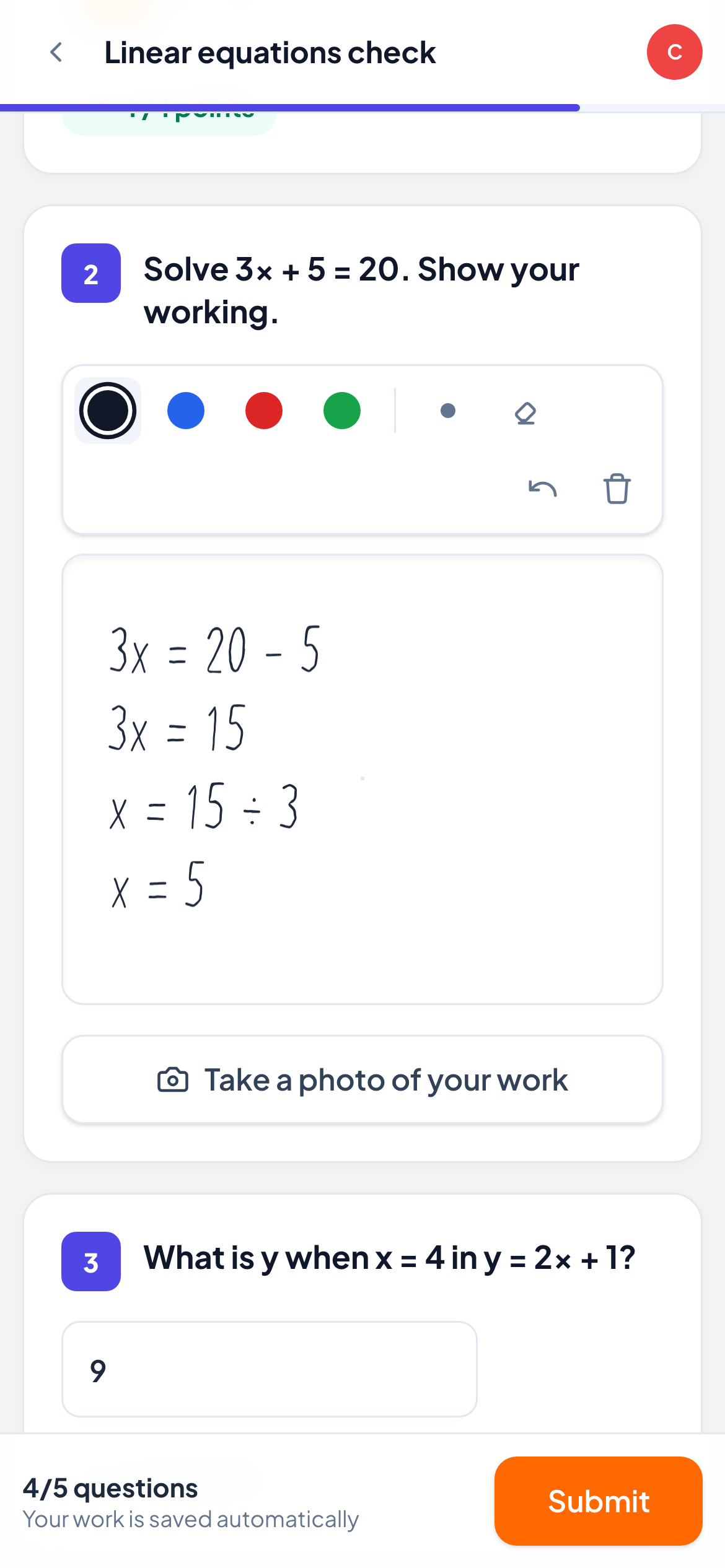
They see what you have assigned to the class. If only one assignment is open, it opens straight away.
Personal links
Each student has a personal link. Opening it signs them straight back in as themselves, with all their earlier work, on any device. Students can also copy their own link from their class page with Copy your personal link to come back on another device.
To set students up before the first lesson, type each name in Add a student on the class page, then click Personal link next to the name to copy it and send it to that student.
Frequently asked questions
A student sees "This class is full. Please ask your teacher."
Your plan’s student limit is reached: 10 students on Free, 50 on Solo, up to 1,000 on Pro, counted across all your classes. Remove students who have left, or see Plans and billing.
Two students share a tablet. How do they switch?
On the student’s class page, tap Not you? Sign out. The next student then joins with the code or opens their personal link.
Do students need an email address?
No. Email addresses are optional and only used if you want to send emails to an adult student or a parent. See Emails to students and parents.
Last checked against the app on 11 November 2026.
Related articles
- Manage classes and studentsRename or delete a class, add, rename or remove students, and open a student’s page to see their scores, skills and contact details.
- Run your first live lessonAssign an activity to a class, let students join with the code, and watch every answer and drawing arrive on your screen as they work.
- See every answer liveStart a live lesson from a class, watch each student’s answers and drawing appear as they work, and hide names before you share your screen.