Homework in LearnWorkly is a Self-paced assignment with the options you need: a due date, rules for late work, an optional time limit and the number of attempts. Students work in their own time and submit; you follow their progress on the same live view you use in lessons.
Assign homework
- 1
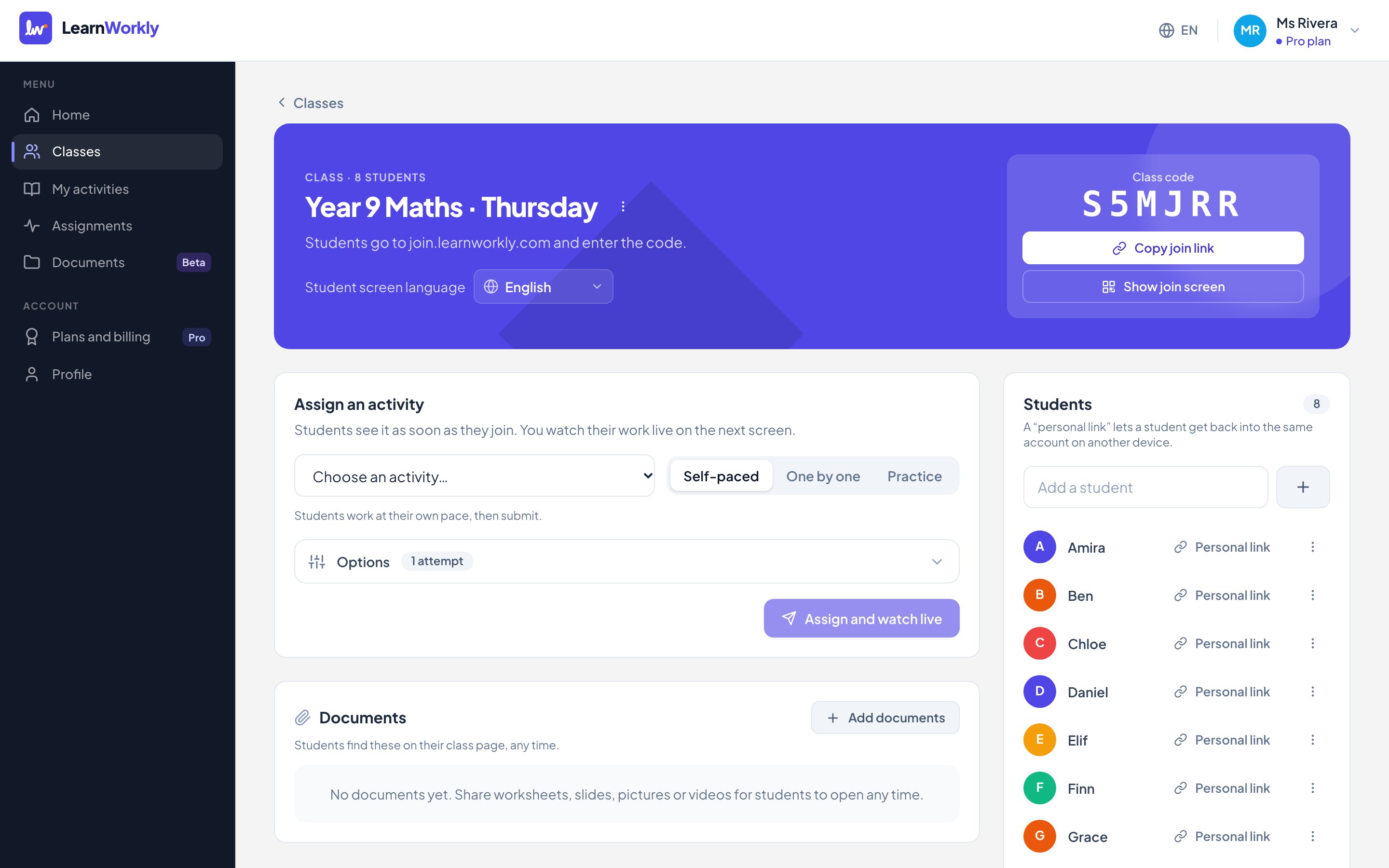
Open the class
Go to Classes, open the class and find Assign an activity.
- 2
Pick the activity
Choose the activity in Choose an activity… and keep Self-paced selected.
- 3
Open the options
Press Options. Turn on Due date: it starts at 23:59 one week from today and you can change the date and time.
- 4
Set the rules
Choose whether to Accept late work, add a Time limit if you want one, and choose the number of Attempts. The other options are explained below.
- 5
Assign
Press Assign and watch live. Students see the homework as soon as they open the class, and students with a saved email address get an email.
Homework options
| Option | What it does |
|---|---|
| Due date | Shown to students. After it passes, students who have not submitted show as Missing on your live view. |
| Accept late work | On (the default): students can still submit after the due date and the work is marked late. Off: after the due date students can no longer change or submit their work. |
| Late penalty | When late work is accepted: None, or 5, 10, 20, 25 or 50% taken off the score of work submitted after the due date. |
| Time limit | From 1 to 600 minutes. The timer starts when the student presses Start and keeps running if they leave. Work is submitted automatically when time runs out. |
| Attempts | 1, 2, 3, 5, 10 or Unlimited. Each new attempt starts blank; the last attempt counts and earlier ones are kept in the history. |
| Show scores | As they answer, After they submit (the default) or When I release them. |
| Show correct answers | Shown together with scores, once a student has no attempts left, or when you release results. |
| Pass mark | Students see whether they passed. You can also offer a Certificate for students who pass. |
| One question at a time, Shuffle questions, Shuffle answer options | Control how questions are laid out and ordered for each student. |
| Track page activity | Off by default. See Activity tracking. |
| Email students | Emails about new homework, new feedback and a reminder before the due date. See Reminders. |
What students see
Students see the due date, the late work rule and, when there is more than one attempt, which attempt they are on. With a time limit they first see how many minutes they have and a Start button. Their work is saved automatically, and they press Submit when they are done. If they have attempts left they can press Try again.
Frequently asked questions
Can I change the due date after assigning?
Yes. Open the assignment and press Settings. Changes to the time limit apply to attempts started from then on.
A student submitted by mistake. Can they carry on?
Yes. Open their answer on the live view and press Hand back. They can change their answers and submit again; on timed homework the timer starts again. This is not possible once the due date has passed with late work off, unless you change the due date first.
How do I see who has not handed in?
Use the filters on the live view: Not started, Working, Submitted and, when there is a due date, Late.
Last checked against the app on 11 November 2026.
Related articles
- Homework emails and remindersWhich emails students and parents get about homework: new assignments, new feedback and a reminder the day before it is due, and only with permission.
- Return results to studentsDecide when students see their scores and the correct answers, release results to the whole class at once, and hand work back to a student to improve.
- Track page activity on homeworkAn optional setting that shows when a student leaves the page, pastes text or exits full screen during homework. Off by default and students are always told.
- Invite students to a classStudents join with the class code, a join link or a QR code, with no account. Personal links bring a student back to their own work on any device.