A progress report is a short letter to a parent about how a student is doing. You add a note of two or three lines, LearnWorkly writes a draft from the student’s real work in the period you choose, and you read and edit it before anything is sent. Progress reports are part of the Solo, Pro and Academy plans.
Write a report
- 1
Open the student
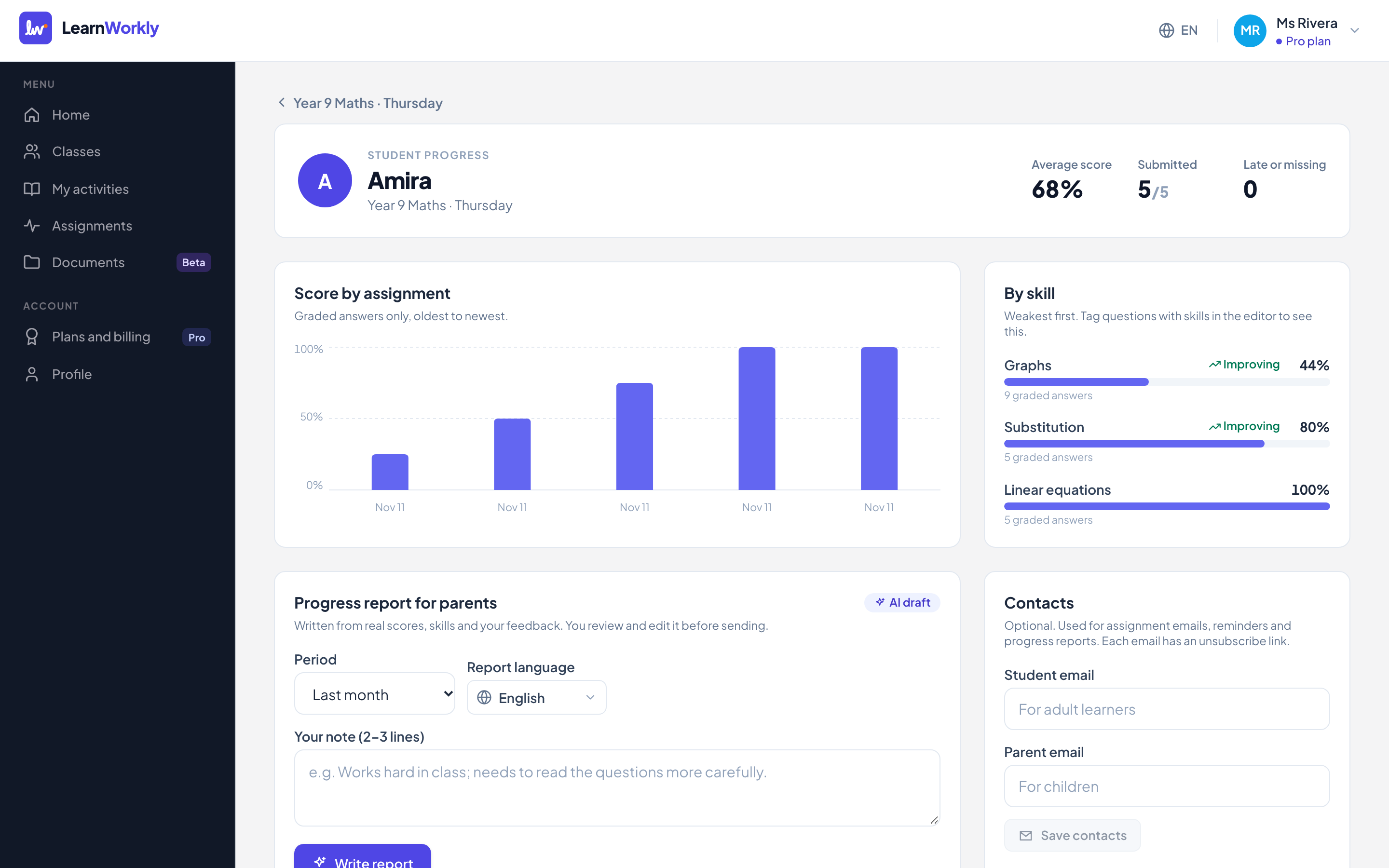
On the class page, click the student’s name in the Students list. The Progress report for parents card is below the charts.
- 2
Choose the period
Under Period, pick Last 2 weeks, Last month or Last 3 months.
- 3
Choose the language
Under Report language, pick the language the parent reads. It can be different from the language you use LearnWorkly in.
- 4
Add your note
In Your note (2–3 lines), write what only you know, for example how the student works in lessons and what to practise next.
- 5
Write the draft
Click Write report. After a few seconds the draft appears in a text box.
What the draft is based on
- The student’s scores in the period, and whether work was submitted and on time.
- Their skills, with the trend for each one.
- Your own feedback comments to the student in that period.
- Your note.
Edit and send
- 1
Edit the text
Change anything you like in the text box. Click Save draft to keep it for later.
- 2
Email it
Click Email to parent and confirm. The report goes to the parent email saved for this student, with an unsubscribe link.
- 3
Or copy it
Copy text puts the report on your clipboard, so you can send it any way you like.
Earlier reports
Every report you write is listed under Earlier reports with its period and whether it was Sent or is still a Draft. Click one to open it again. A report that has been sent cannot be edited or sent a second time; click New report to write another.
Frequently asked questions
Does the parent get a link to the student’s work?
No. Parents receive the text of the report only. They never receive the student’s sign-in link.
What if the student has no graded work in the period?
The draft can only use what exists. Choose a longer period, or grade the answers that are waiting, then write the report again.
Can I use reports with a group class?
Yes. Reports are written per student, so you can write one for each student in a group, each from their own work.
Last checked against the app on 11 November 2026.
Related articles
- Gradebook, scores and skillsSee every score for an assignment in the gradebook, download it as Excel or CSV, and follow each student’s progress by assignment and by skill.
- Emails to students and parentsAdd an adult student’s or a parent’s email with their permission to send new assignments, reminders, feedback alerts and progress reports.
- Privacy and your students’ dataWhat LearnWorkly stores about your students, who can see it, when emails are sent and how AI features use their work, in plain words.