Interactive questions
Ranking: put options in order and see the group's top pick
Rank options in order of preference.
Opens a demo in the app. No sign-up needed.
What is Ranking?
A Ranking slide asks each person to sort a list of options from most to least preferred. Instead of choosing a single favourite, participants drag every option into place on their phone, and the big screen combines all the answers into one ranked list. Options that more people place near the top score higher. It is a fair way to set priorities, pick a topic or compare ideas when a simple vote would hide how people feel about the second and third choices. There is no right answer: it is about preference.
Read the full guide to RankingOn the big screen
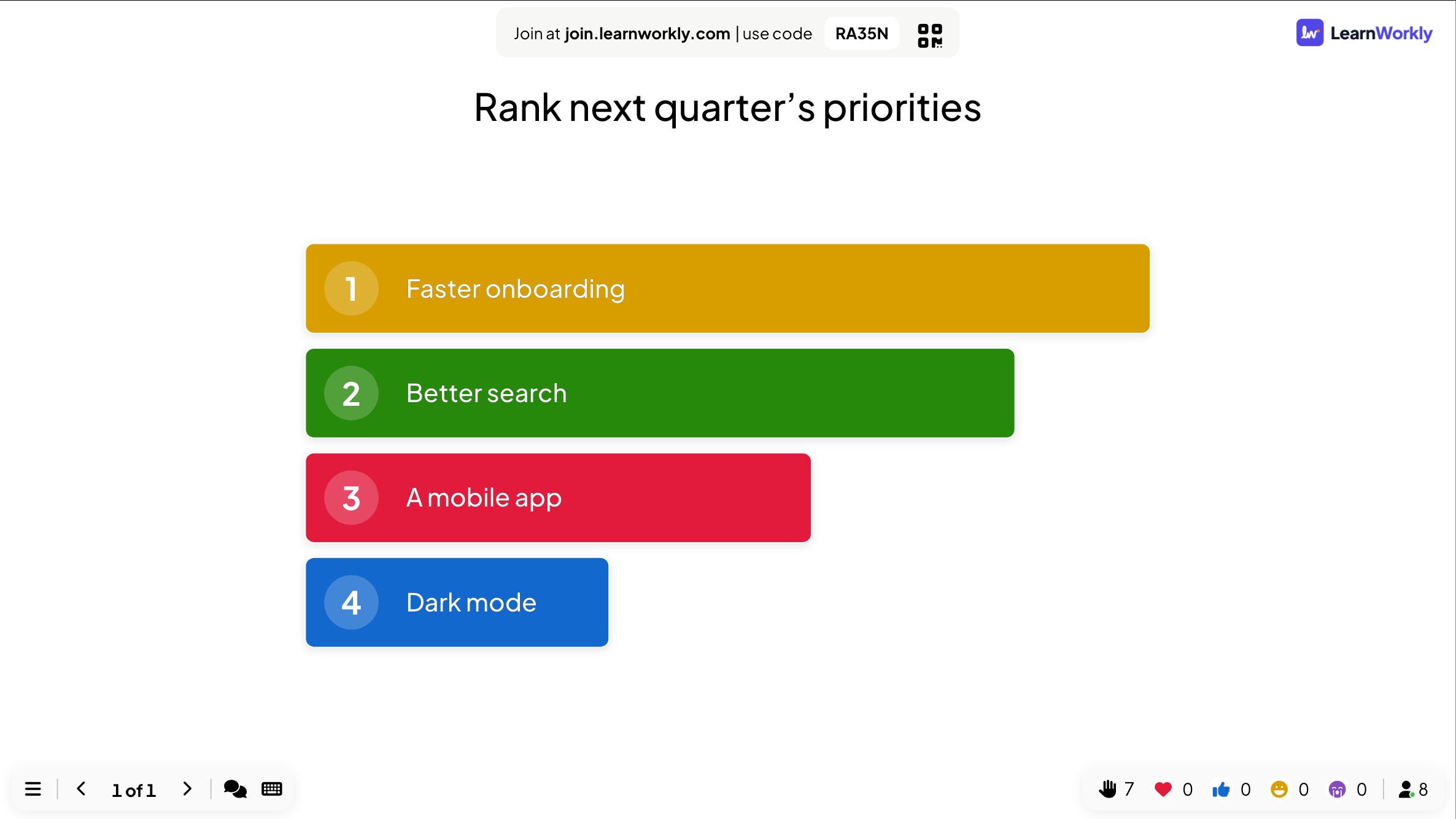
The options as numbered bars, sorted from the highest ranked to the lowest according to the whole room. The longer the bar, the higher the group placed it. The order updates as new answers arrive.
On phones
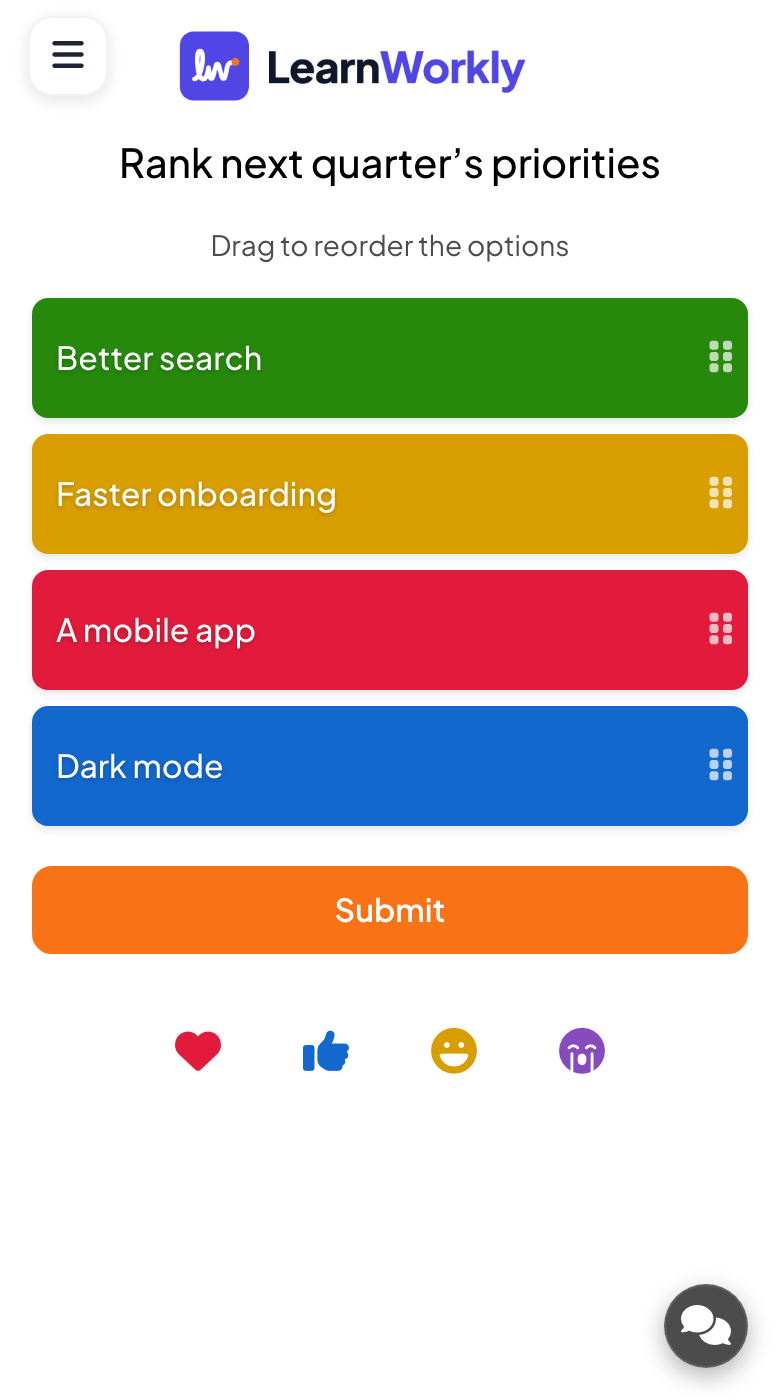
Phones show the options with a drag handle and the prompt to reorder them. Participants drag each option into their order, top first, and press Submit. The order they see is sent as it is, so they should drag first.
What you control
Add up to 9 options, each with its own colour and an optional image. Use Hide result to keep the order secret, a time limit, or Stop Submission to close the slide. The report shows each person's order under View Details.
Great for
Class priorities
Let students rank revision topics or project themes, and start with what the class placed first.
School teachersWorkshop decisions
Ask a group to rank possible solutions after a discussion so the follow-up starts with a clear shared list.
Trainers and L&D teamsRoadmap planning
Rank next quarter's priorities in a planning meeting and see which items the team agrees should come first.
Meetings and presentationsAudience choice at events
Let the crowd rank activities, songs or prizes and reveal the combined result on the big screen.
Events and team buildingRanking questions to try
Copy one into a Ranking slide, or use them as a starting point for your own.
Play it live- 1
Rank these revision topics from most to least confusing.
- 2
Rank next quarter's priorities for the team.
- 3
Which of these qualities matters most in a good leader?
- 4
Rank the causes of the First World War by importance.
- 5
Put these afternoon activities in the order you would enjoy them.
Run it in three steps
- 1
In the editor, click + New Slide and pick Ranking. Change the sample content to your own.
- 2
Click Present. People join on their phones with the code or QR code on the screen.
- 3
Answers appear on the big screen as people send them, and stay in the report afterwards.
Ranking: frequently asked questions
How is the combined ranking calculated?
Each option scores more when people place it higher in their list. The big screen adds up those scores from everyone who answered and sorts the options from the highest total to the lowest.
How many options can I rank?
Up to 9 options. Four to six are the easiest to drag into order on a small phone screen, so keep the list short when people will answer quickly during a live session.
Can I see how each person ranked the options?
Yes, after the session. In the report, the ranking slide shows the combined chart, and View Details lists the order each participant chose. The big screen itself only shows the combined result.
Can a ranking have a correct order?
No, a ranking only measures preference. If you want to score people on putting items in the right order, use the Puzzle quiz slide instead, which checks each answer against your order.
More activities like this
All activities
See it in your next session
Free for up to 10 live participants. No credit card, nothing for your audience to install.
Free for up to 10 participants · No credit card