Interactive questions
Live Q&A: take audience questions, sorted by upvotes
Participants ask questions and upvote their favourites.
Opens a demo in the app. No sign-up needed.
What is Q&A?
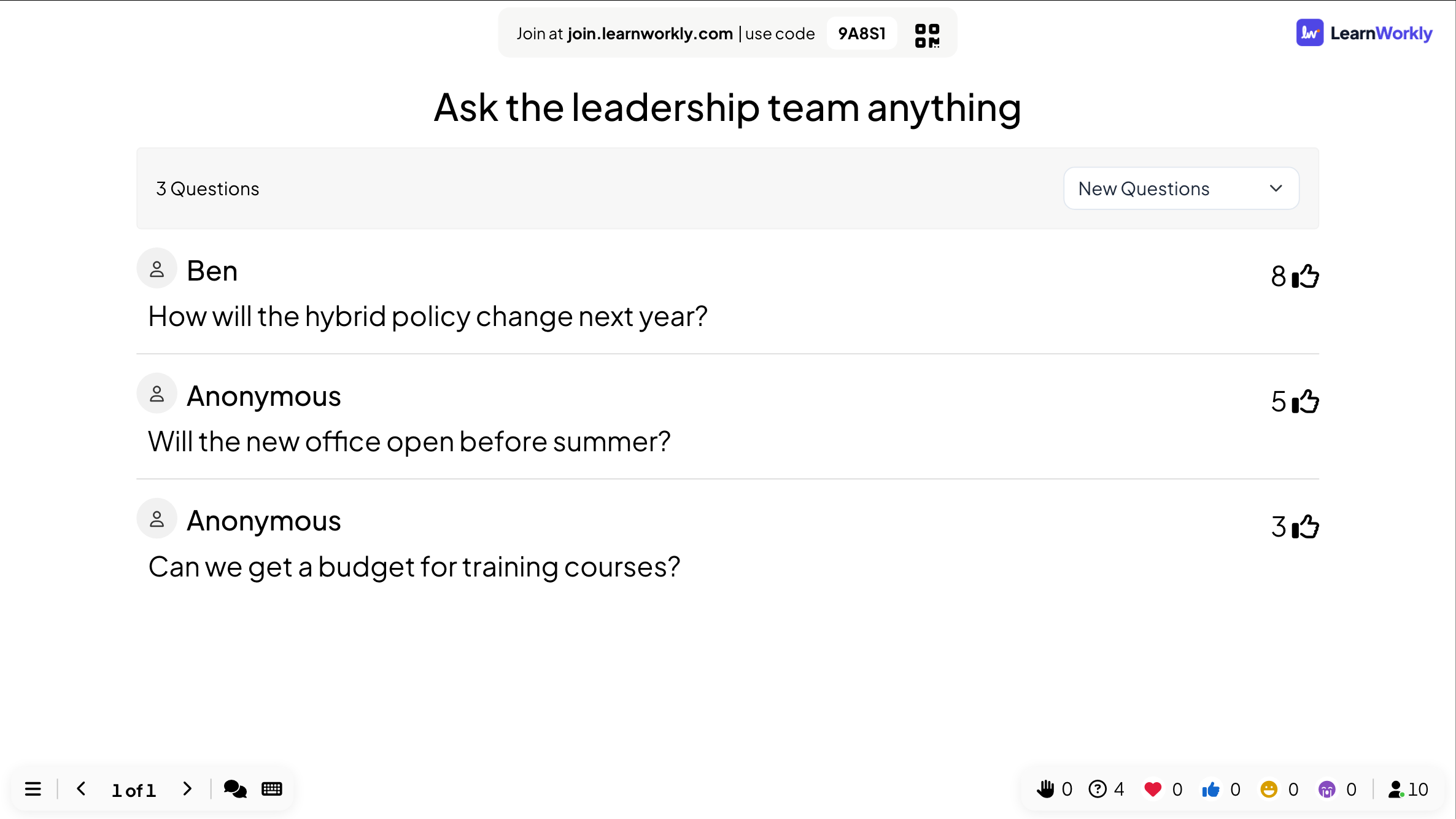
A Q&A slide gives your audience a place to ask questions from their phones while you present. Everyone can see the questions and upvote the ones they want answered, so the list on the big screen sorts itself by what the room cares about most. People can ask with their name or stay anonymous, which helps those who would never raise a hand. If you want control, turn on moderation and nothing appears on screen until you or a colleague approve it. You then mark each question as answered as you go.
Read the full guide to Q&AOn the big screen
Approved questions sorted by upvotes, with a count of questions and a filter for New Questions and Answered Questions. Click a question to show it large, and tick it once you have answered it.
On phones
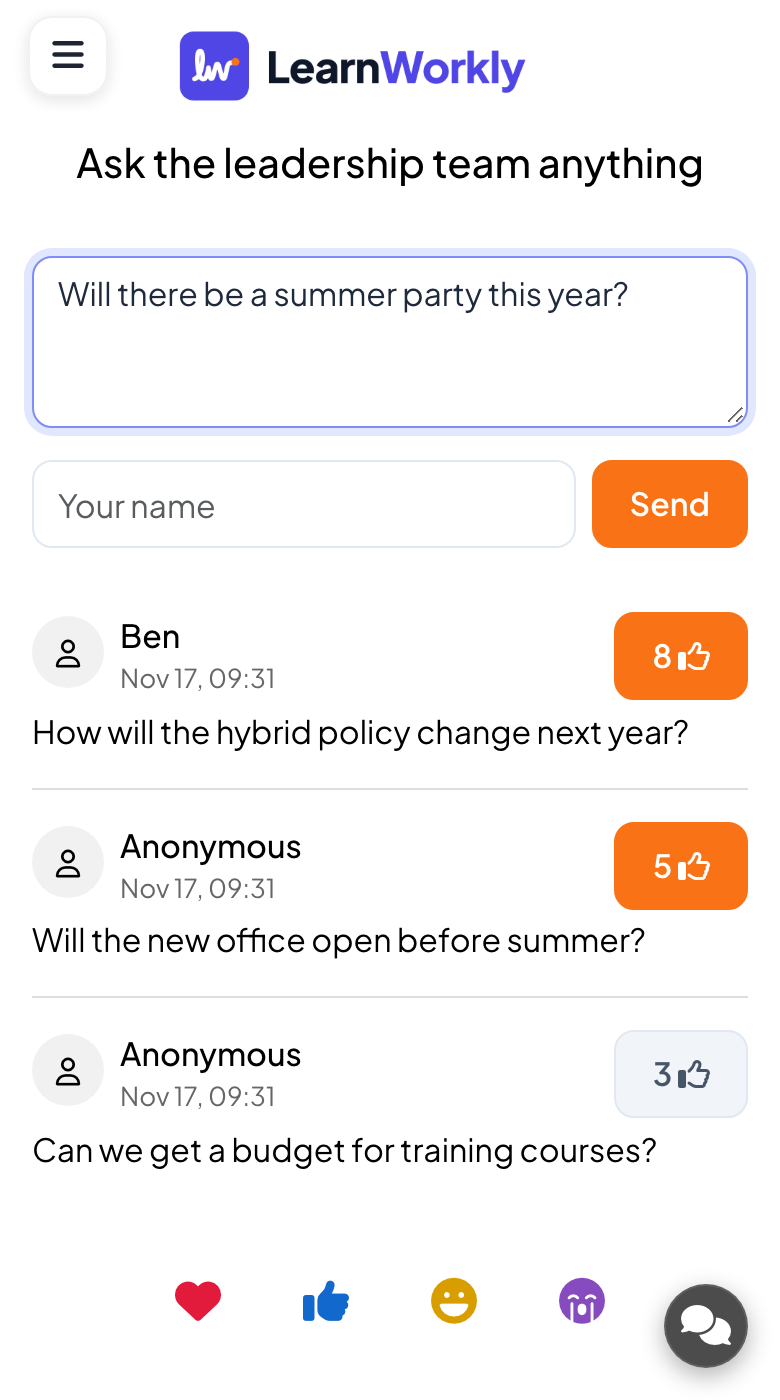
Participants type a question, add a name or stay Anonymous, and press Send. They tap a thumbs-up to upvote other questions and tap again to take the vote back. With moderation on, their question shows Pending approval.
What you control
Moderation Q&A in the presentation settings holds new questions until you approve them. The moderation view has Pending, Showing and Answered tabs, with approve, mark answered and delete buttons. A moderation link lets a colleague do this from their own device.
Great for
Lecture questions
Students ask without interrupting, and upvotes show which points most of the lecture hall wants explained again.
University lecturersAll-hands meetings
Collect questions for leadership, let the team upvote them and answer the most popular ones first.
Meetings and presentationsPanels and conferences
A colleague moderates from their own phone while the speaker answers the approved questions on stage.
Events and team buildingTraining sessions
Keep a running list of questions during a workshop and mark each one answered before the group moves on.
Trainers and L&D teamsWays to prompt good questions
Copy one into a Q&A slide, or use them as a starting point for your own.
Play it live- 1
What would you like me to explain again before the test?
- 2
What is the one question you would ask our CEO today?
- 3
What is still unclear about the new process?
- 4
Ask the panel anything about starting a career in this field.
- 5
What should we cover in the next session?
Run it in three steps
- 1
In the editor, click + New Slide and pick Q&A. Change the sample content to your own.
- 2
Click Present. People join on their phones with the code or QR code on the screen.
- 3
Answers appear on the big screen as people send them, and stay in the report afterwards.
Q&A: frequently asked questions
Can I moderate questions before they appear?
Yes. Turn on Moderation Q&A in the presentation settings. New questions wait under Pending until someone approves them, and the person who asked sees Pending approval on their phone until then.
Can audience members ask anonymously?
Yes. The name box is optional. Anyone who leaves it empty appears as Anonymous everywhere, on the big screen and in the report, so you only see a name when someone chose to type one.
Can a colleague moderate while I present?
Yes. Share the moderation link from the presentation settings. Your colleague approves, answers or deletes questions from their own device while you keep presenting, or you can use the Remote control panel yourself.
Do I need a Q&A slide to take questions?
No. With Questions are visible to everyone switched on in the presentation settings, phones get an Ask button on other slides too. Those questions are listed in the Q&A tab of the report with their upvotes.
More activities like this
All activities
See it in your next session
Free for up to 10 live participants. No credit card, nothing for your audience to install.
Free for up to 10 participants · No credit card