LearnWorkly keeps scores in two places. The Gradebook shows one assignment: every student, every question and their total. The Student progress page shows one student across all the work you have assigned to their class, with a score for each assignment and for each skill.
Open the gradebook for an assignment
- 1
Open the assignment
Go to Assignments (or to the class page, under Assigned to this class) and open the assignment you want to check.
- 2
Switch to Gradebook
Above the student list, choose Gradebook. By question shows the answers to one question at a time, and Insights shows how the class did as a whole.
- 3
Read the grid
Each row is a student and each column is a question (Q1, Q2…). A cell shows the points for that answer, or Grade when the answer is waiting for you. The last column is the total.
- 4
Open an answer
Click a cell to see the answer and give feedback. To mark everything still waiting, use Grade answers and LearnWorkly takes you from one answer to the next.
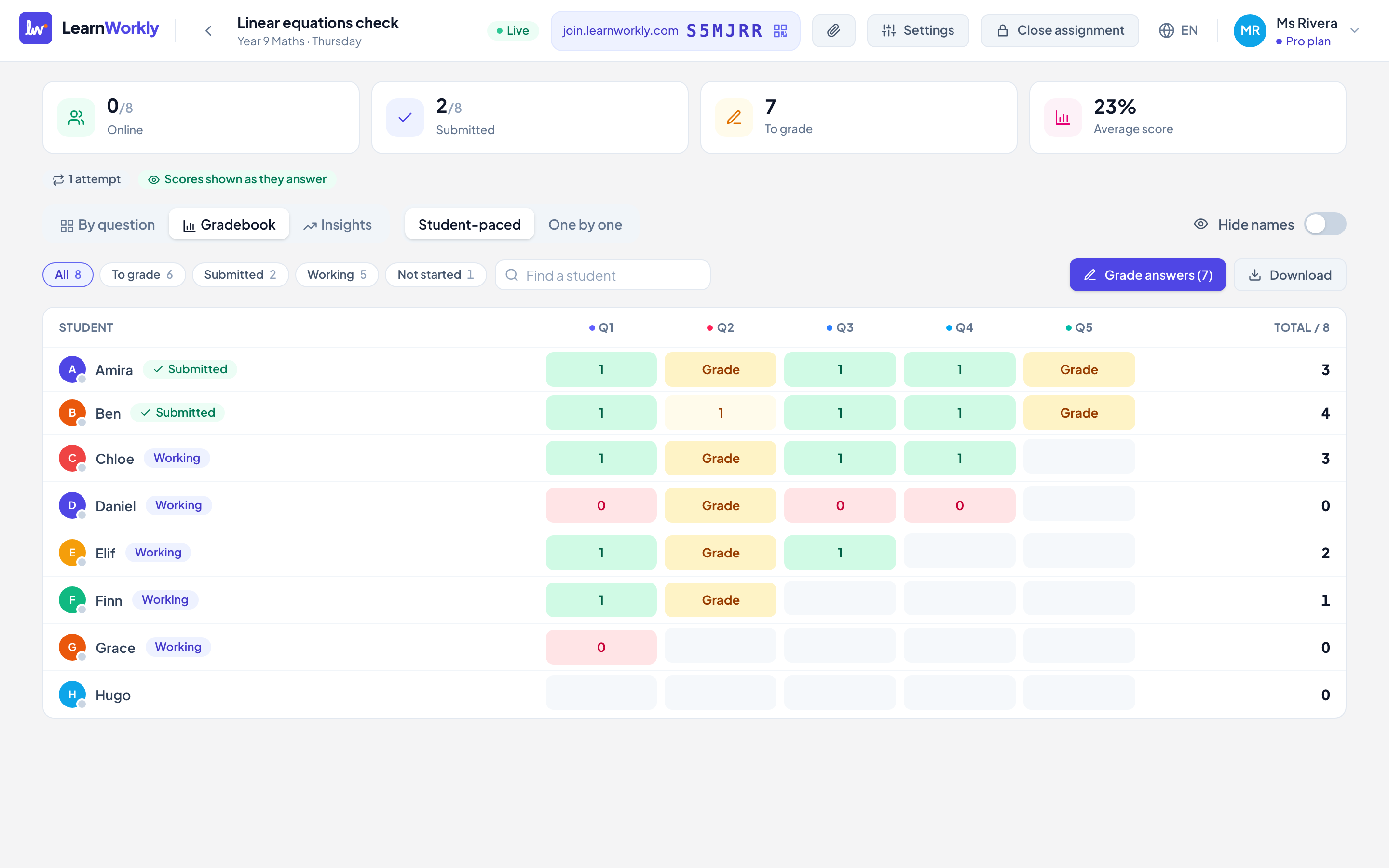
Filters above the grid
- All, To grade and Not started are always there.
- Submitted and Working appear for self-paced assignments, and Late when the assignment has a due date.
- Passed and Not passed appear when the assignment has a pass mark.
- Find a student searches by name.
- Hide names replaces names on screen, which is useful when you share your screen with the class.
Download the gradebook
Click Download and choose a format. Excel (.xlsx) has two sheets: scores for every student, and an analysis of each question (how many answered, the share of full marks, the average points and the most common wrong answer). CSV has the scores only.
The file is built in your browser from what is already on screen, and it always uses students’ real names, even when Hide names is on.
Follow one student over time
On a class page, click a student’s name in the Students list to open their progress page. At the top you see their Average score, how many self-paced assignments they have Submitted, and how many are Late or missing.
Score by assignment is a bar for each graded assignment, oldest to newest. Below it, the Assignments table lists everything assigned to the class with its status (for example Submitted, Submitted late, Missing or Not started) and the score. Click an activity to open that assignment.
See progress by skill
- 1
Tag your questions
In the activity editor, type a skill or topic in the Add a skill or topic (optional) field under a question and press Enter. A question can have several skills.
- 2
Assign and grade
Once answers with that skill are graded, the skill appears in the By skill list on each student’s progress page.
- 3
Read the list
Skills are sorted weakest first, with a percentage and the number of graded answers. Improving or Slipping appears when a student’s last three assignments differ clearly from the ones before.
Frequently asked questions
Why is a skill missing from the By skill list?
The list only shows skills on questions that have graded answers from that student. Tag the question in the editor, and grade the answers that are waiting.
Does the gradebook show late penalties?
Yes. If the assignment has a late penalty, the total shows how many points were taken off, and the Excel file has Late penalty and Final columns.
Can I see how the whole class did on each question?
Yes. Choose Insights in the assignment for the score distribution, the average, median, highest and lowest score, and how each question went. You can sort questions Hardest first.
Last checked against the app on 11 November 2026.
Related articles
- Send progress reports to parentsWrite a progress report for a parent in minutes: AI drafts it from the student’s real scores, skills and your feedback, then you edit and send it.
- Pass marks and certificatesSet a pass mark on an assignment so students see whether they passed, filter the gradebook by it, and give a PDF certificate to students who pass.
- Give feedback on students’ workSend a written comment or a voice note on any answer, draw on a student’s drawing to circle a mistake, and the student sees it straight away.
- Set homework with a due dateAssign an activity as homework with a due date, late work rules, a time limit and a number of attempts, and decide when students see their scores.