Online classroom with video: what tutors really need
What tutors need from an online classroom with video: easy joining, video beside the work, mic control, screen sharing, weak connections and privacy.
LearnWorkly team7 min read
An online classroom with video sounds simple: a camera, a microphone and a place to put the work. Then the first real lesson starts. One student cannot find the link, another is stuck on a download screen, a third has her camera pointed at the ceiling, and you are flicking between two windows trying to see whether anyone has answered question one. Most of what makes an online lesson work happens in those small moments.
This checklist is for tutors and teachers of small groups who are choosing a virtual classroom, or wondering why their current set-up feels harder than it should. Each point comes with the reason it matters in a real lesson, so you can judge any tool against it, including ours.
What to look for in an online classroom with video
Here is the short version. A good online teaching platform with video should let you:
- Get students into the lesson with no account and no install.
- Keep the video next to the work, so you see answers while you talk.
- Control microphones and cameras without taking choices away from students.
- Share your screen, and let a student share theirs when it helps.
- Show one student’s work or camera to the group.
- Keep going when a connection is weak.
- Protect children’s privacy by default.
- Cost something a one-person business can carry.
The sections below take each point in turn.
1. Joining without accounts or installs
Every extra step before a lesson costs you minutes, and the cost lands on the youngest and least confident students. A ten-year-old will not create an account and install an app on a parent’s laptop without help. An adult learner on a work computer may not be allowed to install anything at all.
The test is easy: can a student open a link or type a short code in a browser and be in the lesson? In LearnWorkly, students tap Join lesson on their class page, the same page they already use for their work, on any device. There is no meeting link to send each week and no separate app.
2. Video next to the work, not on top of it
This is the point most set-ups get wrong.
If the video call lives in one window and the worksheet in another, you teach half blind. You ask the group to try a question, then wait, then ask who has finished, then ask them to hold their work up to the camera. Five minutes go on finding out what you could have seen in five seconds.
What you want is one screen where you can talk and watch the answers arrive at the same time. That is what checking for understanding online looks like in practice: everyone answers and you decide on the spot whether to move on. If you teach groups, our guide to running small-group tutoring online so everyone works goes deeper into that lesson shape.
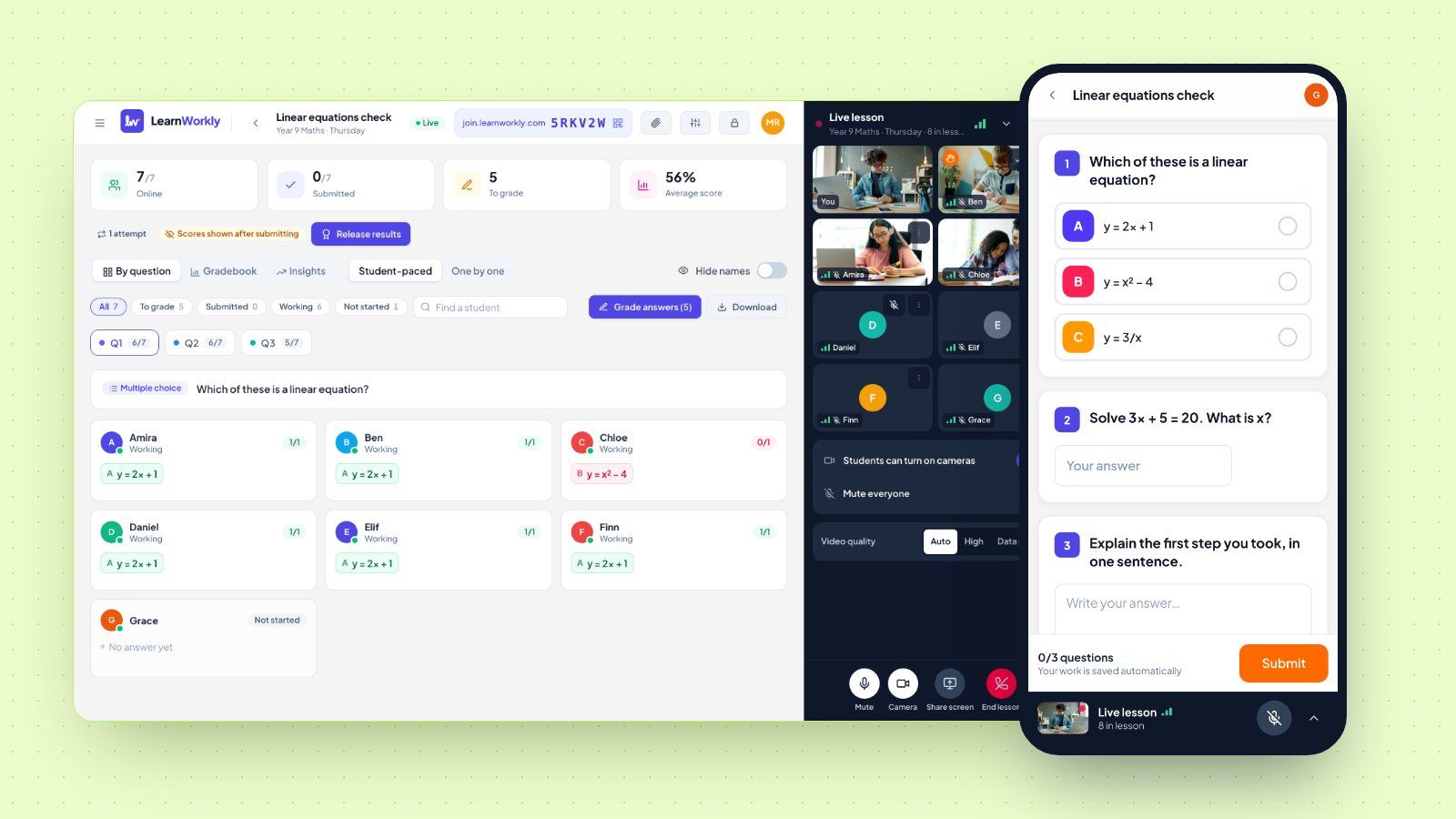
In LearnWorkly the video lesson sits on the right of the page on a laptop and stays open as you move between pages. Open the live view of students’ answers and you see each student’s work as they write it, while you keep talking. On a student’s laptop the lesson sits beside the questions, so nothing covers the work or the Submit button.
3. Control of microphones and cameras
In a group of six, one open microphone with a television in the background can sink a lesson. You need to mute one student or everyone in a single click. You also need a sensible default for cameras, because a room full of camera tiles is distracting, and some students would rather not show their bedroom.
There is a second half to this point that buyers often miss. Being able to switch things off is good. Being able to switch a student’s camera or microphone on is a different matter, especially with children. A tool that lets you turn on a child’s camera remotely is one you should think twice about.
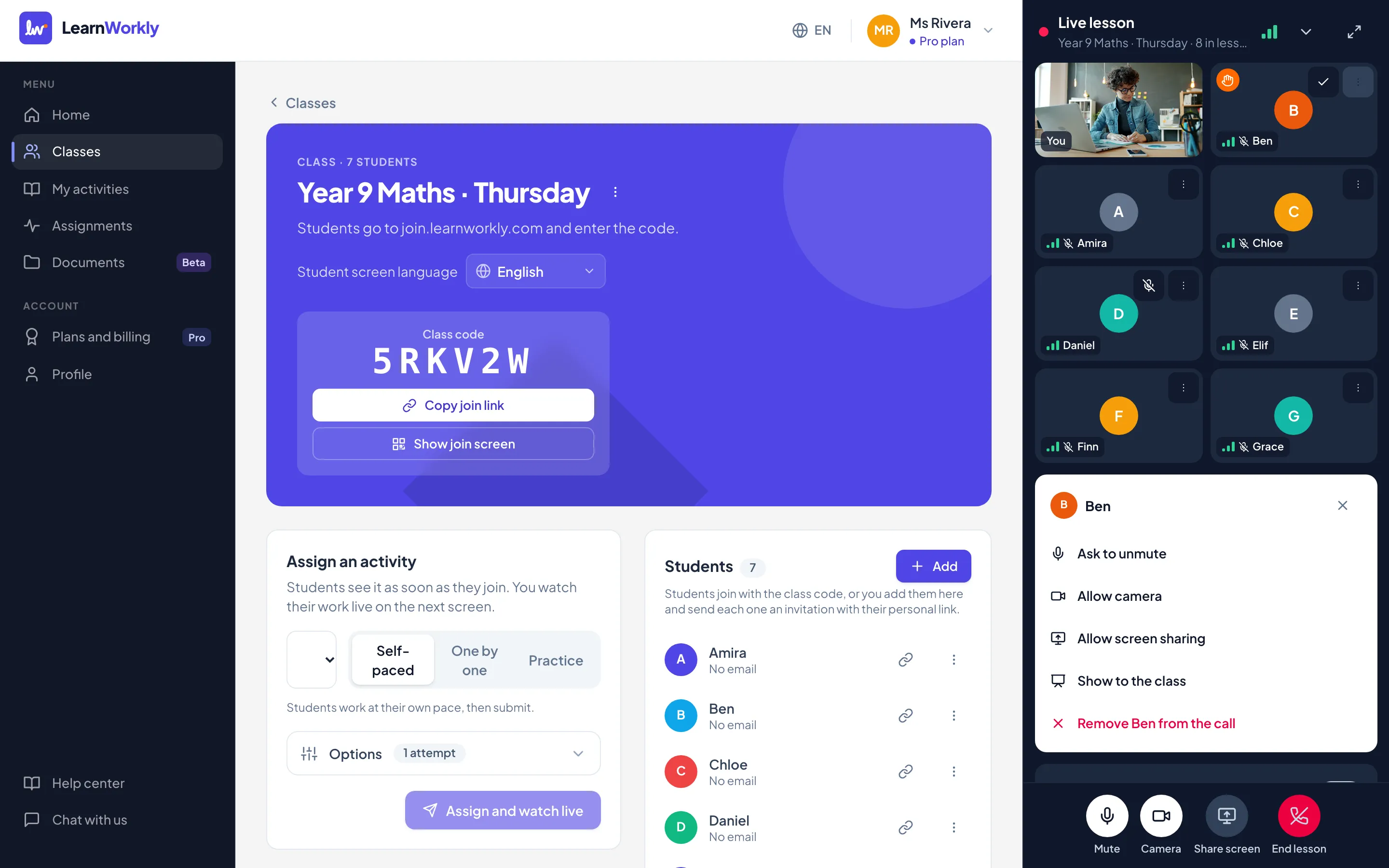
In LearnWorkly students join muted, and their cameras stay locked until you allow them. You can Mute everyone or mute a single student, and you can turn any camera off. To turn something on, you can only invite: Ask to unmute and Ask to turn on camera send a request, and the student decides. Raised hands appear on the student’s tile and move them to the top of the list, which helps quieter students get a turn.
4. Screen sharing that fits how you teach
You will want to share your screen to walk through a worked example or a past paper. Now and then you will want a student to share theirs, for instance to show you the spreadsheet they are stuck on.
Check two things. First, can you share a single tab or window instead of your whole desktop, so your email stays private? Second, can you stop a student’s share instantly? In LearnWorkly you click Share screen to share a screen, window or tab. You can allow screen sharing for one student at a time and stop it at once with Stop screen sharing. One limit comes from the devices themselves: phone and tablet browsers cannot share a screen, so screen sharing works from computers only.
5. Showing one student’s work to the group
Some of the best moments in a group lesson come from one student’s answer.
A clever method. A common mistake worth fixing together. Being able to put that work in front of everyone turns a private correction into a short lesson for the whole group.
The catch is consent and comfort.
A student should always know when the group can see them. In LearnWorkly, Show to the class puts one student’s camera or shared screen big in front of everyone, with their name, and that student sees a notice for as long as it lasts. Stop showing returns the view to you.
6. Coping with weak connections
Students join from kitchens and buses, often on mobile data. A tool that freezes or drops the whole call when one person’s connection dips will cost you lessons. The right behaviour is to lower the picture quality first. If that is not enough, keep the sound and pause the video. When the signal improves, the picture should come back without anyone pressing a button.
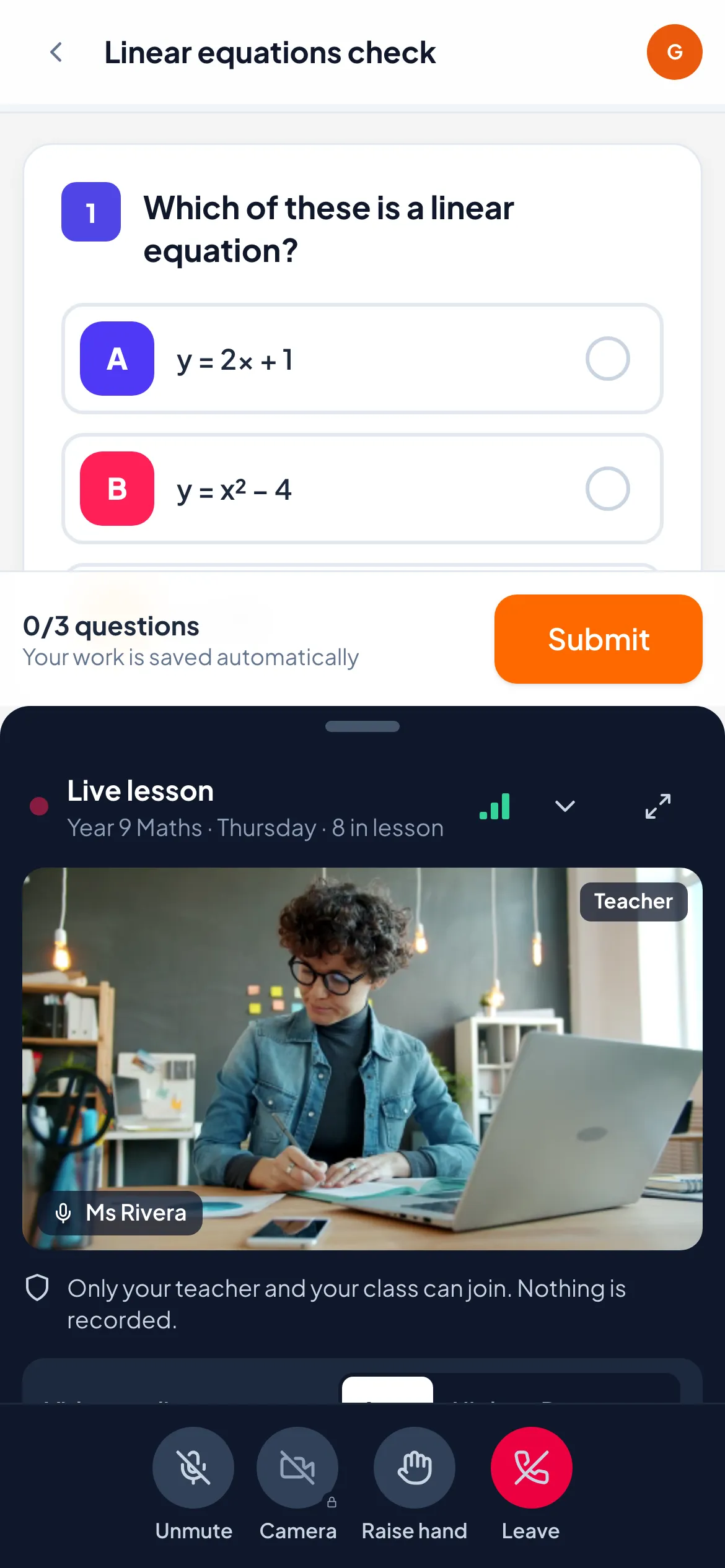
LearnWorkly does this on each device separately, so one student’s weak signal does not drag down everyone else. You see each student’s connection on a signal indicator on their tile. Students can also pick Data saver, which uses less data and plays sound only while the lesson is folded away. On a phone, the lesson folds into a bar at the bottom of the screen, so the questions keep most of the space.
7. Privacy with children
If you teach under-18s, privacy is part of the job. The UK Information Commissioner’s Office sets out the Age appropriate design code, a set of 15 standards for online services likely to be accessed by children, and one of them is that settings must be “high privacy” by default. That is a useful yardstick for any virtual classroom for tutors, even outside the UK.
Ask a few direct questions. Are lessons recorded, and who can watch the recording? Can classmates see each other’s cameras and full names? Does the tool keep a list of who attended? In LearnWorkly, lessons are never recorded and there is no attendance list. Only you and the students of the class can join. Students see you, how many people are in the lesson, and a classmate’s name only while that classmate speaks or is shown to the class. A student’s camera reaches only you unless you show them to the class.
8. Cost that fits a small business
For a solo tutor, video is often one more subscription on top of everything else. Before you pay for it, check whether the platform you already use for classwork includes video. In LearnWorkly, video lessons are included in every plan, Free included, and a lesson holds every student your plan allows, plus you. The video lessons feature page lists what each part does.
Try it in one real lesson
Reading a checklist only gets you so far. Run one ordinary lesson with a friendly student or two. Time how long it takes them to get in. Count how often you leave the work to manage the call. Then notice what happens when someone’s Wi-Fi wobbles. A good online classroom with video makes all of that boring. If you want to try ours, the help article on teaching a video lesson with your class walks through every control in order.