Interactive questions
Remote Retro: run a sprint retrospective step by step
A retrospective with sticky notes, voting and discussion.
Opens a demo in the app. No sign-up needed.
What is Remote Retro?
Remote Retro is a complete retrospective on one slide. It guides the whole team through five steps: the Prime Directive, writing ideas on sticky notes, grouping similar notes, voting on what to discuss, and agreeing action items with an owner. Participants write and vote from their phones, while you move the room from one step to the next and their phones follow. You can start from a ready template such as 4Ls or Starfish, or set up your own columns, and run it anonymously if you want more honest notes.
Read the full guide to Remote RetroOn the big screen
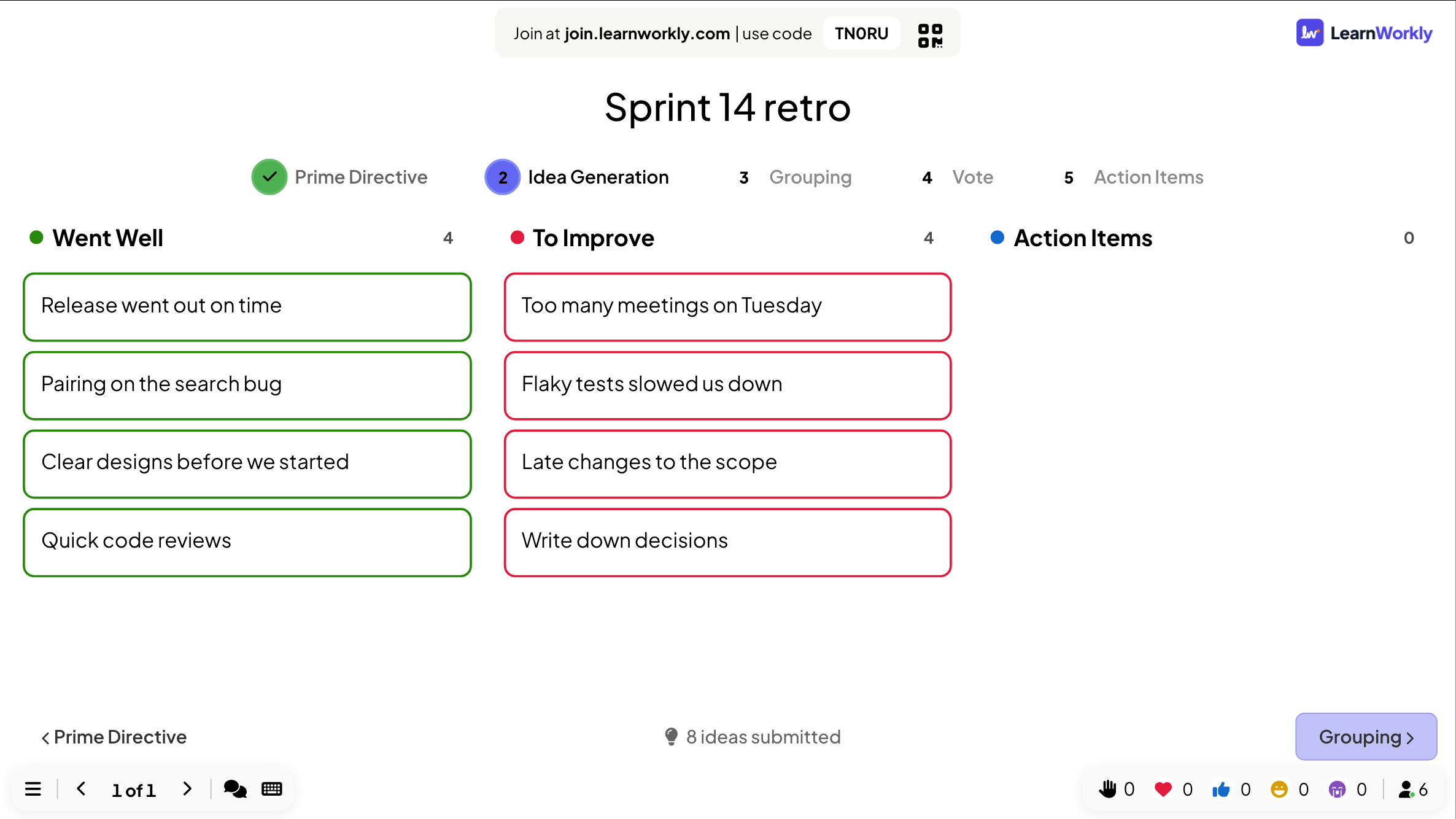
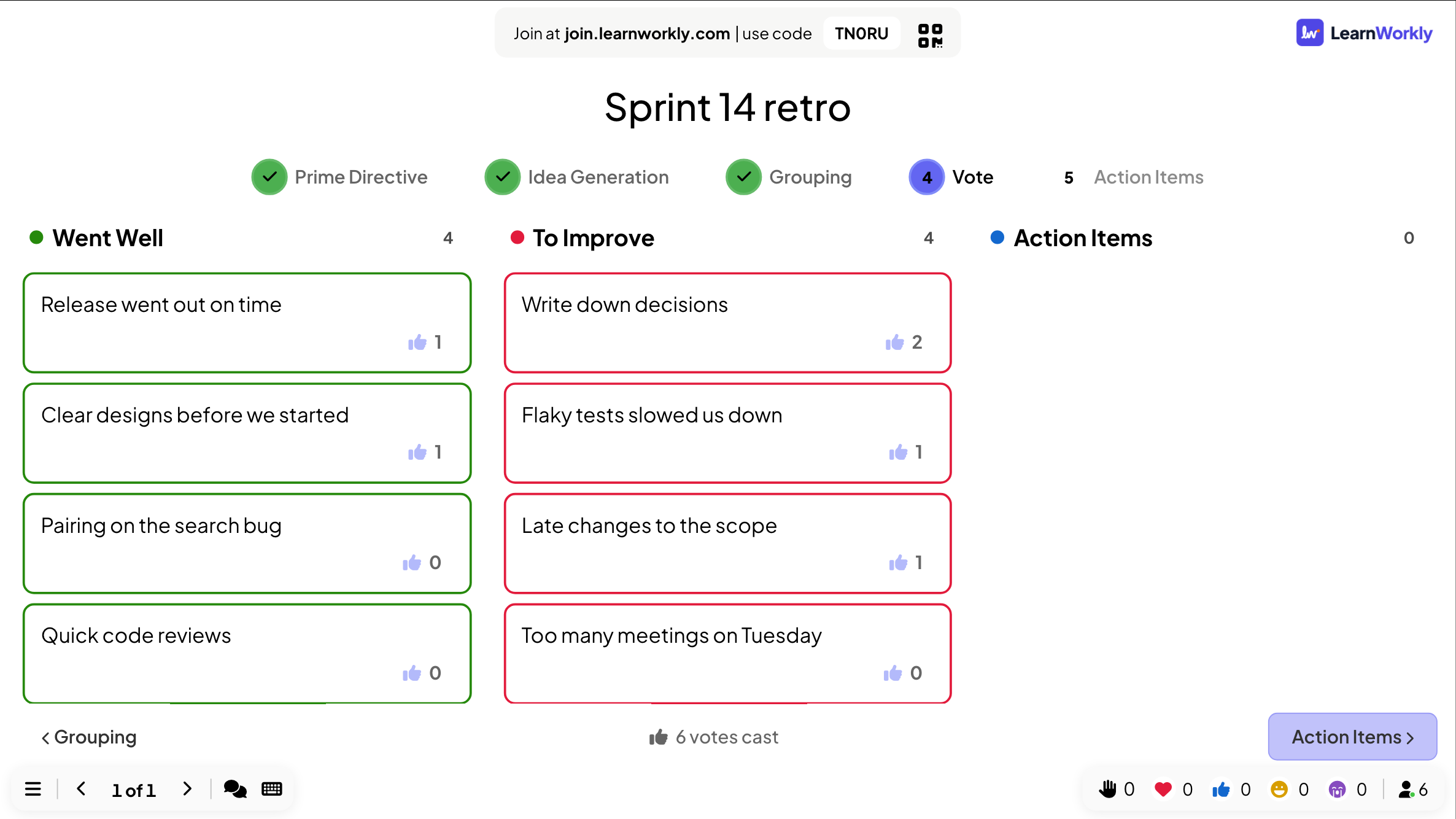
The step bar at the top and the board with your columns. Notes arrive in their columns during idea generation, collect thumbs-up during the vote, and the most voted rise to the top. Later, action items with owners appear.
On phones
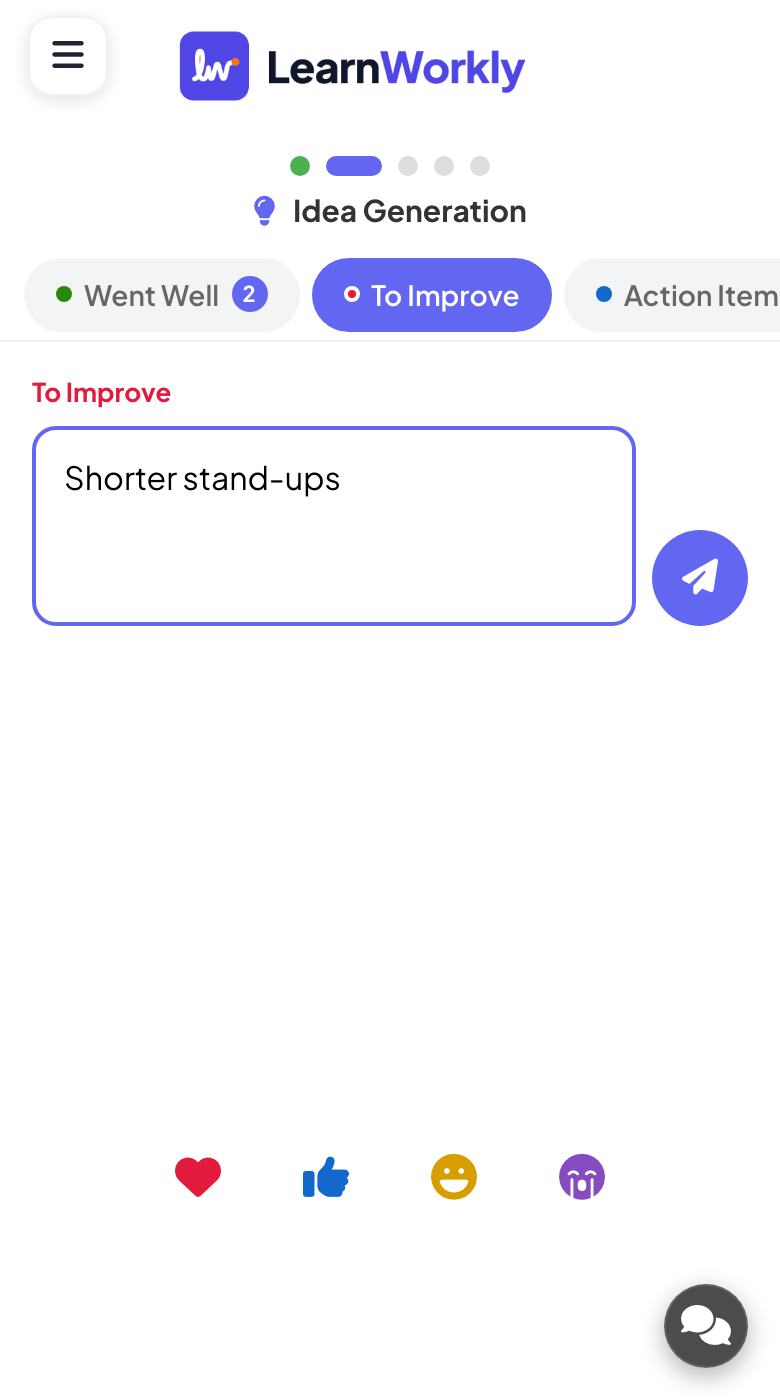
Participants pick a column and type notes. During grouping their phone shows that the facilitator is working. In the vote step they tap notes to spend votes, with votes remaining shown. Phones always follow your current step.
What you control
Pick the Default, 4Ls, Starfish or Custom template and edit the columns (2 to 6). Anonymous Mode hides authors. Max Votes Per Person runs from 1 to 10, with 3 by default. You group cards, mark them discussed and assign owners.
Great for
Sprint retrospectives
Run the whole retro from notes to action items in one slide, with every team member writing from their phone.
Meetings and presentationsCourse reviews
Ask learners what they liked, learned, lacked and longed for at the end of a programme with the 4Ls template.
Trainers and L&D teamsProject wrap-ups
Close a student or university group project with what went well, what to improve and agreed next steps.
University lecturersRemote teams
Teams working from home write notes and vote from their phones during a video call, with no board to set up.
Retro templates and prompts
Copy one into a Remote Retro slide, or use them as a starting point for your own.
Play it live- 1
Default: what went well this sprint, and what should we improve?
- 2
4Ls: what did you like, learn, lack and long for this term?
- 3
Starfish: what should we keep, do less, do more, stop and start?
- 4
Custom: what helped, what blocked us, and what surprised us this project?
- 5
After an event: what worked for guests, and what would we change next year?
Run it in three steps
- 1
In the editor, click + New Slide and pick Remote Retro. Change the sample content to your own.
- 2
Click Present. People join on their phones with the code or QR code on the screen.
- 3
Answers appear on the big screen as people send them, and stay in the report afterwards.
See it in action
Remote Retro: frequently asked questions
Can the retrospective be anonymous?
Yes. Turn on Anonymous Mode and notes carry no author on the big screen, for you as well. Without it, the name a participant gave appears on their notes from the Grouping step onwards.
How many votes does each person get?
You choose with Max Votes Per Person, from 1 to 10, and the default is 3. Phones show how many votes each person has left, and the board counts the total votes cast.
Can I go back to an earlier step?
Yes. Click any step in the bar at the top of the slide, or use the buttons at the bottom. Notes and votes are kept, and every phone switches to the step you are on.
Can I run the same retro every sprint?
Yes. Duplicate the presentation, or clear the results of the slide to start fresh. Earlier retros stay in the report with every column, note, vote count and action item.
More activities like this
All activities
See it in your next session
Free for up to 10 live participants. No credit card, nothing for your audience to install.
Free for up to 10 participants · No credit card