Interactive questions
Pin on Image: ask people to mark a spot on a picture
Click a spot or an area on an image.
Opens a demo in the app. No sign-up needed.
What is Pin on Image?
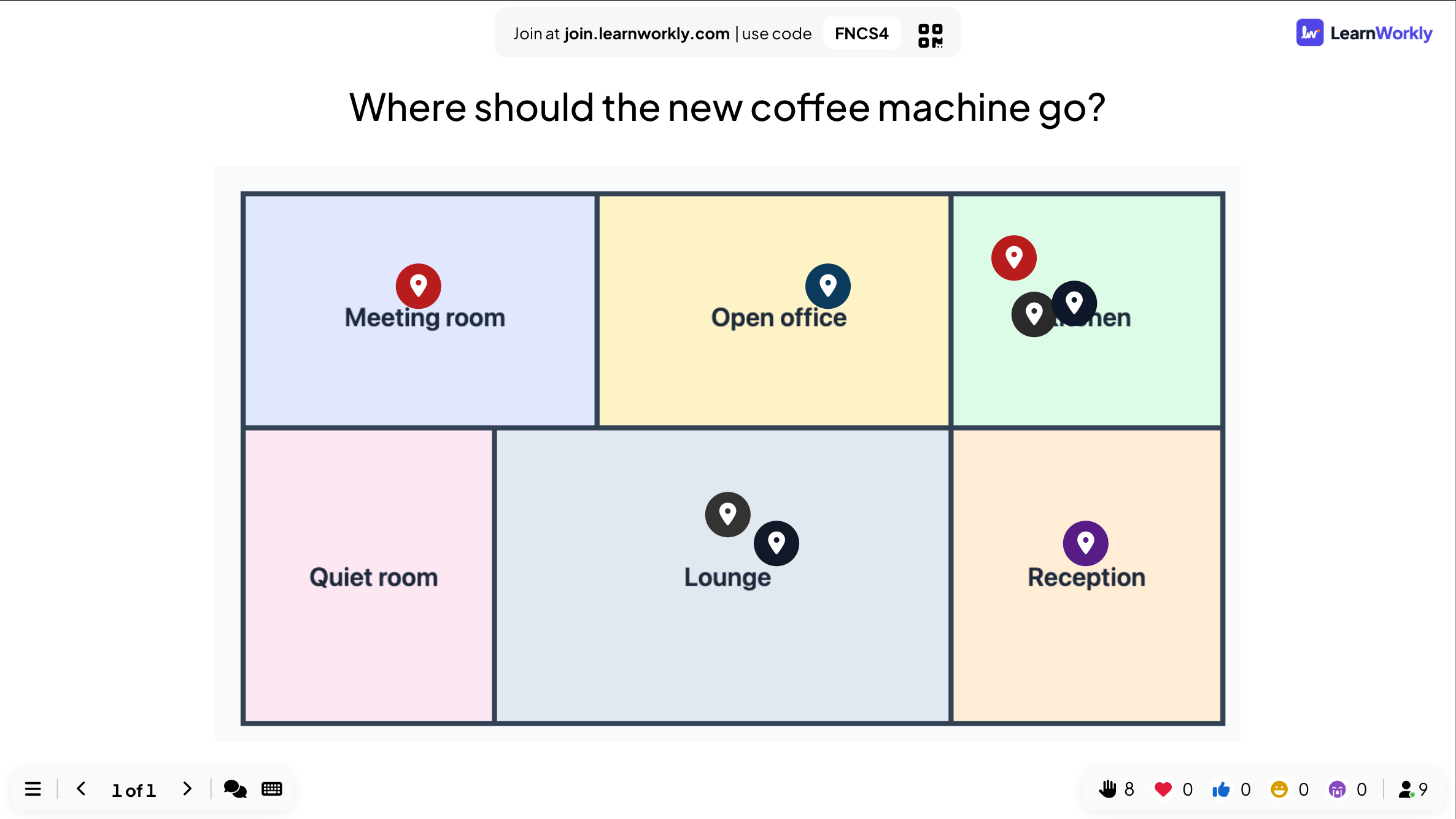
Pin on Image lets your audience answer by tapping a place on a picture. You upload an image such as a map, a floor plan, a diagram or a product screenshot, and each person drops one pin where they think the answer is. Every pin appears on the big screen as it arrives, so clusters show where the group agrees and scattered pins show where it does not. There is no right or wrong spot on this slide; it is for opinions and quick visual answers. To score a correct area, use Pin Answer.
Read the full guide to Pin on ImageOn the big screen
Your picture with every pin placed on it as they arrive, so groups of pins form clusters the room can see. Hover over a pin to see the participant's name, if they gave one when joining.
On phones
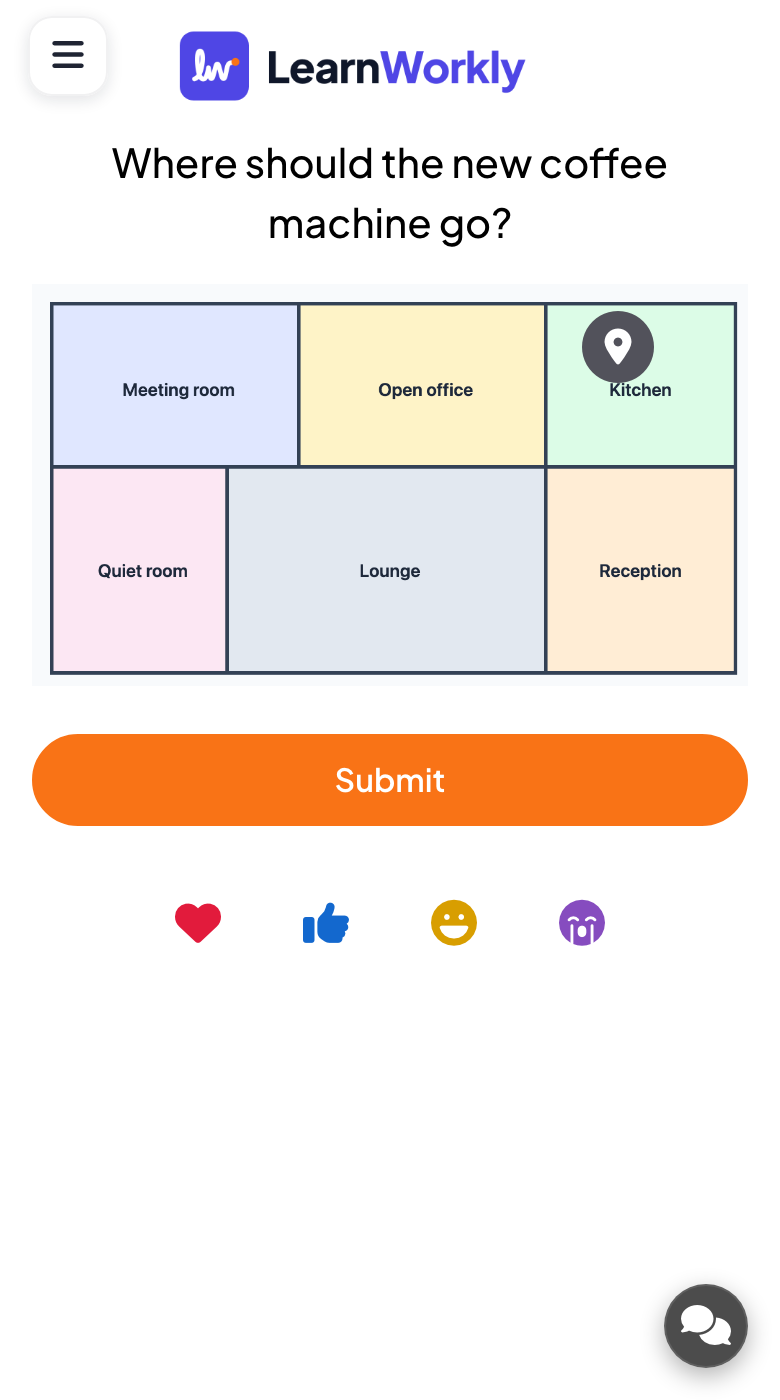
Participants see your picture and tap where they want to place their pin. Tapping again moves it. When they are happy, they press Submit, and the pin is then locked. Each person has one pin.
What you control
Add the picture as the question image; the slide reminds you until you do. Hide result, Stop Submission and a time limit are available. Wide images with clear areas work best, since tiny details are hard to tap on a phone.
Great for
Geography and science
Ask students to mark a country, a river or a part of a cell diagram and discuss where the pins landed.
School teachersOffice and site planning
Show a floor plan and let the team pin where the new kitchen, desk area or meeting room should go.
Meetings and presentationsProduct feedback
Put a screenshot on screen and ask workshop participants to pin the part they find most confusing.
Trainers and L&D teamsEvent crowd questions
Show a world map at a conference and ask everyone to pin where they travelled from today.
Events and team buildingPin questions to try
Copy one into a Pin on Image slide, or use them as a starting point for your own.
Play it live- 1
Where on this map did you grow up?
- 2
Where should the new coffee machine go on this floor plan?
- 3
Tap the part of the screen you found hardest to use.
- 4
Where on this diagram do you think the problem starts?
- 5
Which stand at today's fair did you enjoy most?
Run it in three steps
- 1
In the editor, click + New Slide and pick Pin on Image. Change the sample content to your own.
- 2
Click Present. People join on their phones with the code or QR code on the screen.
- 3
Answers appear on the big screen as people send them, and stay in the report afterwards.
Pin on Image: frequently asked questions
What kind of picture works best?
A landscape image with clear, separate areas, such as a map, plan or labelled diagram. Small details are difficult to hit with a finger on a phone, so zoom in or crop the image before uploading it.
Can people move their pin after submitting?
Before submitting they can tap again to move it as often as they like. Once they press Submit the pin is locked, and each participant can only place one pin on the slide.
Can I mark a correct area and score answers?
Not on this slide, which is for opinions with no right answer. The Pin Answer quiz slide lets you define a correct area and score participants on whether their pin lands inside it.
Are the pins saved after the session?
Yes. The presentation report shows your picture with every pin on it, so you can look again at where people tapped or share the result with the group afterwards.
More activities like this
All activities
See it in your next session
Free for up to 10 live participants. No credit card, nothing for your audience to install.
Free for up to 10 participants · No credit card