Interactive questions
Live Poll: ask one question, watch the votes come in
Collect opinions and show them as bar or pie charts.
Opens a demo in the app. No sign-up needed.
What is Poll?
A Poll is a single question with a set of answers that your audience votes on from their phones. Each vote lands on the big screen straight away, so a bar or pie chart builds up in front of the room. You can let people pick more than one answer, mark the right option when you want a quick knowledge check, or keep the chart hidden until voting ends so nobody follows the crowd. It is the fastest way to get a show of hands that everyone, including the quiet people at the back, can join.
Read the full guide to PollOn the big screen
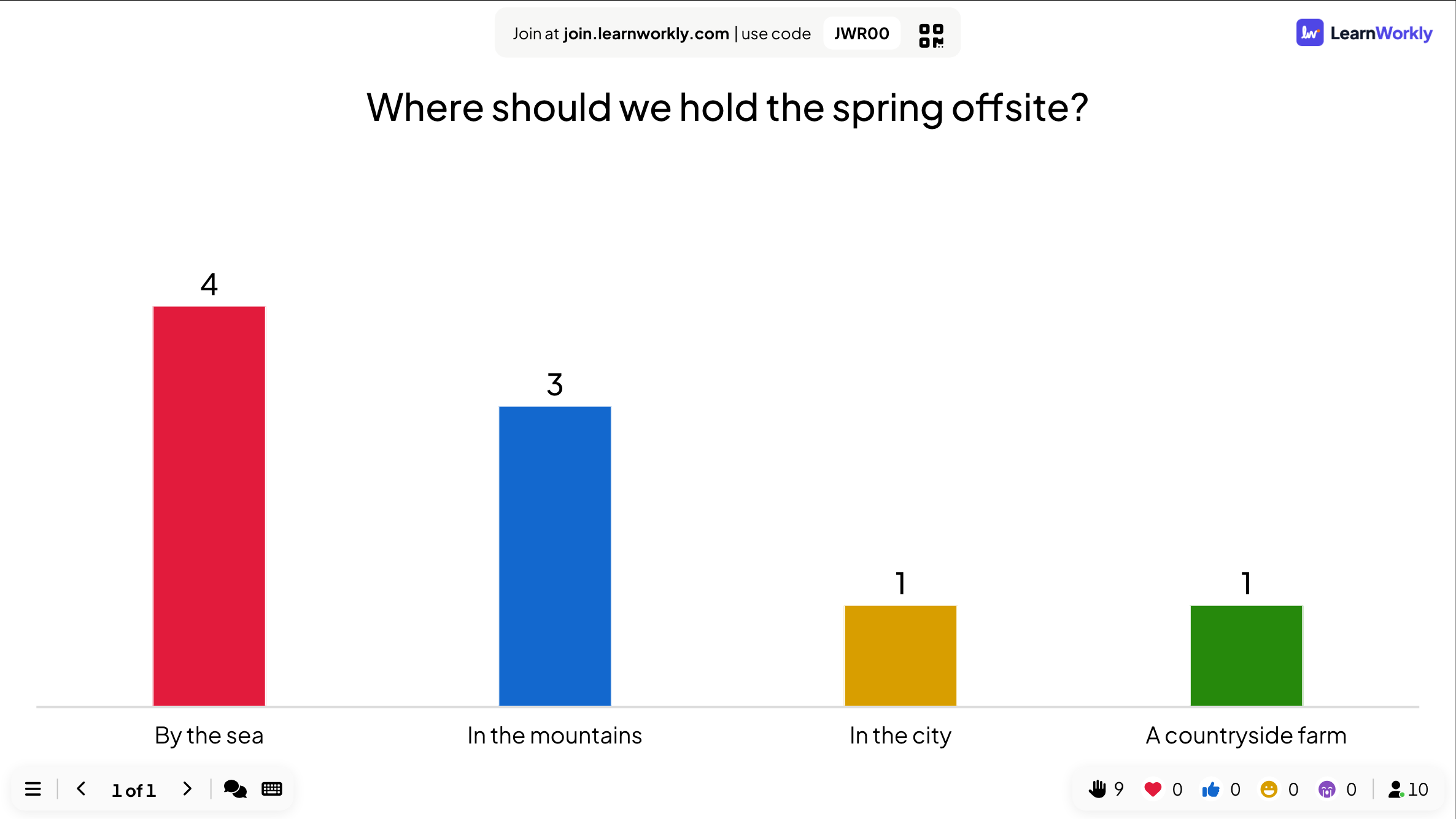
Your question with one bar per option, or a pie chart if you prefer. Vote counts sit above each bar and grow live. Click a bar to swap between counts and percentages. With a correct answer set, ticks and crosses mark each option.
On phones
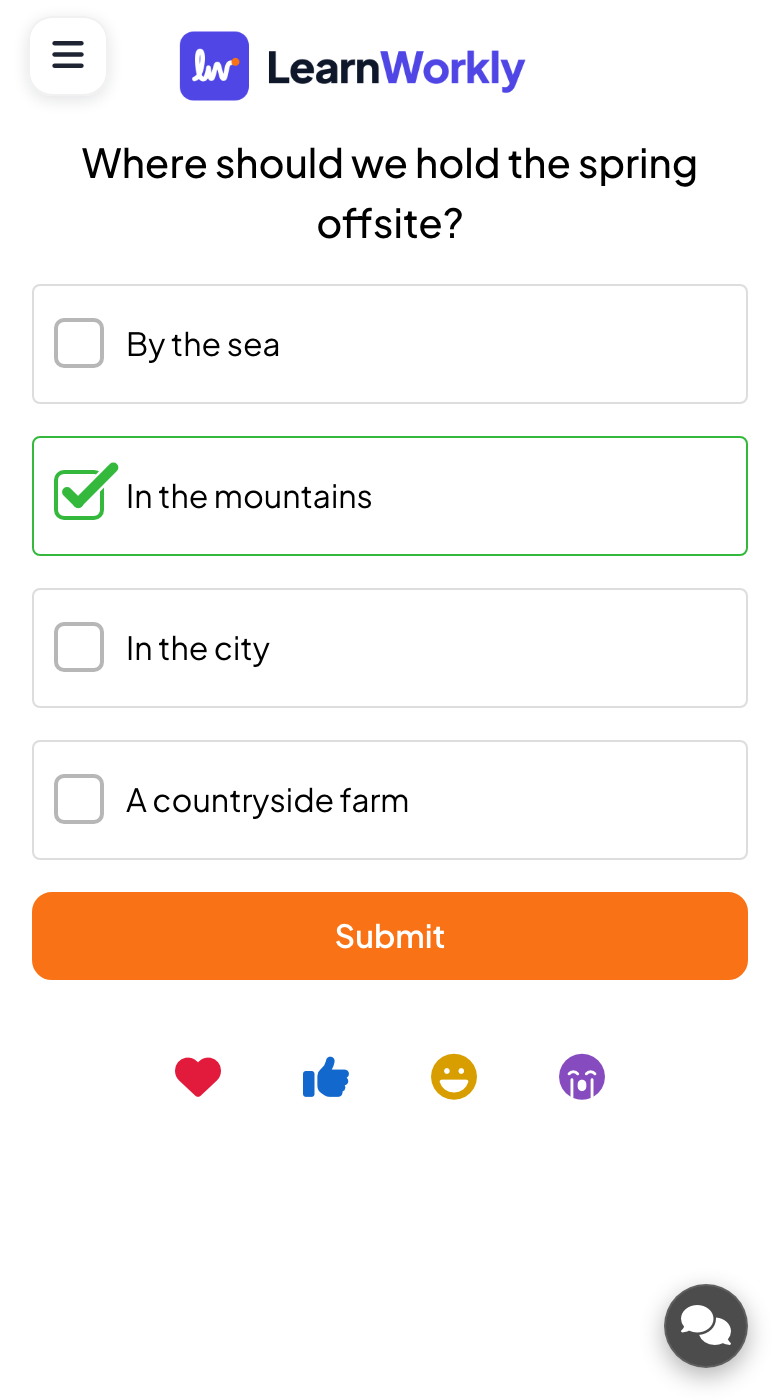
Participants see your question and the options as tick boxes. They choose one, or several when you allow it, and press Submit. The phone then confirms the vote with Submitted. A vote cannot be changed after that, so the count stays honest.
What you control
Add up to 9 options, each with its own colour and an optional picture. Choose bar or pie chart. Switch on multiple picks, a correct answer, Hide result, a time limit, or Stop Submission to close voting and Enable Submission to reopen it.
Great for
Check understanding in class
Mark the correct option and see in seconds how many students picked it before you move on to the next topic.
School teachersLet trainees choose
Ask a workshop group which module or case study to tackle next and follow the majority, right there in the session.
Trainers and L&D teamsQuick team decisions
Settle a date, a venue or a priority in a meeting without a long round of opinions. The chart speaks for itself.
Meetings and presentationsWarm up an event crowd
Open a conference or fun day with a light question so every phone in the hall is connected before the main part starts.
Events and team buildingPoll questions to try
Copy one into a Poll slide, or use them as a starting point for your own.
Play it live- 1
Which of these four answers is correct? (mark the right one and reveal it after the vote)
- 2
Where should we hold the next team offsite?
- 3
How confident are you with today's topic: very, somewhat, not yet?
- 4
Which session should we run after lunch?
- 5
Tea, coffee or neither for the break?
Run it in three steps
- 1
In the editor, click + New Slide and pick Poll. Change the sample content to your own.
- 2
Click Present. People join on their phones with the code or QR code on the screen.
- 3
Answers appear on the big screen as people send them, and stay in the report afterwards.
See it in action
Poll: frequently asked questions
Can I hide poll results until everyone has voted?
Yes. Turn on Hide result and votes are still counted, but the chart stays empty on the big screen. When you are ready, click Show result on the slide and the bars appear all at once.
Does the big screen show who voted for what?
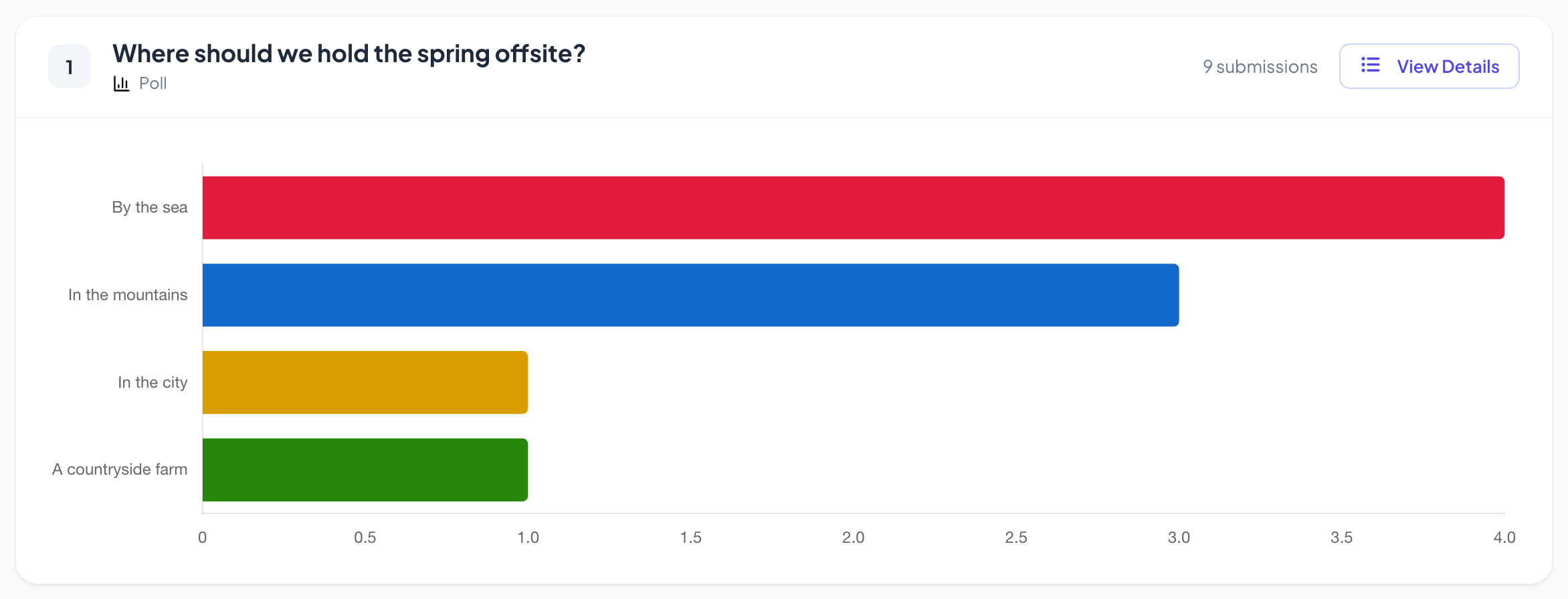
No. The room only sees totals per option. In the report, View Details lists the answers per participant, and a name appears only if that person entered one when they joined.
How many answer options can a poll have?
Up to 9. Each option gets its own colour on the chart and can carry an image, and you can drag options into a different order in the editor before you present.
Can I reuse a poll with another group and keep the old votes?
Yes. Clear all results in the editor's top bar resets the live slide and keeps the earlier votes in the report as a previous session. Clearing only this slide deletes its votes for good.
More activities like this
All activities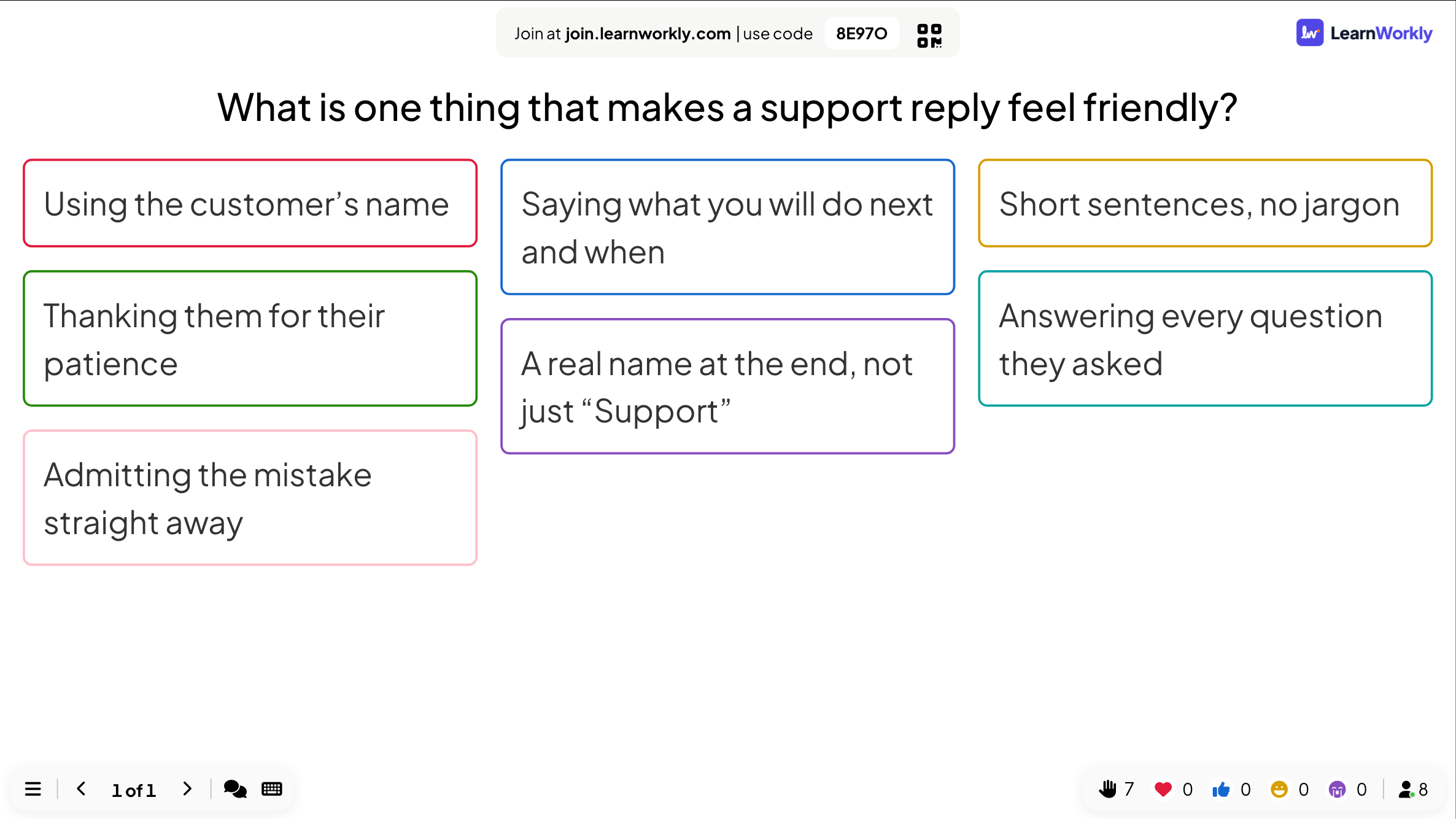
See it in your next session
Free for up to 10 live participants. No credit card, nothing for your audience to install.
Free for up to 10 participants · No credit card