Interactive questions
100 Points: show how much each option really matters
Share out 100 points between the options.
Opens a demo in the app. No sign-up needed.
What is 100 Points?
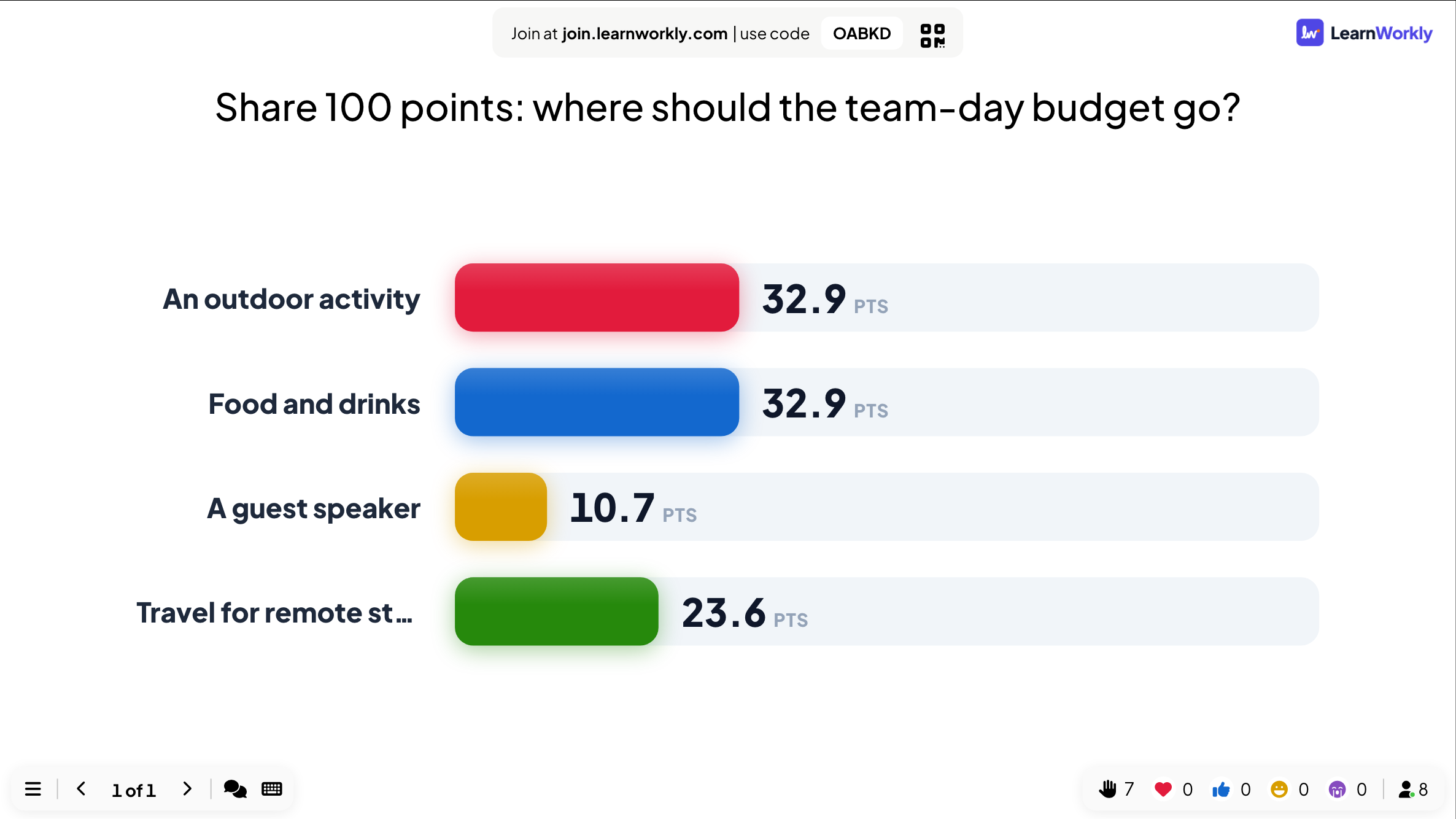
100 Points is a voting method where every participant has a budget of 100 points to share out between options. Someone who cares about one thing can put most of their points there, while someone else can spread them evenly. Because the points are limited, the result shows not just which options people prefer but how strongly they prefer them. The big screen shows the average points each option received across the room. It is a useful step up from a ranking when you need to weigh trade-offs, budgets or effort.
Read the full guide to 100 PointsOn the big screen
Each option with the average number of points it received from everyone who answered. Averages often include a decimal, since they are spread across the whole group. The result updates as submissions come in.
On phones
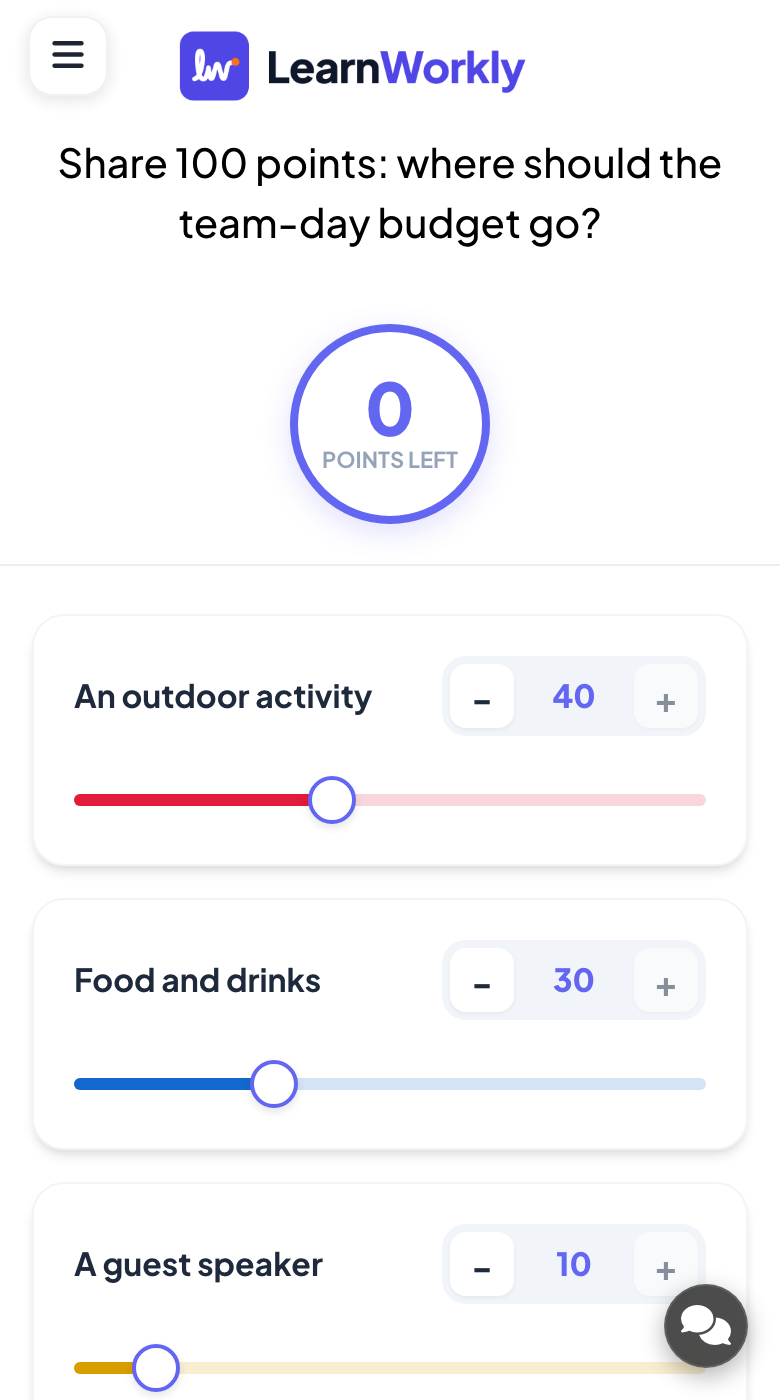
Each option has minus and plus buttons, a number field and a slider. A circle at the top shows Points left. Participants cannot hand out more than 100 points, but may submit with points left over.
What you control
Add up to 50 options for people to share points between. Turn on Hide result to keep the averages hidden. This slide has no time limit, so use Stop Submission when you want to close it.
Great for
Budget decisions
Ask the team where a fixed budget should go and see how strongly each option is backed, not just the order.
Meetings and presentationsWorkshop trade-offs
After brainstorming, let participants weigh the ideas with their points so the strongest ones clearly stand out.
Trainers and L&D teamsStudent voice
Let a class share points between project ideas or trip options and discuss why some got far more than others.
School teachersEvent planning
Ask a committee or crowd to split points between activities for a team day and plan around the averages.
Events and team building100 Points questions to try
Copy one into a 100 Points slide, or use them as a starting point for your own.
Play it live- 1
Share 100 points: where should the team-day budget go?
- 2
Split 100 points between the features you want built next.
- 3
How should your study time be shared between these subjects?
- 4
Share 100 points between the charity options for our event.
- 5
Which parts of this course deserve more time next year?
Run it in three steps
- 1
In the editor, click + New Slide and pick 100 Points. Change the sample content to your own.
- 2
Click Present. People join on their phones with the code or QR code on the screen.
- 3
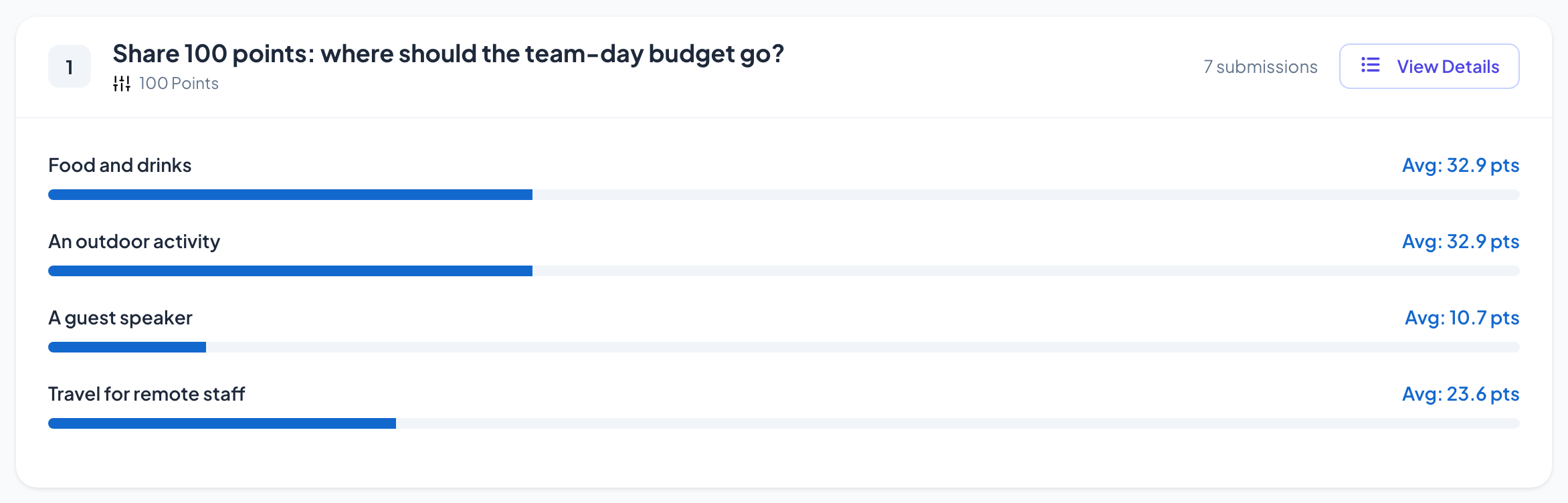
Answers appear on the big screen as people send them, and stay in the report afterwards.
See it in action
100 Points: frequently asked questions
Do participants have to use all 100 points?
No. They can press Submit with points still left, which is shown in the circle at the top of their phone. The only rule is that they cannot hand out more than 100 points in total.
Why are the results averages with decimals?
The big screen shows the average points each option received across everyone who answered. Dividing totals by the number of people usually gives a decimal, which also makes small differences between options visible.
How is this different from a ranking?
A ranking tells you the order people prefer. 100 Points also shows the size of the gap, for example whether the top option is slightly or far ahead of the second, because people decide how many points each one deserves.
How many options can people share points between?
Up to 50 options. With long lists, each option still has its own buttons, number field and slider on the phone, but shorter lists are quicker to complete during a live session.
More activities like this
All activities
See it in your next session
Free for up to 10 live participants. No credit card, nothing for your audience to install.
Free for up to 10 participants · No credit card