Interactive questions
Draw: everyone sketches, the big screen shows the gallery
Everyone draws on their phone and the drawings pop up in a live gallery.
Opens a demo in the app. No sign-up needed.
What is Draw?
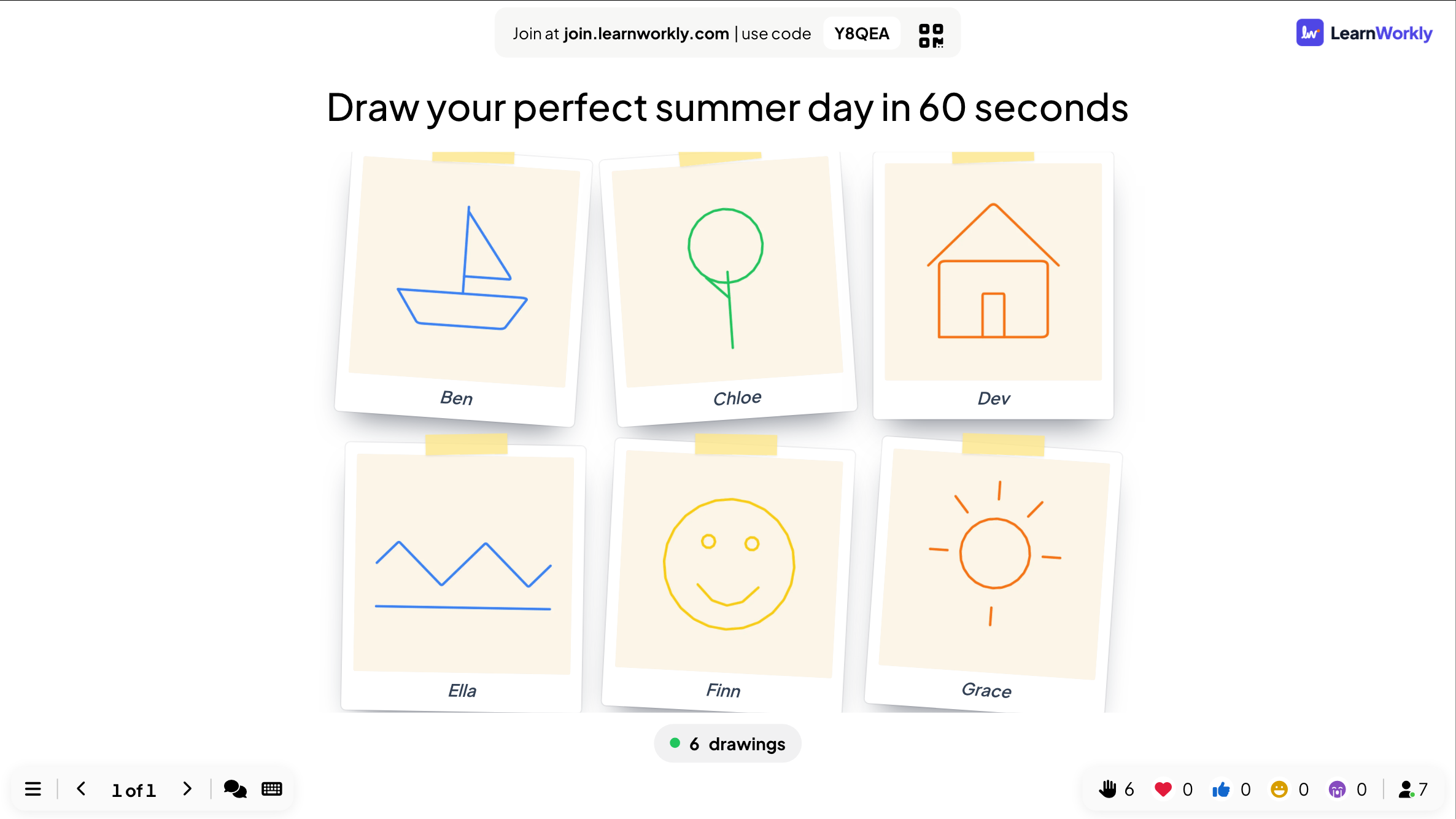
On a Draw slide, each participant makes their own picture on their phone, and the drawings appear together in a gallery on the big screen. Unlike the Whiteboard, where everyone shares one board, here every person has their own canvas, so you get a set of individual answers to compare. Use it for "draw what you understood", quick diagrams, visual vocabulary or just a fun creative round. You choose the paper, the pen colours and how the gallery looks, and you can keep every drawing hidden until a dramatic reveal.
Read the full guide to DrawOn the big screen
A live gallery as a grid or Polaroid wall, with a counter of drawings received. Click a drawing to zoom in, step through with Previous and Next, or press Replay drawing to watch it being drawn.
On phones
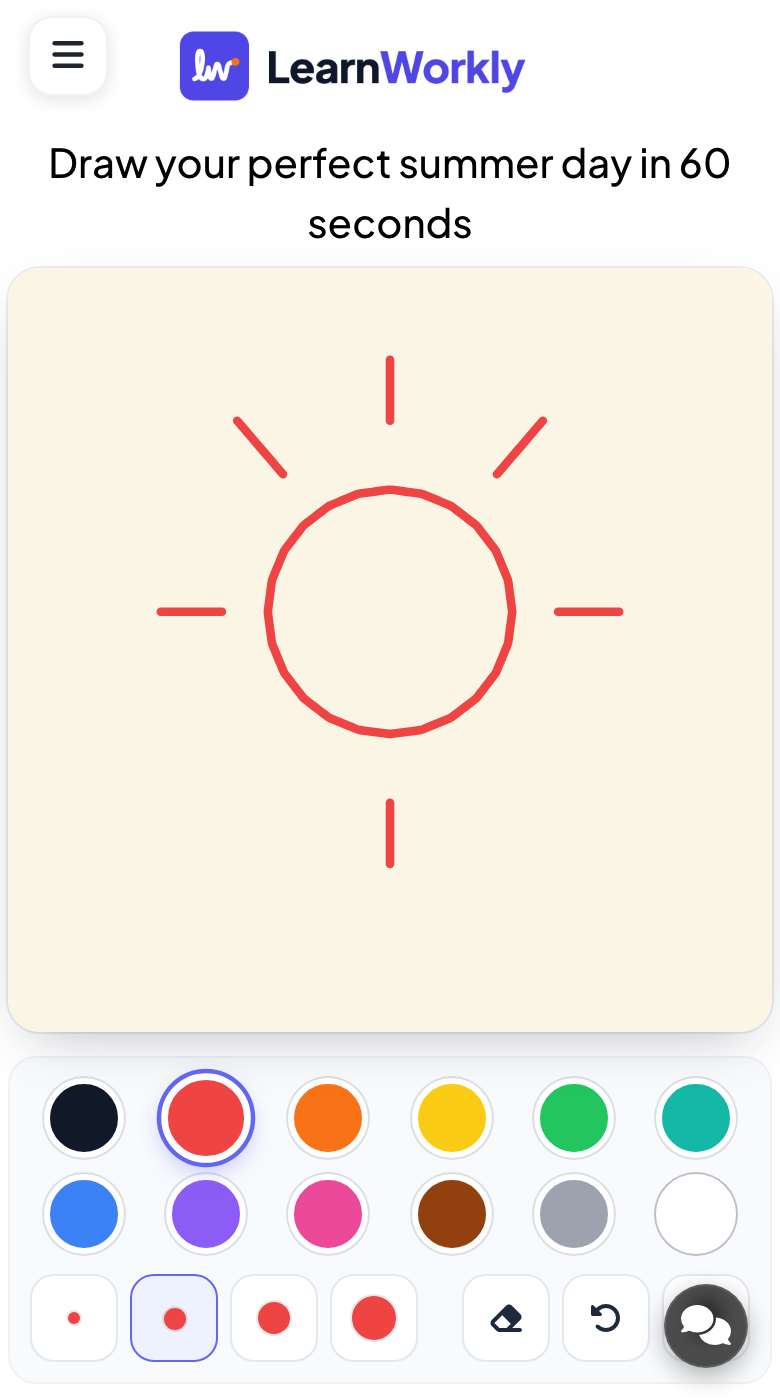
Participants draw with their finger, with your pen colours, a brush size, Eraser, Undo and Clear, then press Send my drawing. Depending on your settings, they can then draw another or edit and resend.
What you control
Choose White, Cream, Dotted or Chalkboard paper, Vivid, Pastel or Black & white pens, and 1, 2, 3, 5 or Unlimited drawings per person (1 by default). Hide drawings until you reveal them, and show names only if you switch that on.
Great for
Draw what you understood
Ask students to sketch a concept, then step through the gallery and talk about the different ideas.
School teachersLanguage practice
Learners draw a word or a sentence and the class guesses or describes each picture in the target language.
ESL and language teachersCreative workshops
Ask participants to sketch their ideal process or product and compare everyone's versions side by side.
Trainers and L&D teamsTeam day fun
Run a quick drawing round at a party or fun day and reveal the whole Polaroid wall at once.
Events and team buildingDrawing prompts to try
Copy one into a Draw slide, or use them as a starting point for your own.
Play it live- 1
Draw your perfect summer day in 60 seconds.
- 2
Sketch the water cycle with arrows and labels.
- 3
Draw how you feel about Monday mornings.
- 4
Draw the word "umbrella" without writing any letters.
- 5
Sketch your dream office in one minute.
Run it in three steps
- 1
In the editor, click + New Slide and pick Draw. Change the sample content to your own.
- 2
Click Present. People join on their phones with the code or QR code on the screen.
- 3
Answers appear on the big screen as people send them, and stay in the report afterwards.
Draw: frequently asked questions
Can I hide the drawings until everyone has finished?
Yes. Turn on Hide drawings until I reveal. Drawings are collected while the gallery stays hidden, phones tell people a reveal is coming, and you click Reveal drawings when you are ready.
Are names shown under the drawings?
Only if you turn on the name setting, in which case participants type a name before sending and it appears under their drawing. Without it, the gallery shows no names and the report lists drawings as Anonymous.
Can people send more than one drawing?
Yes. Set drawings per person to 2, 3, 5 or Unlimited. With the default of 1, a participant can edit and resend, and the new drawing replaces the old one in the gallery.
What is the difference between Draw and Whiteboard?
On Draw, each person has their own canvas and the results form a gallery. On the Whiteboard, everyone draws on one shared board together. Pick Draw when you want individual answers to compare.
More activities like this
All activities
See it in your next session
Free for up to 10 live participants. No credit card, nothing for your audience to install.
Free for up to 10 participants · No credit card