How to tutor online without an iPad or drawing tablet
How to tutor online without an iPad or pen tablet: realistic laptop-and-phone setups for maths, science and English, and when a cheap tablet is worth buying.
LearnWorkly team6 min read
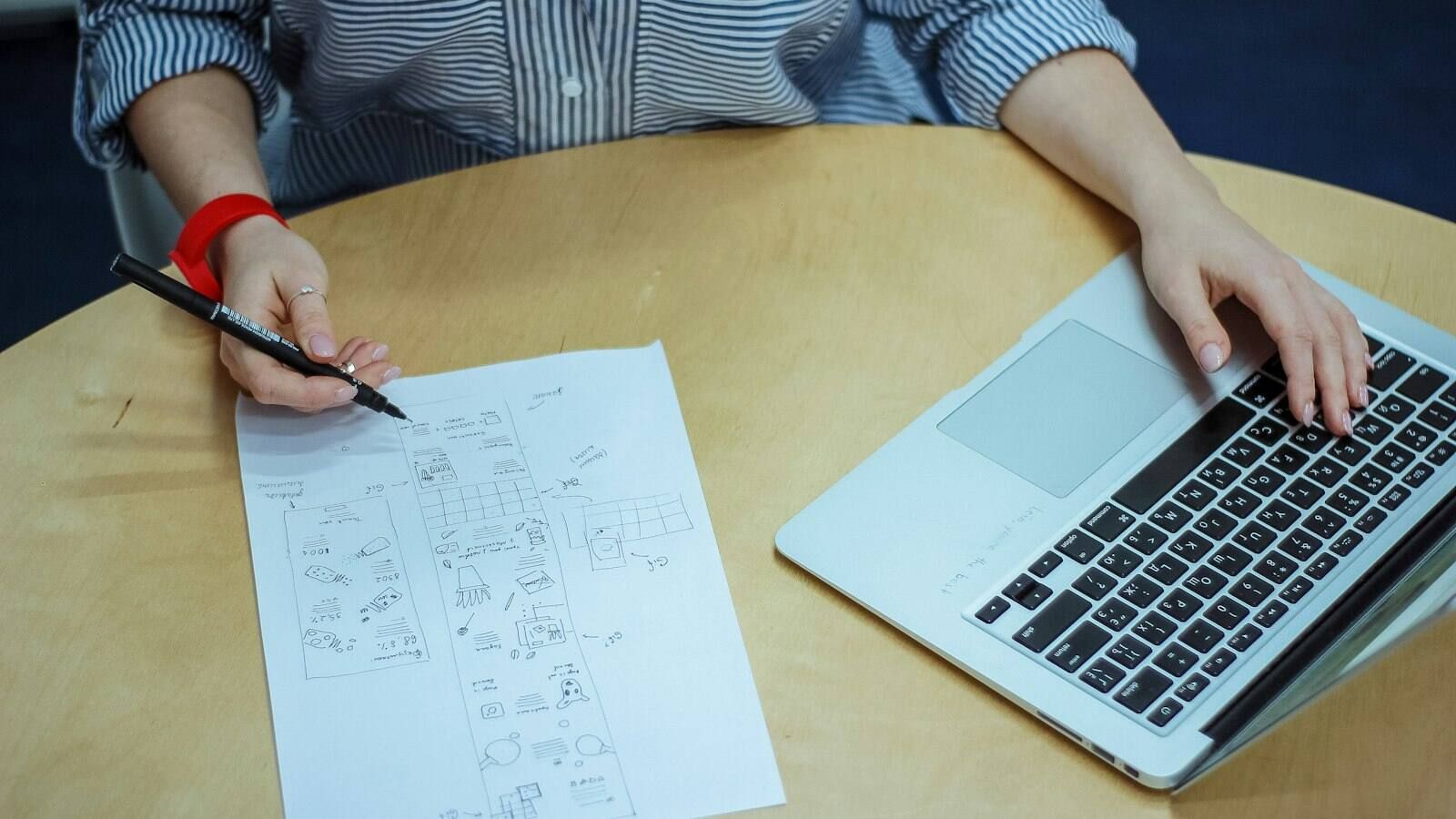
Plenty of advice on online tutoring quietly assumes you own an iPad and a stylus. Many tutors don’t, and most of their students certainly don’t. If you are wondering how to tutor online without an iPad, the good news is that a laptop and an ordinary phone cover almost everything, as long as you choose the right tool for each kind of work instead of forcing one tool to do it all.
This guide compares the realistic setups honestly, with what each one is good and bad at, then suggests combinations for maths, science and English. The aim is a setup that works next week without buying anything.
What you actually need to see and show
Before choosing tools, split the problem in two, because they need different solutions.
What students send you: answers, working, diagrams, spoken English. You need to see it clearly, ideally while they do it, and keep it so you can mark it.
What you show students: worked examples, corrections, a quick sketch of a graph or a sentence diagram. You need it to be clear and quick to produce, ideally without twenty minutes of preparation.
A drawing tablet promises to solve both at once. Without one, you solve each side separately.
How to tutor online without an iPad: six setups
1. Typing maths with a maths keyboard
For short answers, typing beats drawing every time. A formula box that understands fractions, powers and roots lets a student write ½x² + 3 properly without hunting for symbols, and the answer can be checked automatically.
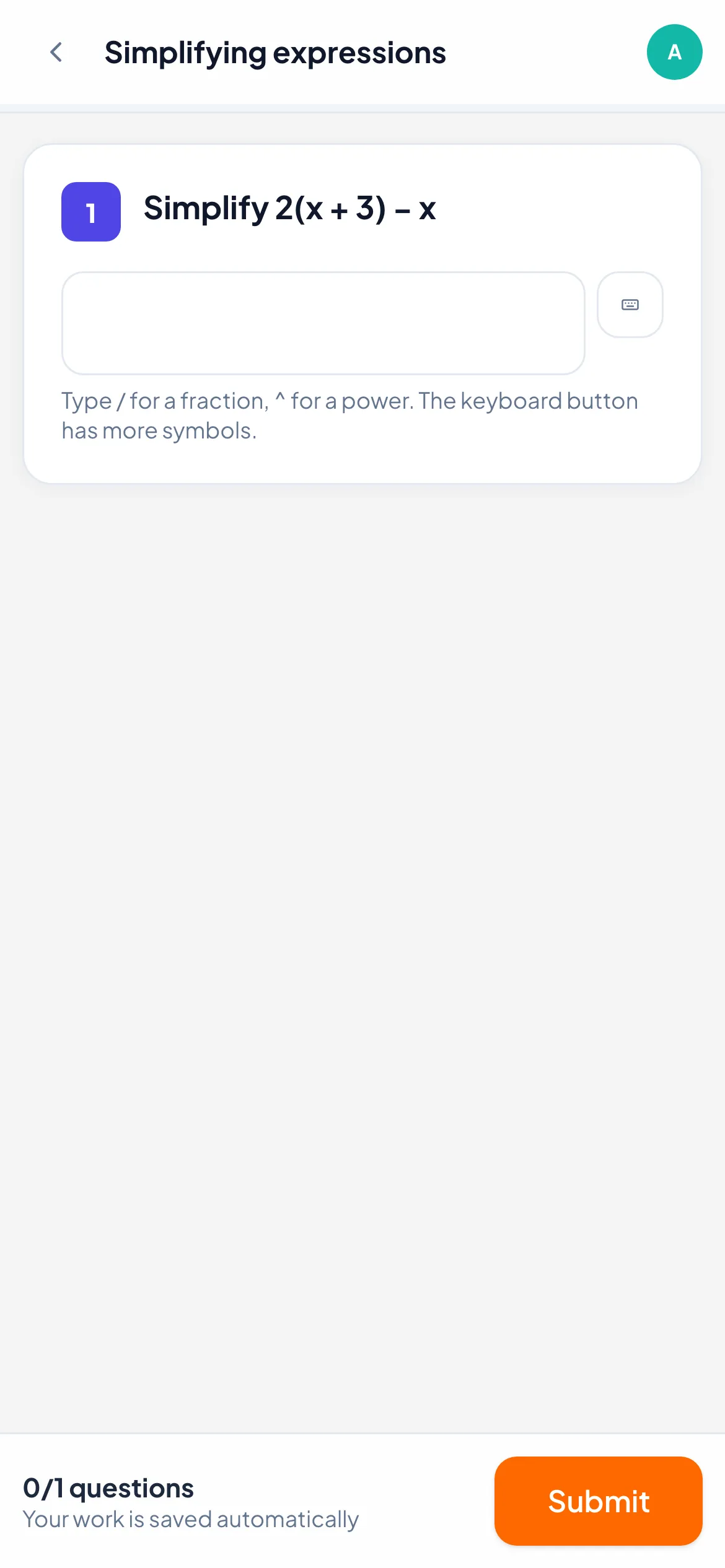
In LearnWorkly, maths questions give students a formula box: they type / for a fraction and ^ for a power, and a keyboard button opens more symbols. Answers equal in value, such as 1/2 and 0.5, are marked right.
Good for: final answers, simplifying, quick checks of a rule. Weak for: working. Nobody types six lines of algebra happily, and the steps are where the mistakes are.
2. Drawing with a mouse or trackpad
Every laptop can draw, badly. A trackpad is fine for circling a mistake, ticking, underlining a word or sketching a rough axis. It is not fine for anything that needs neat handwriting.
Good for: your corrections on a student’s work, labelling a diagram, plotting a few points. Weak for: long working, fractions, handwriting practice. Students on a trackpad give up and write less, which is the opposite of what you want.
If a student does have a touch screen (many phones, some laptops), drawing with a finger is much better than a trackpad for short working.
3. Students photograph their paper with a phone
This is the setup that replaces the tablet for most students. They write on paper, the way they were taught, and take a photo with their phone. The page lands on the question you asked, so you see it on your screen and can keep it.
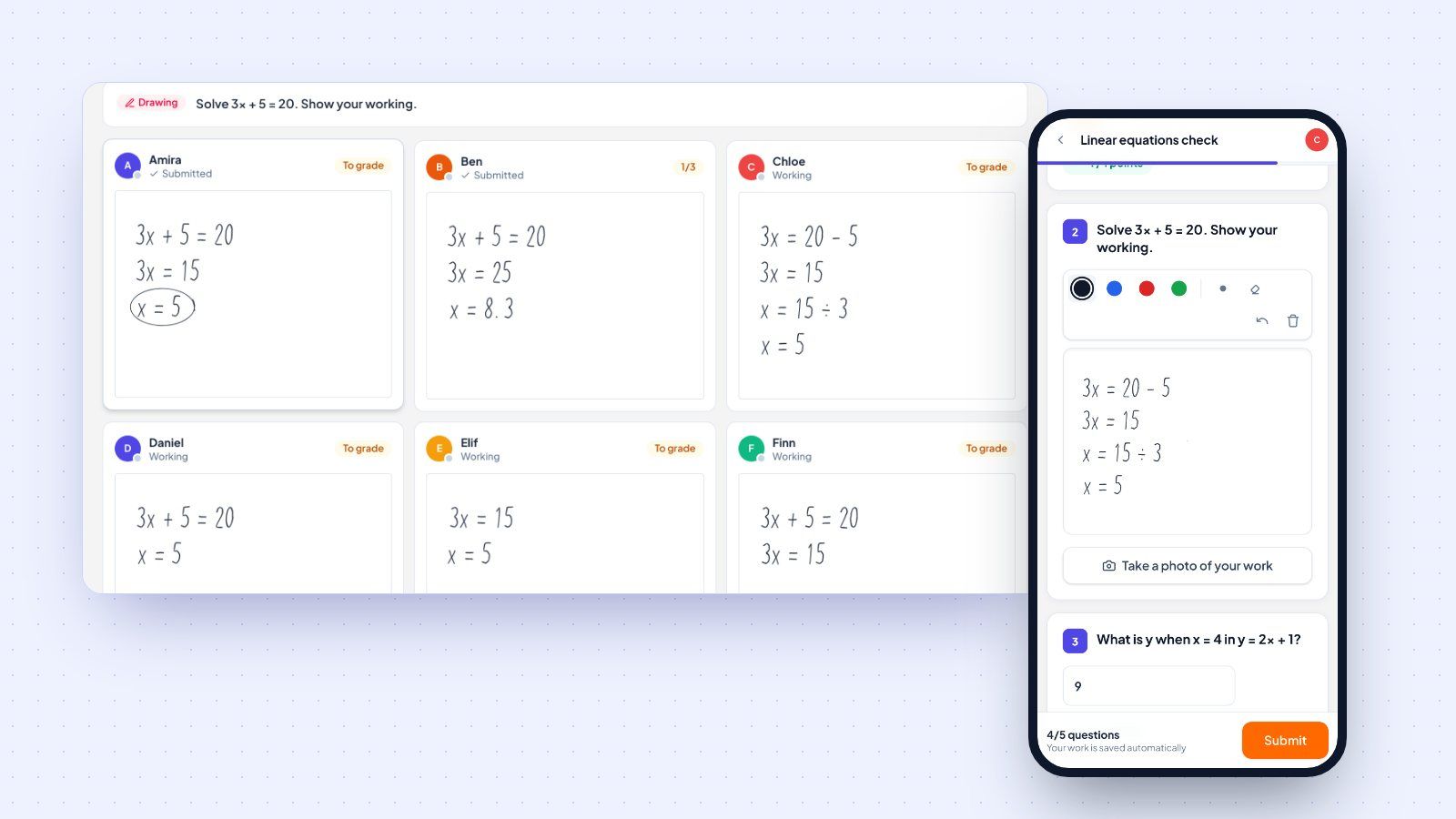
In LearnWorkly the student scans a QR code with their phone camera, takes the photo, and it appears in your live view a few seconds later, with no app and no login on the phone. The photos of handwritten work feature explains what it does, and the help article on collecting photos of handwritten work walks through the steps. We cover the classroom routine and feedback in detail in our guide to seeing students’ handwritten maths work online, so we won’t repeat it here.
Good for: long working, exam questions, essay plans, labelled diagrams. Weak for: very quick checks, because taking a photo takes a moment longer than tapping an answer.
4. Your phone as a document camera
This one is for you, the tutor. Join your video lesson from your phone as a second device, point it down at a sheet of paper, and you have a document camera. Write a worked example by hand, live, and students watch the method unfold at the pace you think.
A cheap phone stand or a pile of books is enough to hold it. Mute the phone’s microphone and speaker so you don’t get echo.
Good for: worked examples, especially when the order of the steps matters. Weak for: anything students need to keep. Once the lesson ends, the explanation is gone unless you photograph the page afterwards.
5. Paper held up to the webcam
Fine as a fallback for a single diagram, but webcams are low resolution, often mirror the image and struggle with pencil. If you rely on it every lesson, switch to setup 4.
6. Typed steps and prepared worked examples
Some explanations are better prepared than improvised. Write the worked example on paper before the lesson, photograph it, and put it in front of the questions it supports. In LearnWorkly a Content block holds text and an image, such as a photo of your worked example, between questions, and a Drawing question can have a picture for students to draw on, such as a grid or a diagram.
The NSW Centre for Education Statistics and Evaluation lists using worked examples to teach new content as one of its practical strategies, alongside presenting all the essential information together. A clear photo of a worked example, placed right next to the question that uses it, does both.
Good for: recurring topics, homework, students who need to look back at the method. Weak for: responding to a misconception you didn’t expect. That is when setup 4 earns its place.
When a cheap pen tablet is worth buying
There are tablets without a screen that plug into a laptop and let you write with a pen. They are among the cheapest drawing hardware you can buy, and they are worth considering in three cases:
- You teach maths or physics most days and you annotate students’ work constantly. Correcting with a pen is faster and neater than with a trackpad.
- You draw a lot of diagrams live: graphs, circuits, geometry constructions.
- You run several groups a day and the extra minutes spent on trackpad sketches add up.
There is a learning curve, because you write on the desk while looking at the screen. Buy one for yourself if the cases above apply. Don’t ask students to buy one. A phone camera gives them a better result for their own work with no new hardware.
Recommended combinations by subject
Maths
- Quick checks: maths questions with the formula box, marked automatically.
- Working: paper plus photo from the phone for longer problems; drawing with a finger for students with a touch screen.
- Your explanations: phone as a document camera for live worked examples, Content blocks with photos for the ones you reuse.
- Corrections: circle the step on drawing answers; on photos, send a short comment or a voice note that names the line.
That is how to tutor maths without a drawing tablet: students keep writing on paper, and you still see every line.
Science
- Diagrams and graphs: a Drawing question with a picture to draw on (axes, an unlabelled diagram). Labelling and plotting points works fine even with a mouse.
- Calculations: number or maths questions for the answer, a photo for the method.
English and ESL
English needs a tablet least of all. Most written work is typed, and the skill you most need to hear is speaking.
- Speaking and pronunciation: audio questions, where students record their answer in the browser and you reply by text or voice.
- Writing: typed free responses, which you can read as they write in a live lesson.
- Handwriting practice (younger learners, or a new alphabet): paper plus photo. Drawing on a trackpad is a poor substitute.
- Grammar on the board: a photo of a hand-drawn sentence diagram in a Content block, or your phone as a document camera.
A starting setup for this week
If you want one setup to try in your next lesson without buying anything:
- Laptop for the video lesson and your teacher screen.
- Phone on a stand, joined to the lesson as a second camera, pointed at your paper.
- Students on their laptop or phone, with a phone nearby to photograph paper.
- One typed or maths question at the start, one longer problem on paper with a photo, one quick drawing to finish.
Run it for two weeks before deciding whether you need more hardware.
Try it
None of these setups needs special hardware, and you can try them all in your next lesson: typed maths, drawing, audio, photos of paper and content with your own worked examples. LearnWorkly is free for up to 10 students, with every question type included.