How to see students’ handwritten maths work in online lessons
Three ways to see students’ handwritten maths working during online tutoring, with no stylus or tablet, and how to give feedback on it in seconds.
LearnWorkly team5 min read
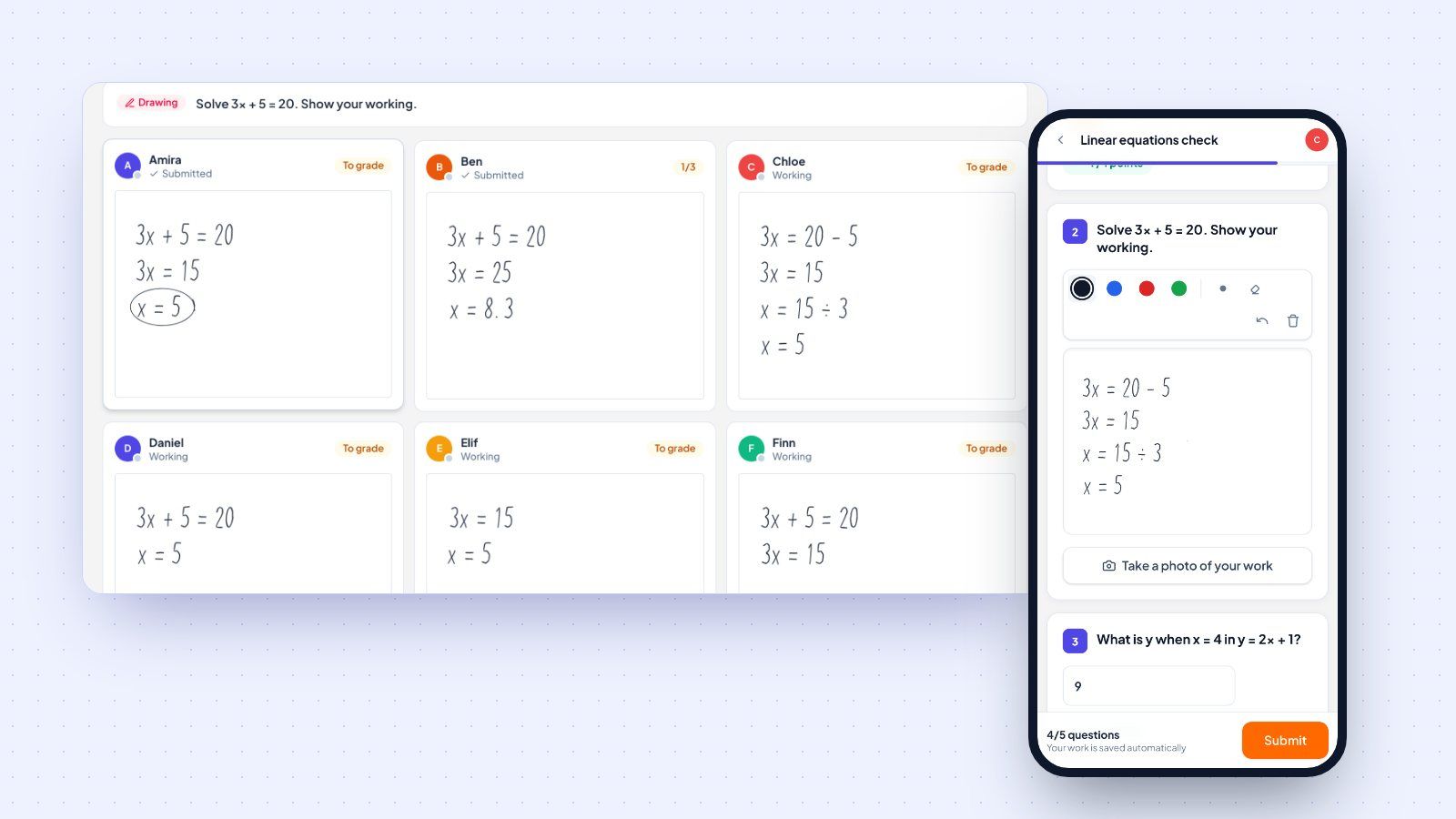
Every maths tutor knows the feeling. A student types “x = 8.3” into the chat. It is wrong, but you have no idea why. Was it a slip with a minus sign? A misunderstanding of what “solve” means? A calculator error? Without the working, you are guessing.
In a face-to-face lesson you would glance at the page. Online, the page is on the student’s desk, out of the camera’s view. This guide covers practical ways to bring handwritten work into an online lesson, what each one costs in time and equipment, and how to give feedback that actually lands.
Why the working matters more than the answer
In maths, the final answer is the least informative part of a solution. Two students can both write “x = 5”, one by solving correctly and one by guessing. Two students can both get it wrong for completely different reasons.
Take a simple equation: Solve 3x + 5 = 20.
- One student writes 3x = 25, then x = 8.3. They added 5 instead of subtracting it.
- Another writes 3x = 15, then x = 12. They subtracted 3 instead of dividing.
- A third writes x = 5 with no working at all.
Each needs a different response. The first needs a quick reminder about inverse operations. The second needs to revisit what 3x means. The third might be fine, or might have copied the answer. You only know which by seeing the working.
Option 1: Hold the page up to the camera
The simplest approach: ask the student to hold their paper up to the webcam.
What works: no setup, no extra equipment, it works today.
What does not: webcams are low resolution and often mirror the image. Students hold the page too far away, at an angle, or in front of a bright window. It works for one student at a time, so in a group everyone else waits. And once the page goes down, the work is gone: you cannot look at it again later or mark it.
Use it as a fallback, not as the main way of working.
Option 2: Students draw their working on screen
If students have a touch screen (a tablet, a touch laptop, or a phone), they can write directly on a drawing canvas. With a mouse it is slow, but for short answers and diagrams it still works.
What works: the work is saved and you can see it update stroke by stroke as they write, which means you can catch a mistake while it happens.
What does not: writing long algebra with a finger on a phone is tiring. Students with only a laptop and a trackpad will struggle with anything longer than two lines.
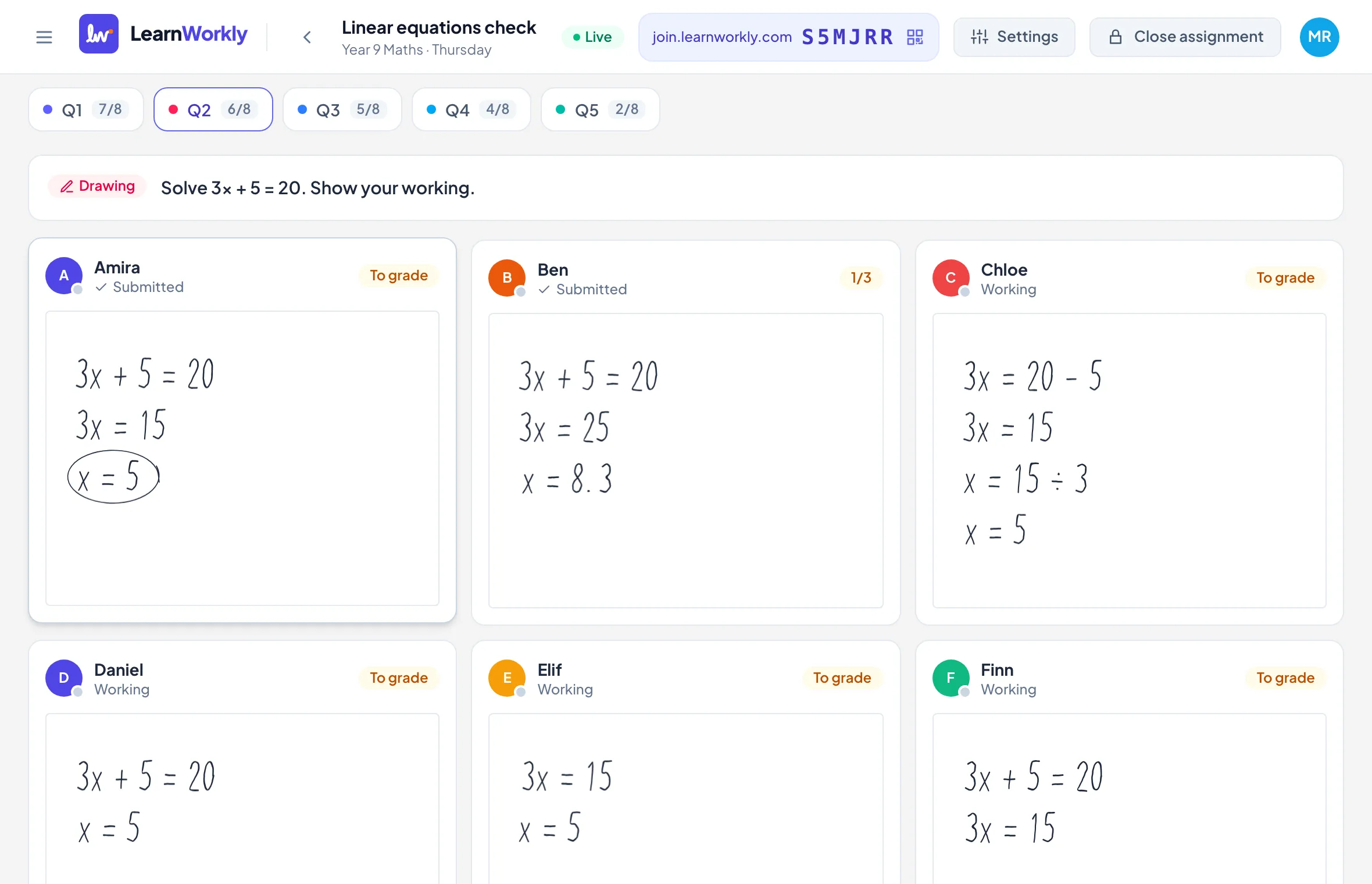
In LearnWorkly, drawing questions show every student’s working side by side in the live view, so with a small group you can compare methods at a glance and pick one to discuss.
Option 3: Photo of the paper, sent from a phone
For most students, paper is still the best place for maths: they can write quickly, cross things out, and lay out a solution the way they were taught. The missing piece is getting the page onto your screen.
The cleanest way is a photo taken with the student’s phone, sent straight to the question they are answering. In LearnWorkly, students see a QR code on the question; they scan it with their phone camera, take a photo, and it lands on that question in front of you a few seconds later. No app, no login on the phone, and the photo is attached to the right student and the right question. We describe it in more detail on the handwritten work feature page.
What works: students write naturally, any phone with a camera is enough, and you get a clear, permanent image you can mark.
What does not: it adds a step, so it is best for longer problems rather than quick checks. Remind students to photograph the page flat and in good light.
Comparing the options
| Approach | Equipment | Best for | Saved for later |
|---|---|---|---|
| Page to webcam | None | Quick one-off checks | No |
| Draw on screen | Touch screen ideal | Short working, diagrams, graphs | Yes |
| Photo from phone | Any phone | Longer problems, exam practice | Yes |
Most tutors end up combining them: drawing for short, quick questions during the lesson, and photos for longer problems and homework.
Giving feedback on handwritten work
Seeing the working is half the job. The other half is responding in a way the student will act on.
Mark the exact line. Circle the step where it goes wrong rather than writing “check your working”. In LearnWorkly you can draw directly on top of the student’s drawing or photo, in red, and they see it immediately.
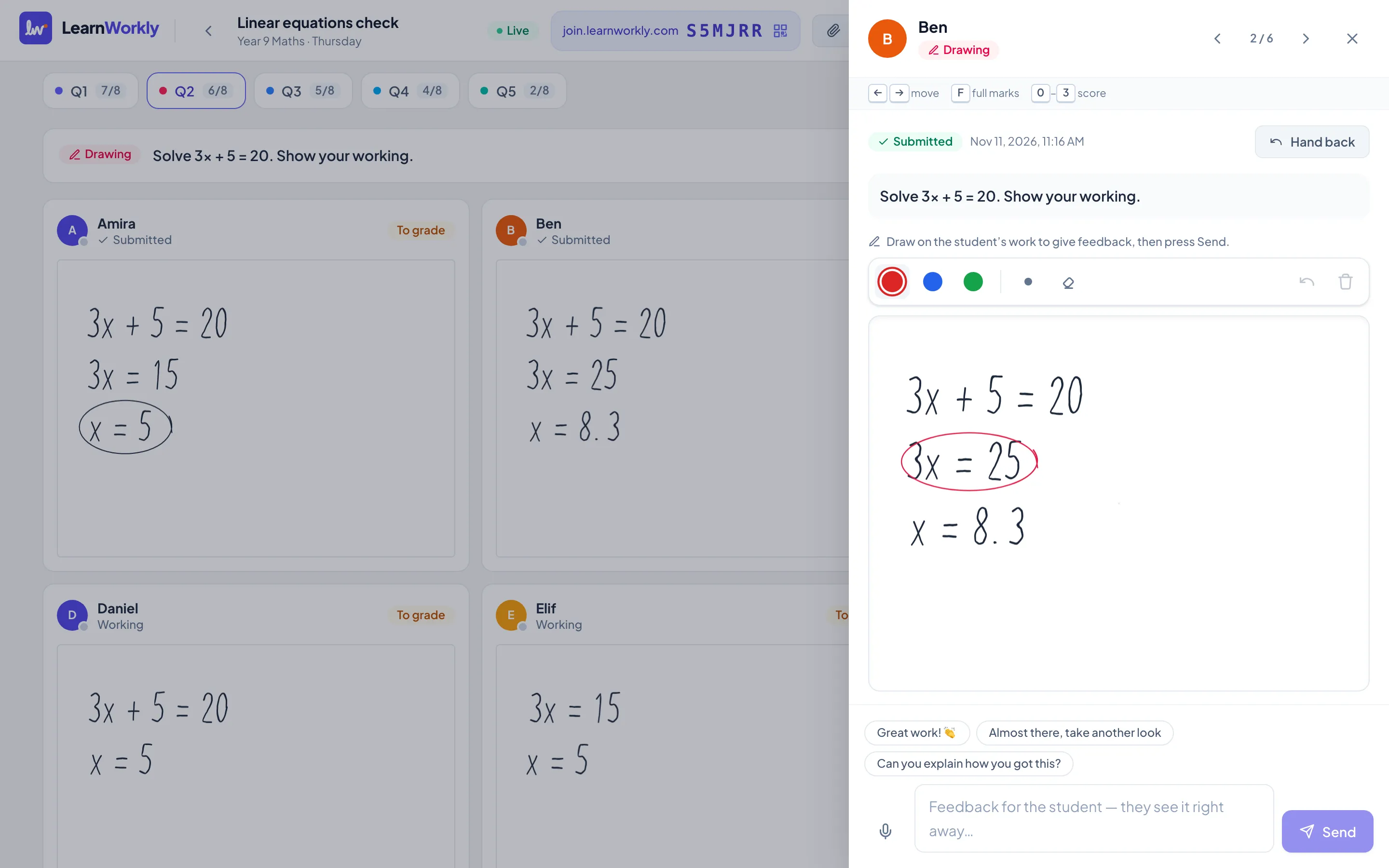
Ask, do not tell. “What is 20 − 5?” next to the circled line gets the student to find the mistake themselves. That sticks better than a corrected answer.
Let them try again. Feedback works best when the student can act on it straight away. Allow a second attempt, or ask them to reply with the corrected line.
Use your voice when it is faster. Some explanations take thirty seconds to say and five minutes to type. A short voice note attached to the answer is often the quickest route.
The Education Endowment Foundation notes that feedback has the most impact when it focuses on the task and on how to improve, rather than on the student. Circling a step and asking a question does exactly that.
A routine that works in a one-hour lesson
- Warm-up (5 minutes): three quick auto-marked questions on last week’s topic.
- Worked example (10 minutes): you model one problem, thinking out loud.
- Your turn (20 minutes): students solve two or three problems on paper and send photos, or draw their working. You watch the work arrive, spot common mistakes, and give feedback on each one.
- Compare methods (10 minutes): show two different correct methods side by side, with names hidden, and discuss.
- Exit question (5 minutes): one problem, working shown, so you know where each student is.
Common questions
Do students need a tablet or stylus? No. A phone camera is enough for photos, and touch-screen drawing works with a finger.
Is it safe to collect photos of student work? Photos should be stored securely and only shown to you and the student. In LearnWorkly they are private and can only be opened through short-lived private links.
What about younger students? Photos work well for younger children, because writing on paper is familiar and the phone step can be done by a parent if needed.
Try it
If you teach maths online, seeing the working changes the lesson. Mistakes get fixed in the same minute instead of the next week. Start free with up to 10 students: drawing, photo answers and every other question type are included on the free plan.