Interactive questions
Whiteboard: draw together on one board, live
A shared board for visual brainstorming.
Opens a demo in the app. No sign-up needed.
What is Whiteboard?
The Whiteboard is a single shared board that you and your audience draw on at the same time. You draw on the big screen with a mouse, pen or touch screen, and participants draw on the same board from their phones. Every stroke shows up for everyone as it is made. It is ideal for brainstorming, sketching a plan together, labelling a diagram or building a quick mind map. You can also keep the board to yourself and use it as a live drawing surface while people watch.
Read the full guide to WhiteboardOn the big screen
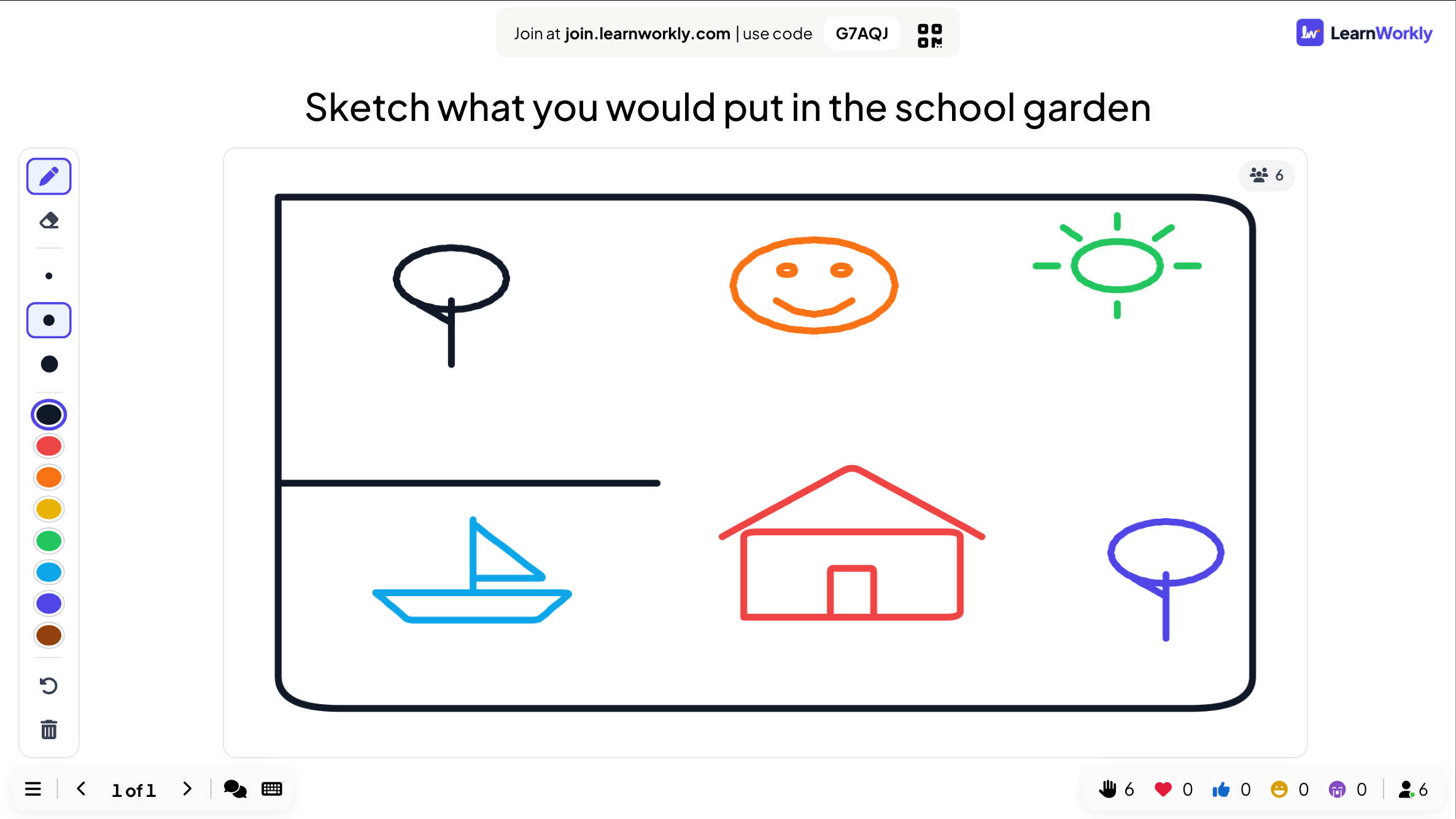
One board with everyone's drawing on it, updating stroke by stroke. Beside it, your toolbar with Pen, Eraser, three sizes, eight colours, Undo and Clear board. No names are shown on the board.
On phones
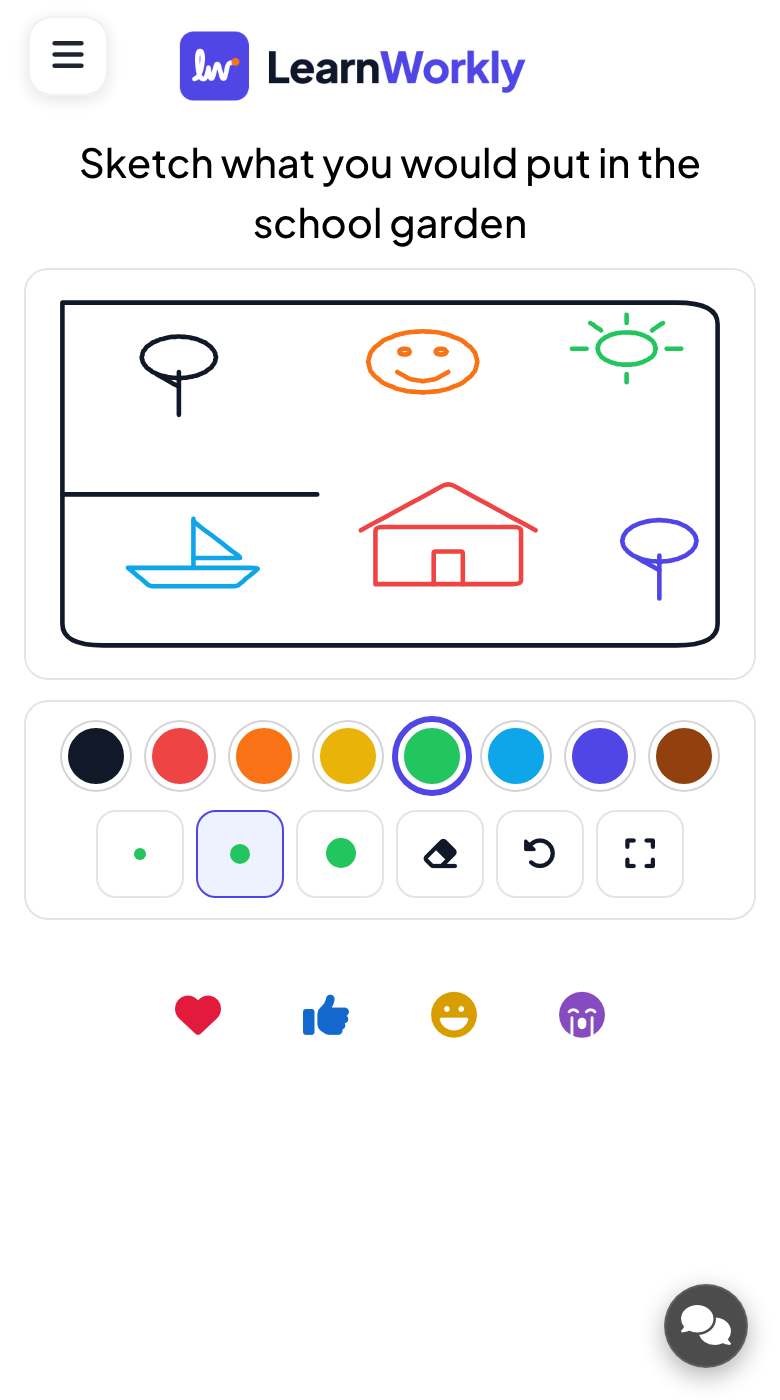
With participant drawing on, phones show the same board with eight colours, three brush sizes, Eraser, Undo and Full screen. Strokes save as soon as the finger lifts. People can only undo or erase their own strokes.
What you control
Enable participant drawing is on by default; turn it off to draw alone. Your eraser and Clear board affect everyone's strokes. Stop Submission freezes the board for phones, and a time limit closes it. You can also draw in the editor beforehand.
Great for
Class mind maps
Draw the central idea and let the class add branches, labels and pictures from their phones.
School teachersWorkshop sketching
Sketch a process outline and ask participants to add the steps, risks or ideas they see.
Trainers and L&D teamsTeam planning
Lay out a rough plan or layout in a meeting and let colleagues mark changes directly on it.
Meetings and presentationsOnline lessons
Remote learners draw on the same board from home, so everyone on the video call works on one picture.
Interactive lessonsWhiteboard activities to try
Copy one into a Whiteboard slide, or use them as a starting point for your own.
Play it live- 1
Sketch what you would put in the school garden.
- 2
Label the parts of this diagram I have drawn.
- 3
Draw an arrow from each problem to its solution.
- 4
Add one idea each to our mind map on customer service.
- 5
Draw our team mascot together, one feature each.
Run it in three steps
- 1
In the editor, click + New Slide and pick Whiteboard. Change the sample content to your own.
- 2
Click Present. People join on their phones with the code or QR code on the screen.
- 3
Answers appear on the big screen as people send them, and stay in the report afterwards.
See it in action
Whiteboard: frequently asked questions
Can participants erase someone else's drawing?
No. Participants can only undo or erase their own strokes, so one person cannot wipe out the work of others. Only the presenter can erase anything on the board or clear it completely.
Can I stop people drawing for a moment?
Yes. Turn on Stop Submission and phones show that submissions are closed and can no longer draw. Turn it off again to let everyone continue on the same board.
Do names appear on the whiteboard?
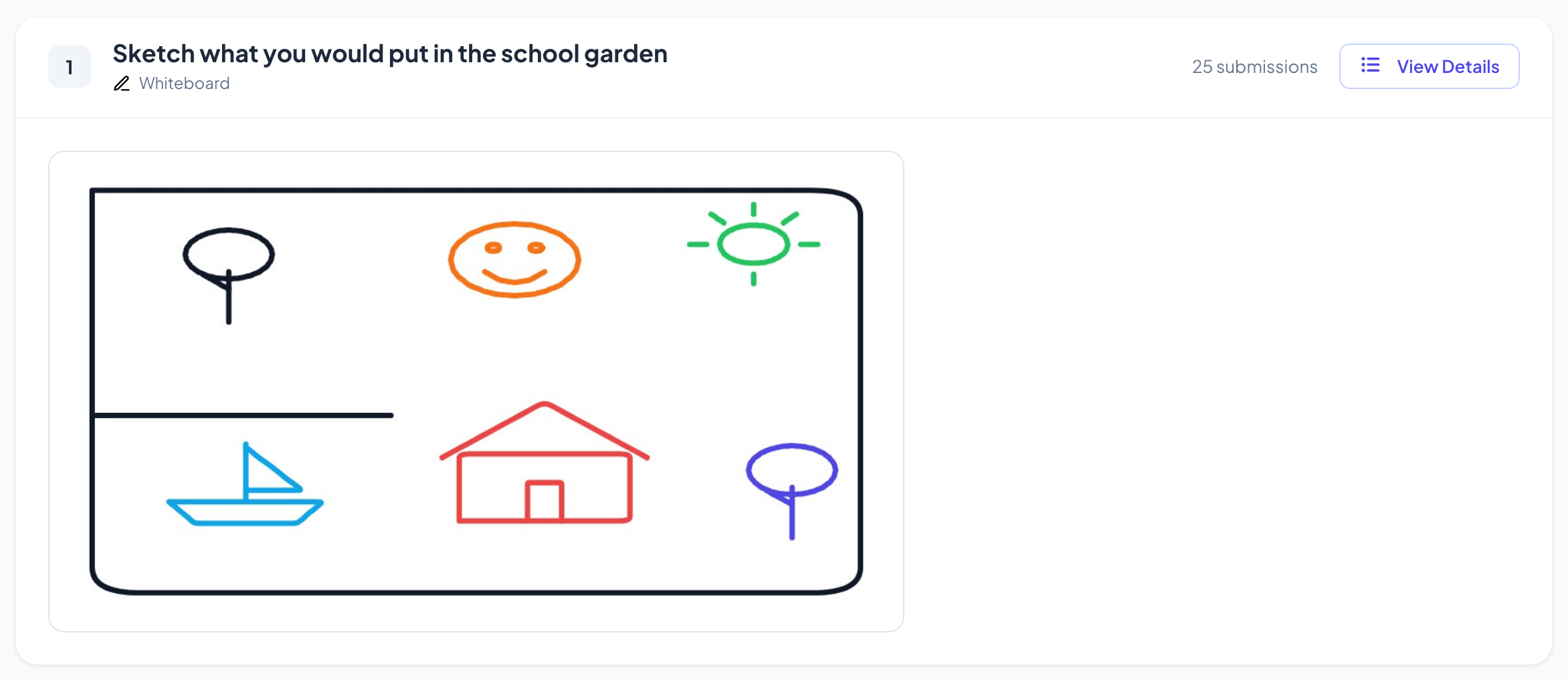
No, the board only shows the strokes. If you turn on the name setting, participants enter a name before drawing, but it only appears in the report, where View Details shows each person's strokes.
What happens when the board is full?
A board holds a large but limited number of strokes. When phones say the board is full, click Clear board to start again, or add a second Whiteboard slide to keep the first drawing.
More activities like this
All activities
See it in your next session
Free for up to 10 live participants. No credit card, nothing for your audience to install.
Free for up to 10 participants · No credit card