Interactive questions
Video Stage: bring participants on screen to speak live
People raise a hand on their phone and you bring them on screen to speak.
Opens a demo in the app. No sign-up needed.
What is Video Stage?
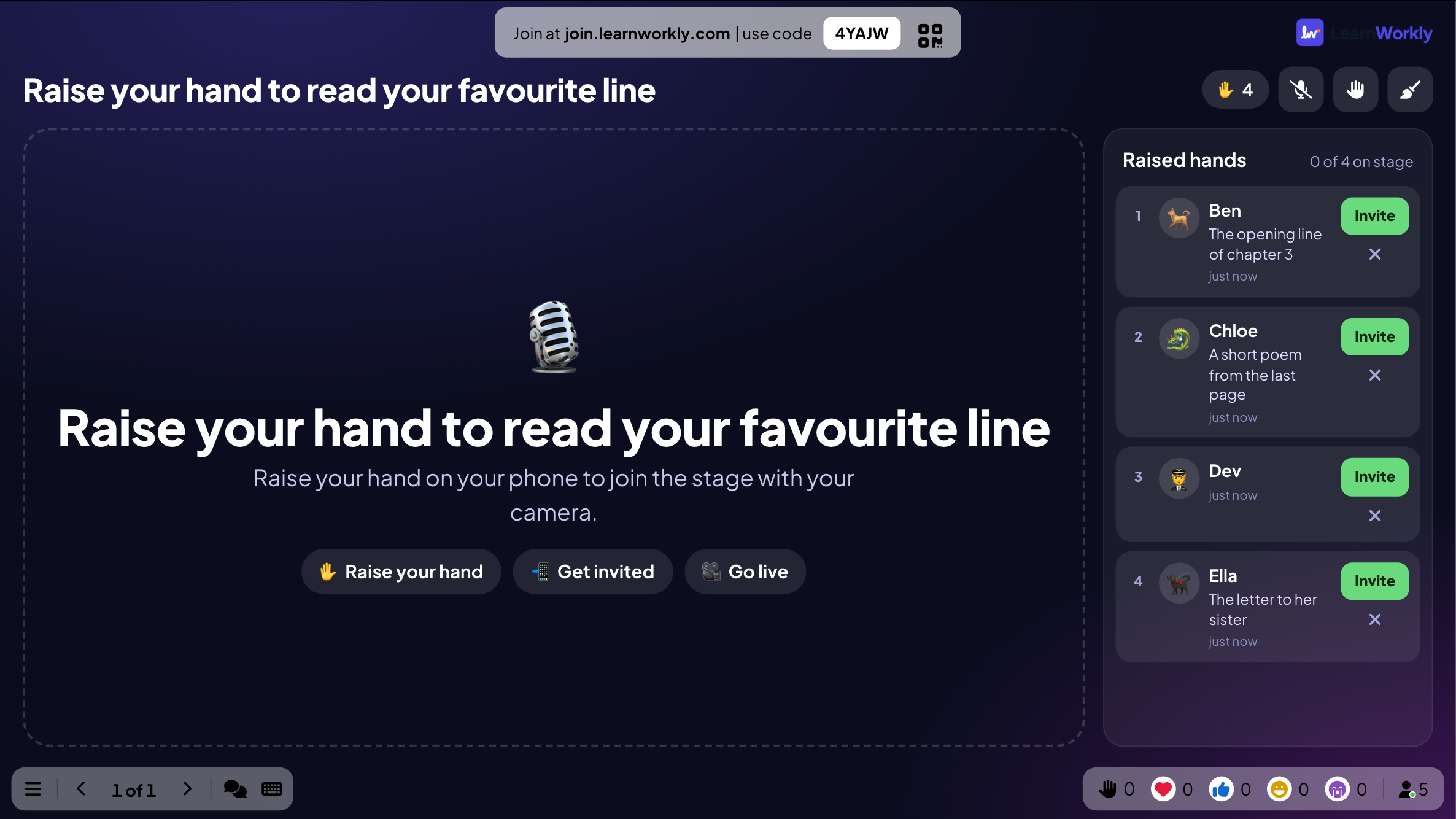
Video Stage turns a slide into a live stage for audience voices. People raise a hand on their phone, optionally with a short note about what they want to say, and you invite speakers on stage from a queue. Invited participants check their camera and microphone, then go live on the big screen to speak to the room. It runs on the built-in call, so nobody installs anything else. Only the people you invite can switch on a camera or mic, only after they accept, and nothing on the stage is recorded.
Read the full guide to Video StageOn the big screen
The stage with up to six speaker tiles and a Raised hands list showing everyone waiting with their note and an Invite button. When a speaking time is set, a timer counts down on each tile, which turns red when time is up.
On phones
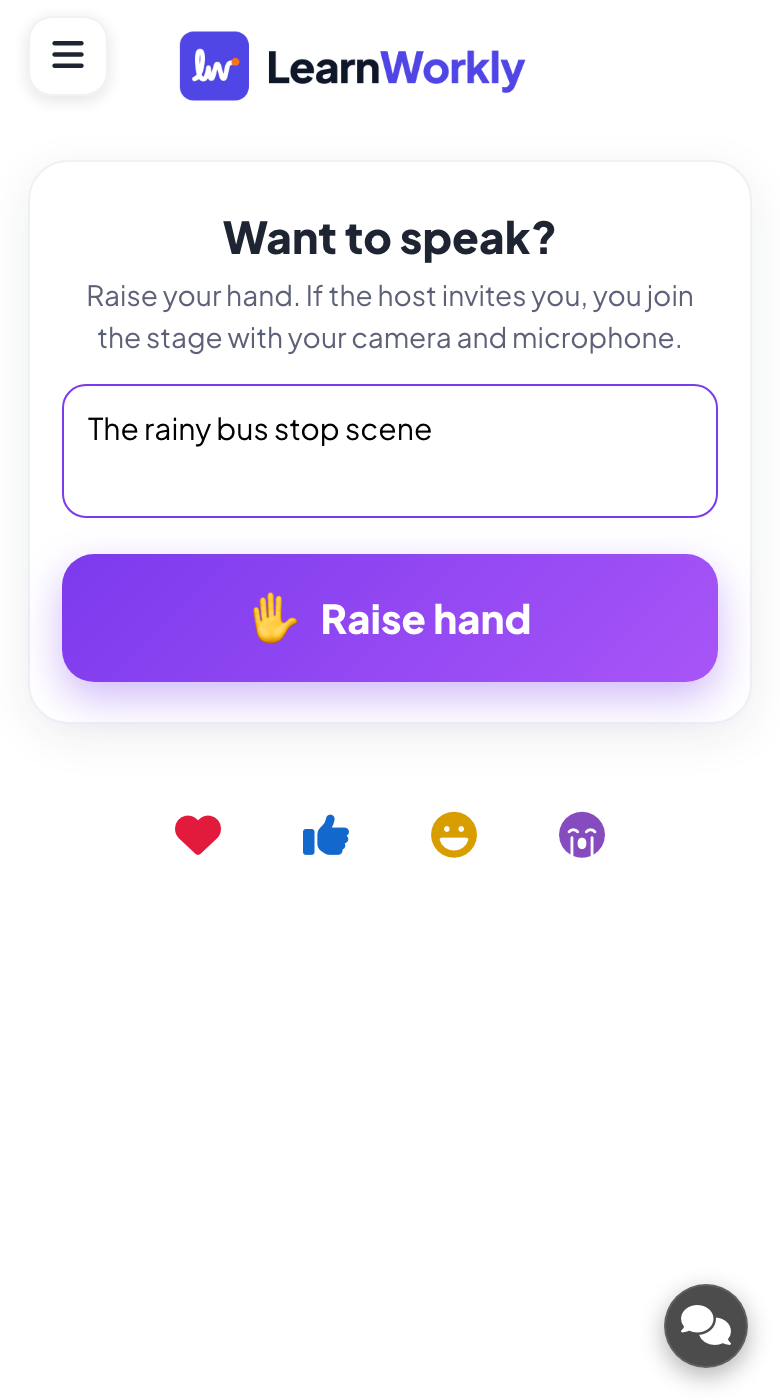
Phones show a Raise hand button and an optional box to say what they want to talk about, plus their place in the queue. When invited, the phone rings; they check camera and mic and tap Go live or Not now.
What you control
Choose Video or Audio only, and 1, 2, 3, 4 or 6 people on stage at once (4 by default). Set a speaking time or no limit. You can spotlight, mute or remove speakers, clear the stage and stop new hands.
Great for
Class presentations
Invite students on stage one by one to present or answer, with a speaking time that keeps every turn fair.
School teachersOnline lessons
With remote participants on, learners at home see and hear the stage and can speak to the whole group.
Interactive lessonsTown halls and Q&A
Let colleagues raise a hand with a note and invite them to ask their question in their own voice.
Meetings and presentationsPanels and events
Bring several audience members on stage at once for a discussion and spotlight whoever is speaking.
Events and team buildingWays to use the stage
Copy one into a Video Stage slide, or use them as a starting point for your own.
Play it live- 1
Raise your hand to share your answer to question 3.
- 2
Who would like to give a two-minute book review?
- 3
Raise a hand with your question for the leadership team.
- 4
Tell us in one minute what you will try after this training.
- 5
Come on stage and share your best moment of the event.
Run it in three steps
- 1
In the editor, click + New Slide and pick Video Stage. Change the sample content to your own.
- 2
Click Present. People join on their phones with the code or QR code on the screen.
- 3
Answers appear on the big screen as people send them, and stay in the report afterwards.
Video Stage: frequently asked questions
Is the video stage recorded?
No. Nothing that happens on the stage is recorded. Cameras and microphones are only used live, and only by the people you invite after they tap Go live on their own phone.
Can I run it with audio only?
Yes. Set the call type to Audio only and speakers use their microphone without a camera. Choose Video when you want camera and microphone together.
Why do phones echo the speaker in a room?
Remote participants is probably on. Leave it off when everyone is in the same room, so only the big screen plays the stage. Turn it on when people join from home and need to see and hear speakers.
Can I limit how long each person speaks?
Yes. Choose a speaking time of 1, 2, 3 or 5 minutes, or no limit. A timer counts down on each speaker's tile, and the tile turns red when time is up, but nobody is cut off.
More activities like this
All activities
See it in your next session
Free for up to 10 live participants. No credit card, nothing for your audience to install.
Free for up to 10 participants · No credit card