Interactive questions
Quick Form: collect sign-ups and details during a session
Collect details through a custom form with several fields.
Opens a demo in the app. No sign-up needed.
What is Quick Form?
A Quick Form puts a short form on every phone in the room. It always has a name and an email field, and you can add your own fields such as company, course of interest or phone number, each either optional or required. It is made for moments when people want something from you: a brochure, a follow-up call, a place on the next course. The answers stay private, because the big screen only shows the form and a running count of responses, never what anyone typed. You get a table of responses in the report.
Read the full guide to Quick FormOn the big screen
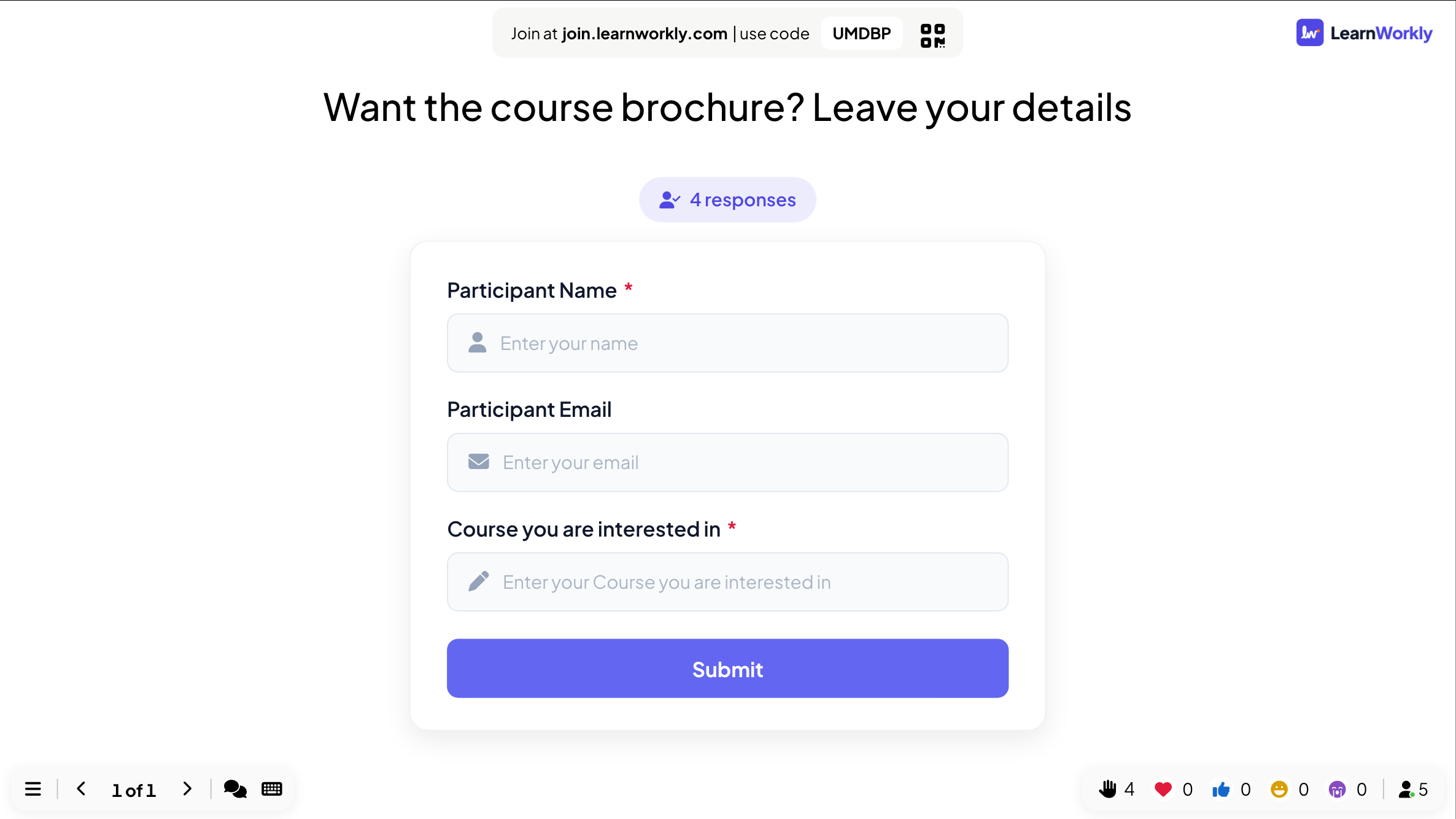
A preview of the empty form with your fields and a badge counting how many responses have arrived. What people typed is never shown to the room, so personal details stay off the big screen.
On phones
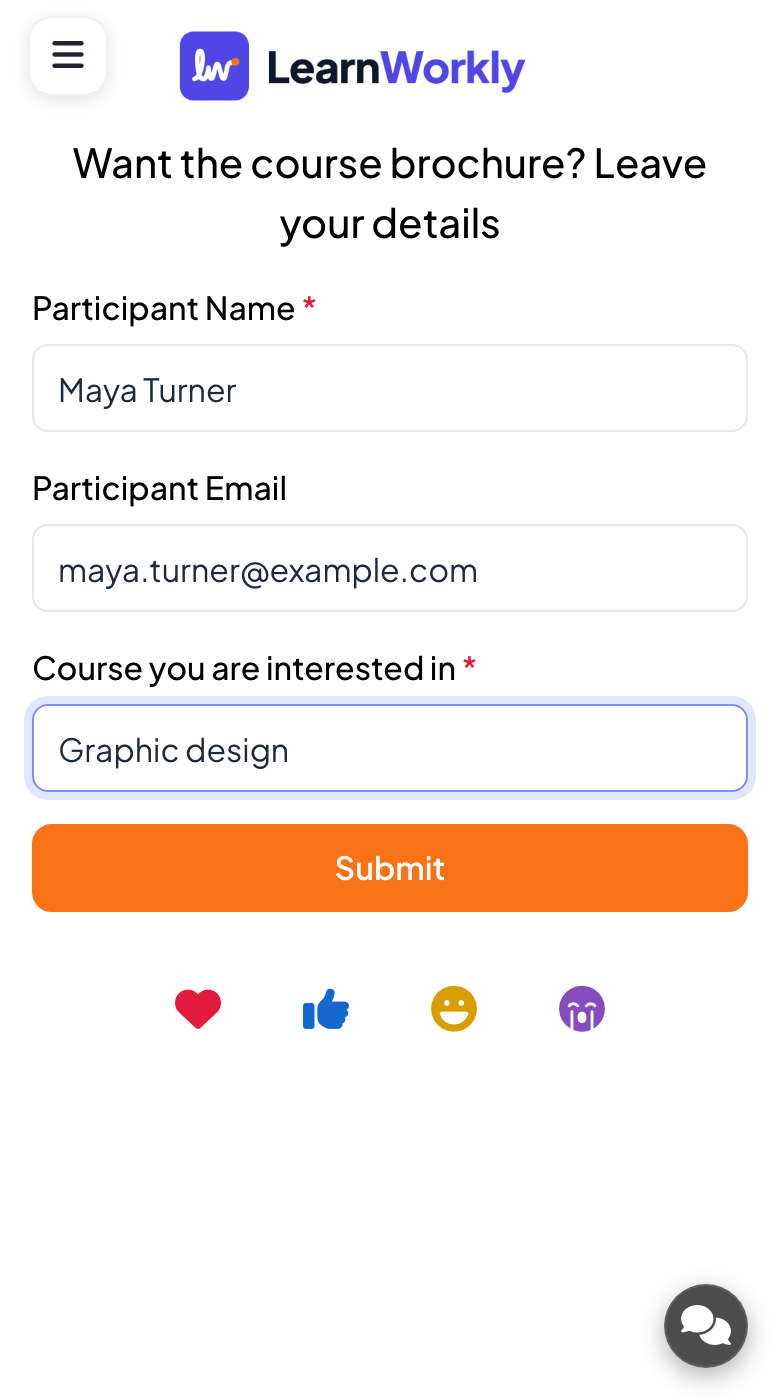
Participants see your fields, with a red asterisk on the required ones, fill them in and press Submit. They then see a thank-you message, which stays even if they reload, so nobody submits twice.
What you control
Participant Name and Participant Email are fixed fields. Add your own with Add Field, drag to reorder, and click the asterisk to make a field required. Responses become a table in the report, exportable to Excel on the Basic plan and above.
Great for
Course enquiries
At the end of a training session, let interested participants leave their details for the next course.
Trainers and L&D teamsEvent registrations
Collect sign-ups for a follow-up activity, newsletter or prize draw while the crowd is still in the room.
Events and team buildingFollow-up after a talk
Offer slides or a brochure after a presentation and collect contact details from the people who want them.
Meetings and presentationsGroup sign-ups
Ask students to choose a project or workshop group and record their choice alongside their name.
University lecturersForms to try
Copy one into a Quick Form slide, or use them as a starting point for your own.
Play it live- 1
Want the course brochure? Leave your name, email and course of interest.
- 2
Sign up for a follow-up call: name, email and best time to reach you.
- 3
Join a project group: name and preferred topic.
- 4
Enter today's prize draw: name and team.
- 5
Request the slides from this talk: name and email.
Run it in three steps
- 1
In the editor, click + New Slide and pick Quick Form. Change the sample content to your own.
- 2
Click Present. People join on their phones with the code or QR code on the screen.
- 3
Answers appear on the big screen as people send them, and stay in the report afterwards.
See it in action
Quick Form: frequently asked questions
Can other participants see what I typed?
No. Each phone only shows its own form, and the big screen only shows how many responses there are. The answers are visible to the presenter in the report, not to the room.
Can I remove the name or email field?
No, both are fixed parts of the form. You can leave them optional, shown with a grey asterisk, so people can skip them. Only ask for the details you really need and say why.
Can I export the responses to a spreadsheet?
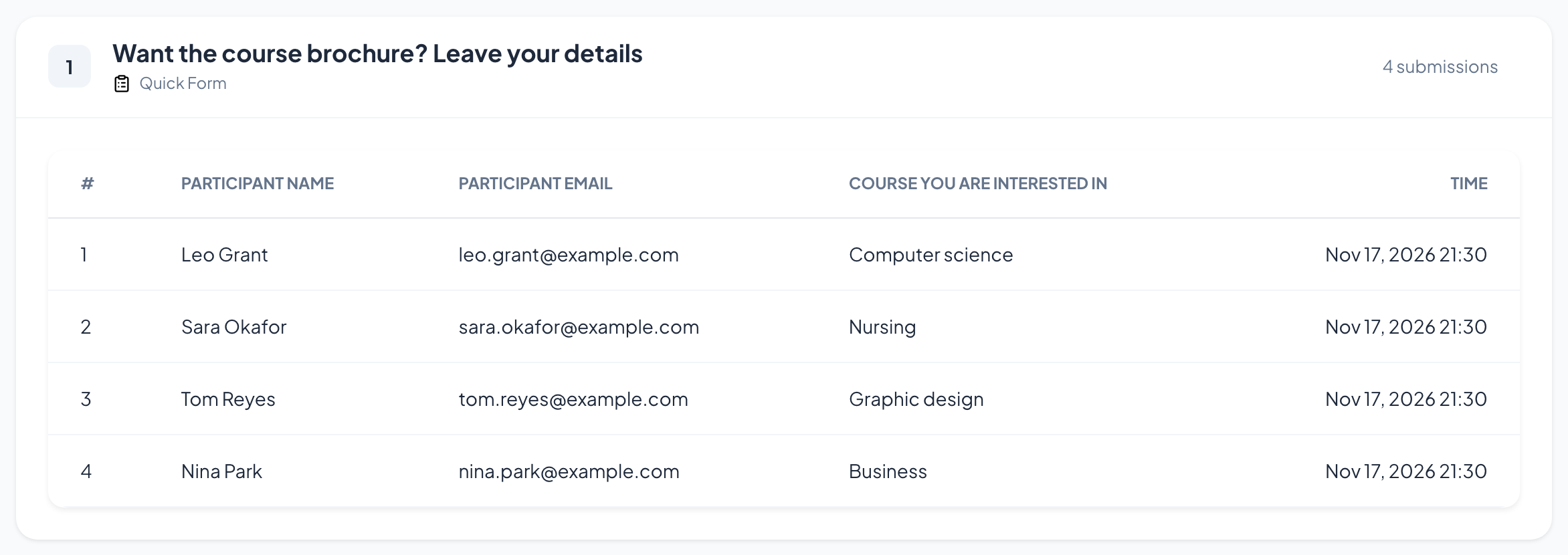
Yes. The report shows a table with one row per response, one column per field and the time it was sent. Export Excel downloads it on the Basic plan and above.
Can someone submit the form twice?
No. After pressing Submit, the phone keeps showing the thank-you message, even if the person reloads the page, so each participant sends exactly one response to the form.
More activities like this
All activities
See it in your next session
Free for up to 10 live participants. No credit card, nothing for your audience to install.
Free for up to 10 participants · No credit card