Quiz
Bet / Wager: a quiz round where players stake their points
Bet points before the options appear: right doubles the bet, wrong loses it.
Opens a demo in the app. No sign-up needed.
What is Bet / Wager?
Bet / Wager is a multiple-choice question with a betting round before it. Each player picks a chip to bet on how confident they are, and only then do the options appear. A right answer pays out a multiple of the bet, a wrong one loses it. Because players further down the leaderboard can win big, it makes a tense final round. You can also run it as a blind bet, where players see only a hint such as a category before they bet, and the question appears once bets are locked.
Read the full guide to Bet / WagerOn the big screen
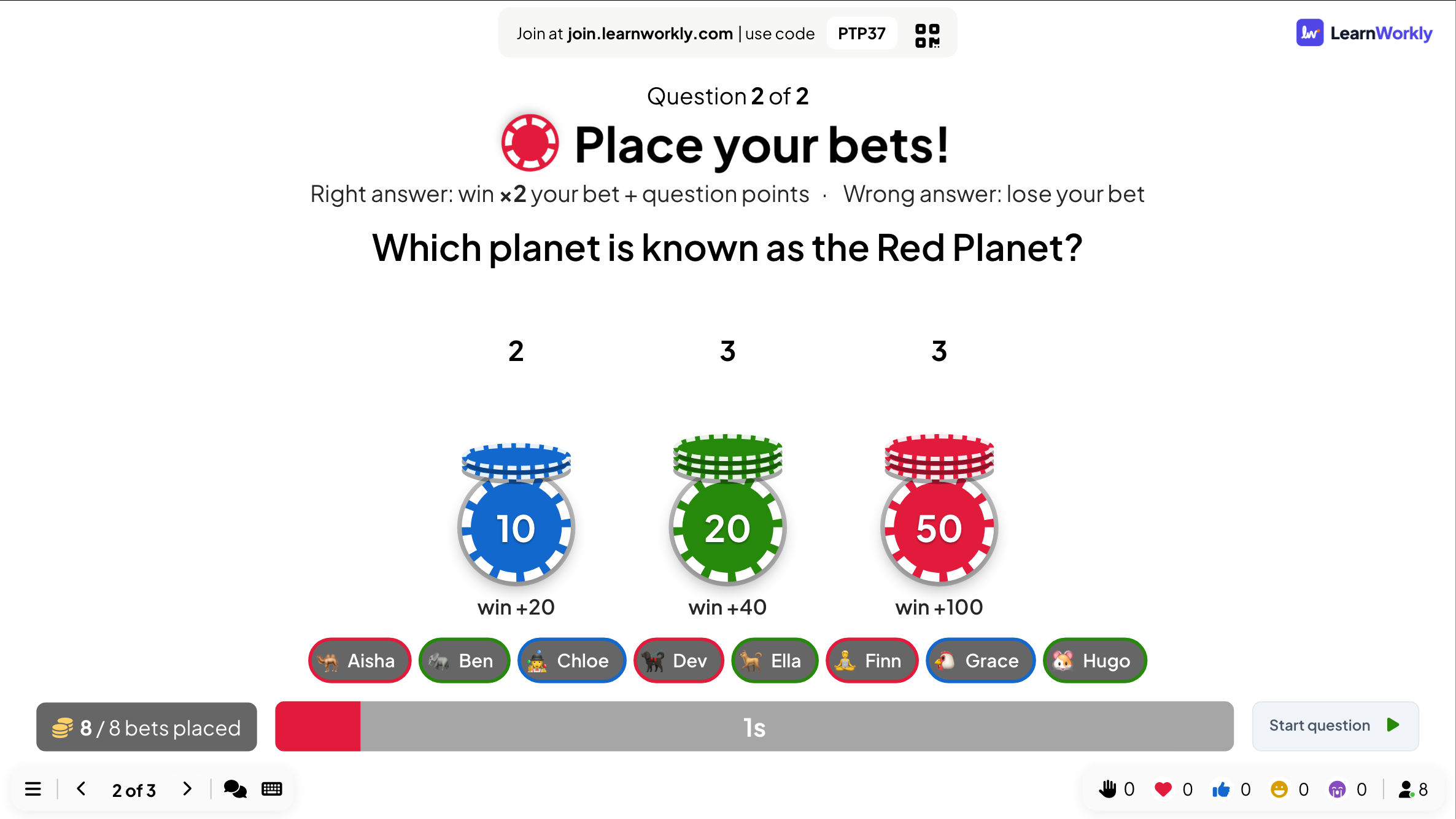
During betting the big screen shows Place your bets! with the payout rule, a timer, the players and how many bets sit on each chip. After that the question plays like any quiz question, followed by a reveal.
On phones
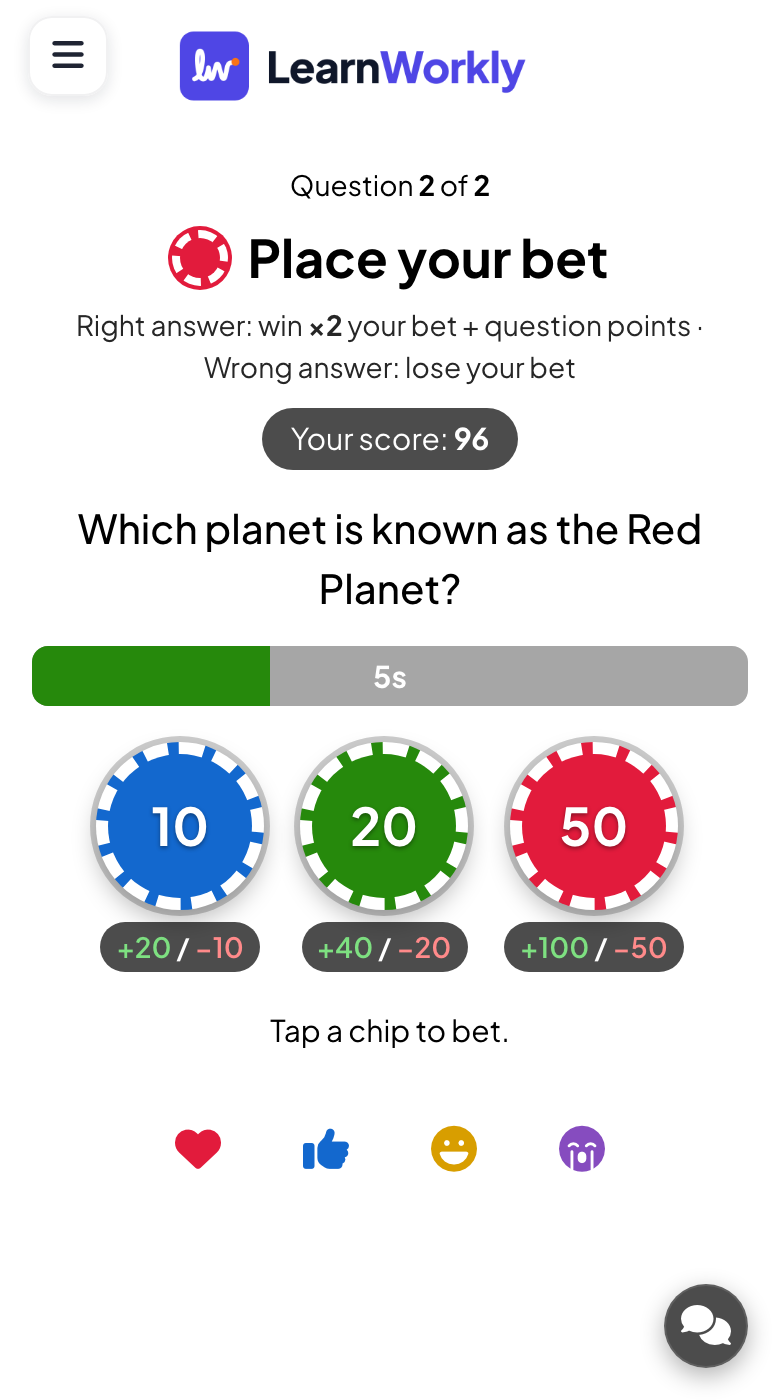
Phones show the chips with what each one can win or lose, and the player’s score. Players tap a chip and can change it until betting ends. After the reveal they see the bet, what it won or lost and any question points.
What you control
You set up to four chips (10, 20 and 50 to start), the payout (×2 by default, or ×1, ×1.5, ×3) and a betting time of 15 seconds by default. Start question locks bets early.
Great for
Quiz night final round
End the evening with a bet so teams trailing on the leaderboard still have a chance to win.
Events and team buildingConfidence checks in class
Let students bet on how sure they are, then talk about who was confident and wrong.
School teachersWorkshop closers
Finish a training session with a high-stakes question on the most important point of the day.
Trainers and L&D teamsTeam meeting challenge
Add a blind bet with a category hint to an online session for a quick moment of suspense.
Meetings and presentationsQuestions to bet on
Copy one into a Bet / Wager slide, or use them as a starting point for your own.
Play it live- 1
Which is the largest ocean on Earth? Atlantic, Indian, Pacific, Arctic (Pacific)
- 2
Hint only "Science": which element has the atomic number 1? (hydrogen)
- 3
Who painted the Mona Lisa? Michelangelo, Leonardo da Vinci, Raphael, Donatello (Leonardo da Vinci)
- 4
How many bones are in the adult human body? 186, 206, 226, 246 (206)
- 5
Which month has the fewest days? February, April, June, November (February)
Run it in three steps
- 1
In the editor, click + New Slide and pick Bet / Wager. Change the sample content to your own.
- 2
Click Present. People join on their phones with the code or QR code on the screen.
- 3
Fast, correct answers score points, and the leaderboard shows the top players after each question.
See it in action
Bet / Wager: frequently asked questions
What happens if a player does not place a bet?
They play for the smallest chip. If you added the optional 0-point play safe chip, they bet nothing instead and cannot lose points on this question.
Can a score go below zero?
Yes, a lost bet can push a score below zero. Turn on the option that keeps scores at zero or above, and a lost bet can then take only the points a player already has.
Do players also get the normal question points?
By default, yes: a right answer earns the usual question points plus the bet winnings. Switch off adding question points if you want only the bet to count.
Where should I put a Bet / Wager question?
After a few other quiz questions, so players already have points to bet. As the last question before the final leaderboard, it gives everyone a chance to change the ranking.
More activities like this
All activities
See it in your next session
Free for up to 10 live participants. No credit card, nothing for your audience to install.
Free for up to 10 participants · No credit card