You need one class and one activity. If you do not have them yet, start with Create your first class and Create your first activity.
- 1
Open your class
Go to Classes and open the class you are teaching.
- 2
Choose the activity
Under Assign an activity, pick it from Choose an activity….
- 3
Choose how students move through it
Self-paced: students work at their own pace, then submit. One by one: you move through the questions and the whole class sees the same one. Practice: flashcards and a quiz with instant answers for self-study, not graded.
- 4
Start
Click Assign and watch live. The live view opens.
- 5
Let students in
Students go to join.learnworkly.com and enter the class code shown at the top of the live view. Click it (or Show join screen) to open a full-screen join screen with a QR code and a Copy join link button.
- 6
Watch the answers
Students who have joined appear in the live view. Their answers, drawings and photos appear as they work, and automatically marked questions show a score straight away.
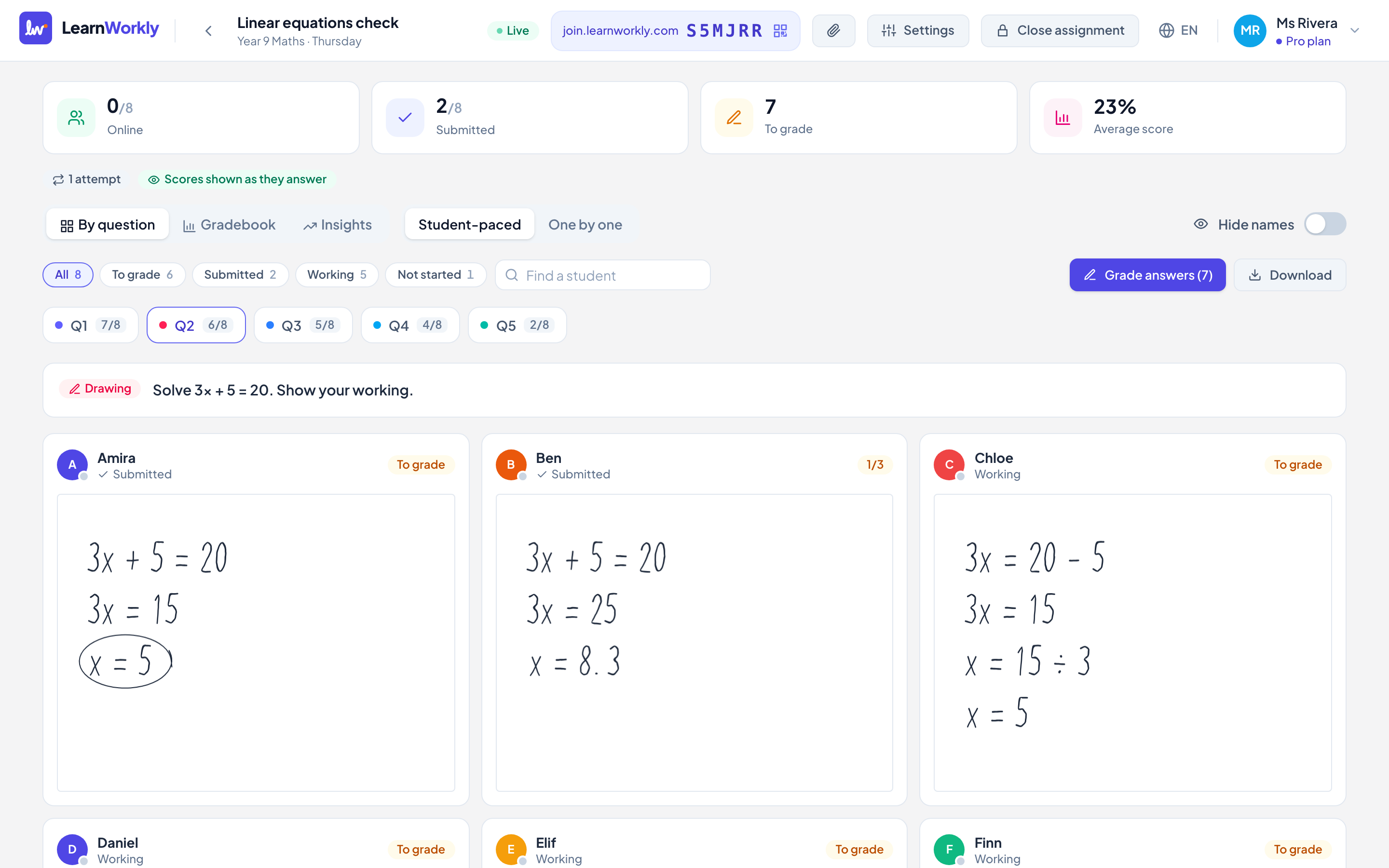
Useful controls in the live view
- By question, Gradebook and Insights switch between one question for everyone, a table of scores and an analysis of the results.
- Student-paced and One by one change the pace while the lesson is running. In One by one, use Previous and Next to move the class.
- Hide names hides student names when you share your screen with the class.
- Close assignment stops students from working on it. You can reopen it later.
Frequently asked questions
Do students need to install anything?
No. They use a web browser on a phone, tablet or computer.
A student closed the tab. Is their work lost?
No. Answers are saved as they work. On the same device they come back by opening the join page again; on another device they use their personal link.
Can I use the same assignment as homework afterwards?
Yes. With Self-paced you can set a due date, time limit and attempts in Options. See Set homework.
Last checked against the app on 11 November 2026.
Related articles
- See every answer liveStart a live lesson from a class, watch each student’s answers and drawing appear as they work, and hide names before you share your screen.
- Invite students to a classStudents join with the class code, a join link or a QR code, with no account. Personal links bring a student back to their own work on any device.
- Give feedback on students’ workSend a written comment or a voice note on any answer, draw on a student’s drawing to circle a mistake, and the student sees it straight away.