An activity is a set of questions and content (instructions, a reading text, an image or a video). You build it once and can assign it to any class, live in a lesson or as homework.
- 1
Start a new activity
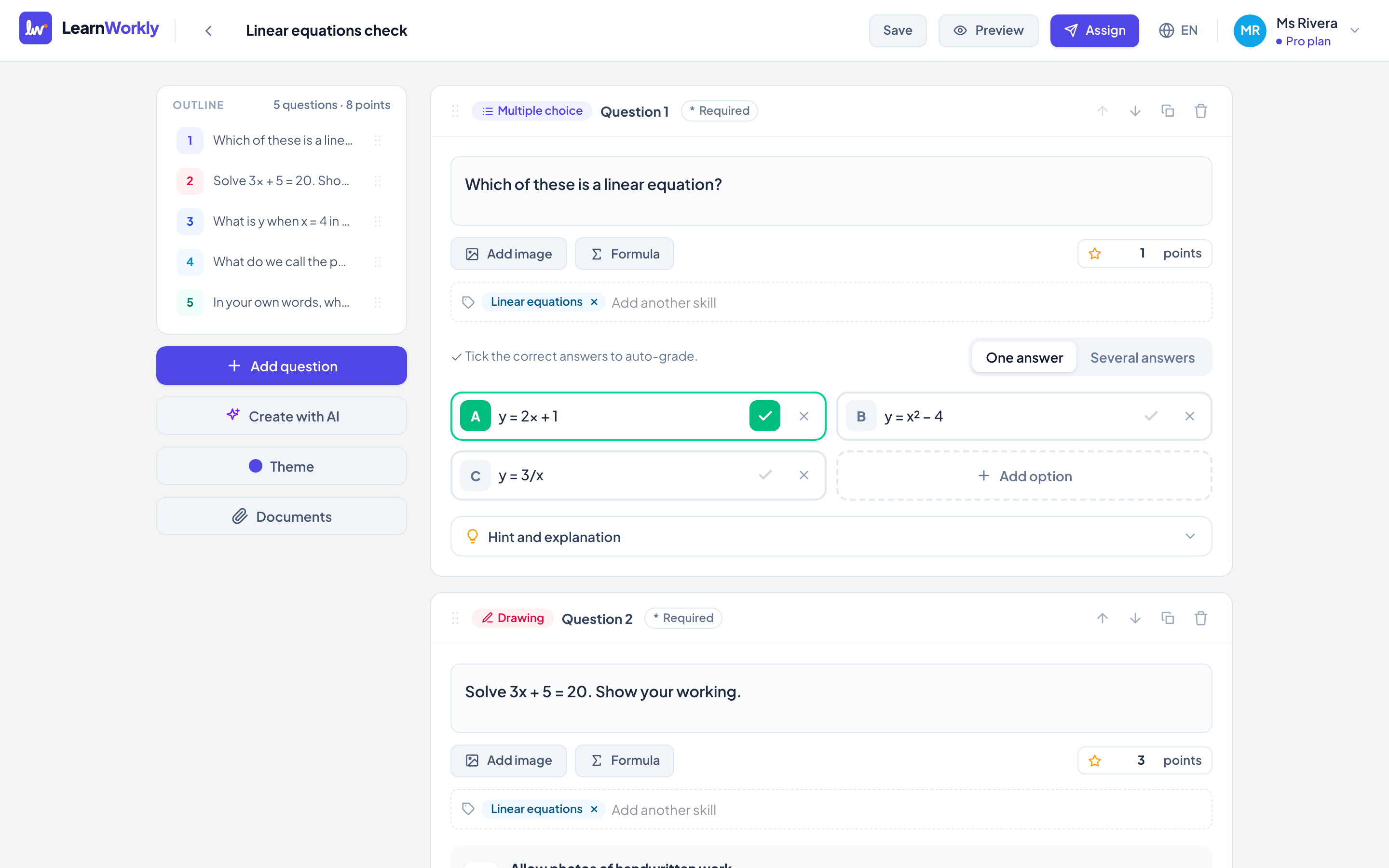
Go to My activities and click Create activity. The editor opens with an empty activity.
- 2
Give it a title
Type a title at the top of the editor, for example "Past simple warm-up".
- 3
Add your first question
Choose a type, such as Multiple choice. Type the question, fill in the options and tick the correct answer so it is marked automatically.
- 4
Add a few more
Click Add question (or Add a question or content under the last item). Try a Drawing question so students can show their working.
- 5
Preview it
Click Preview to see the activity as a student would, on a Phone or a Computer.
- 6
Assign it
Click Assign, pick a class, choose the options and click Assign and watch live.
Let AI draft it for you
Short on time? Click Create with AI on the My activities page. Describe the topic, or add a worksheet, and you get a full activity you can edit before assigning. See Create questions with AI.
Frequently asked questions
Which questions are marked automatically?
Questions with an answer key, such as multiple choice, true / false, short answer and fill in the blank. Free responses, drawings, audio and file uploads you mark yourself. See Question types.
Can I change an activity after assigning it?
Yes, you can keep editing it in My activities. Be careful when deleting a question students have answered: their answers to it are deleted too.
Last checked against the app on 11 November 2026.
Related articles
- The 13 question typesWhat each of the 13 question types is for, which ones LearnWorkly marks automatically and which ones you mark yourself, with partial credit where it applies.
- Build and organise activitiesAdd and reorder questions, mark skills, add hints and explanations, preview as a student, and duplicate or import activities to save time.
- Create questions with AIDescribe a topic or upload a worksheet, PDF or photo, and get editable questions with answers. See how many AI generations each plan includes.