Feedback in LearnWorkly works both ways. Once you have left feedback on an answer, the student can reply under it, for example to explain their thinking or to ask a question. Each question has its own conversation, so nothing gets mixed up.
How a conversation works
- 1
You send feedback
Open the student’s answer on the live view and send a comment, a voice note or a drawing.
- 2
The student replies
Under the question, in the Teacher feedback box, the student types in Reply to your teacher… and presses Send.
- 3
You see the reply
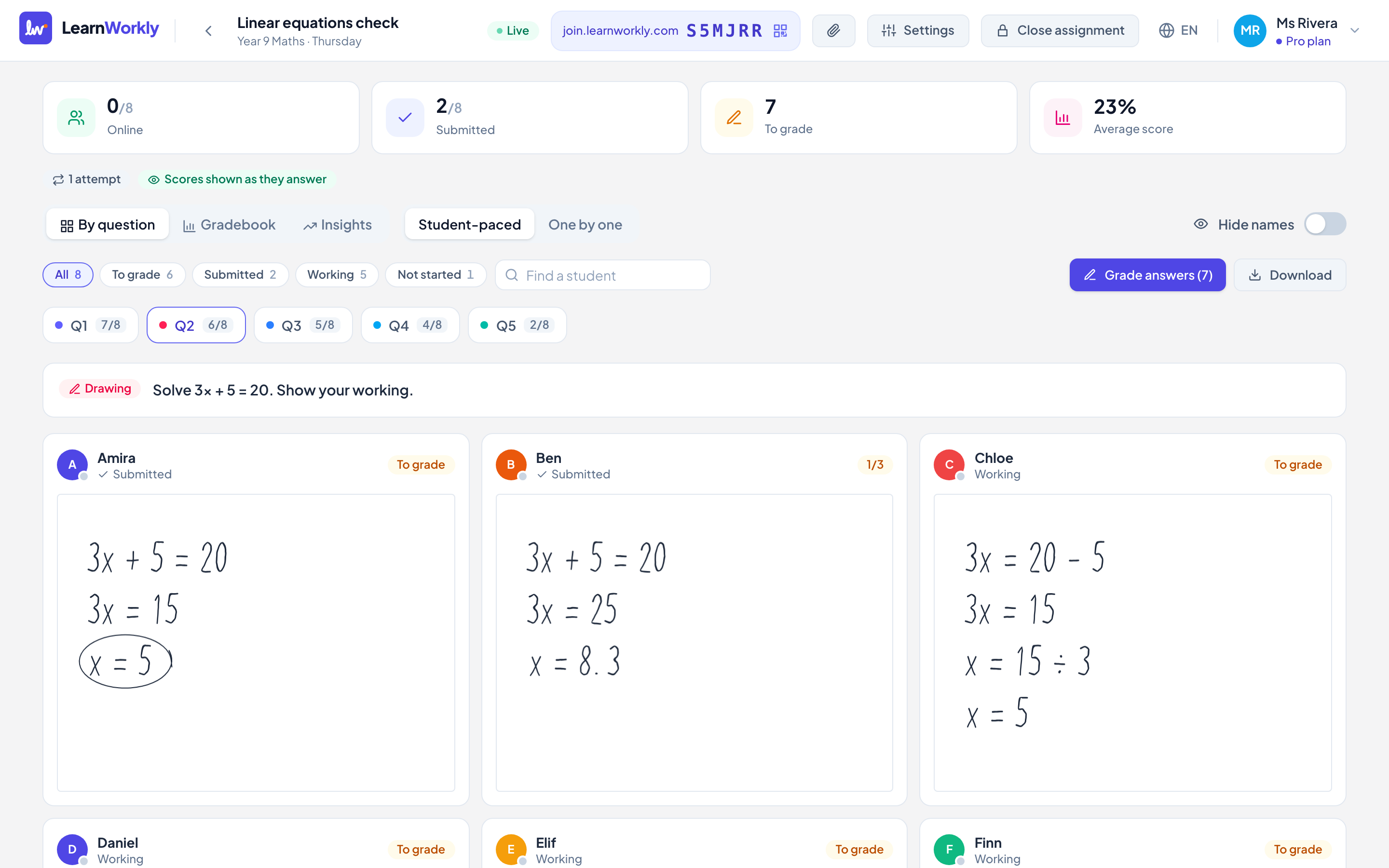
The student’s card shows a new badge, and in the Gradebook a dot appears on that question’s cell.
- 4
You answer
Open the answer. The whole exchange is under Conversation; write your answer and press Send.
Good to know
- Students can reply once there is feedback from you on that question; they cannot start a conversation on their own.
- Students reply in writing. Voice notes and drawings are for your feedback.
- Replies appear on your live view as soon as they are sent, without refreshing.
- Students can reply while they work, after they submit and after the assignment is closed.
Frequently asked questions
Do I get an email when a student replies?
No. Replies show on the live view of the assignment, with a new badge on the student’s card.
Can other students see the conversation?
No. Each conversation is only between you and that student.
Last checked against the app on 11 November 2026.
Related articles
- Give feedback on students’ workSend a written comment or a voice note on any answer, draw on a student’s drawing to circle a mistake, and the student sees it straight away.
- See every answer liveStart a live lesson from a class, watch each student’s answers and drawing appear as they work, and hide names before you share your screen.
- Mark answers and give pointsWhich question types are marked automatically, how to score open answers, use a rubric and grade a whole class quickly with keyboard shortcuts.